Key takeaways
- 60Hz to 144Hz monitor: Choose 1,000Hz. Consider 2,000Hz only if it is included and does not affect performance or battery life.
- 165Hz to 240Hz monitor: 1,000Hz remains good; 2,000Hz or 4,000Hz can be worthwhile for competitive FPS players.
- 360Hz to 540Hz monitor: A 4,000Hz or 8,000Hz mouse is easier to justify if your PC can maintain high frame rates.
Most shoppers make the same mistake with polling rate: they buy the highest number available before checking whether their PC, monitor, game, grip style, and budget can actually benefit from it. An 8,000Hz mouse is not automatically “better” for every player than a well-built 1,000Hz model. It can use more CPU resources, reduce wireless battery life, and cost substantially more.
Polling rate is simply how often a mouse sends position data to the computer. At 1,000Hz, it reports up to 1,000 times per second, or every 1 millisecond. At 4,000Hz, that interval falls to 0.25 milliseconds; at 8,000Hz, it is 0.125 milliseconds. Those are real differences, but whether they feel meaningful depends on the rest of your setup.
Our top picks
 Razer DeathAdder V3 Wired Gaming Mouse
- Enjoy a level of speed and control favored…
- Flawless tracking performance on a wider variety of…
- From an improved 90-million click lifecycle with zero…
 Razer Viper V3 Pro Wireless Esports Gaming
- Designed in collaboration with world-class esports pros, the…
- Experience pro grade tracking performance on a wider…
- 8000 Hz HYPERPOLLING TECHNOLOGY
 Razer DeathAdder V4 Pro Wireless Gaming Mouse
- Weighs just 56g with re-engineered ergonomic shape, enabling…
- Razer HyperSpeed Wireless Gen-2 delivers lower latency and…
- 45K DPI Focus Pro Optical Sensor Gen-2 with…
| Product | Key specs | |
|---|---|---|
| Razer DeathAdder V3 Wired Gaming Mouse | Enjoy a level of speed and control favored… Flawless tracking performance on a wider variety of… From an improved 90-million click lifecycle with zero… | Check price |
| Razer Viper V3 Pro Wireless Esports Gaming | Designed in collaboration with world-class esports pros, the… Experience pro grade tracking performance on a wider… 8000 Hz HYPERPOLLING TECHNOLOGY | Check price |
| Razer DeathAdder V4 Pro Wireless Gaming Mouse | Weighs just 56g with re-engineered ergonomic shape, enabling… Razer HyperSpeed Wireless Gen-2 delivers lower latency and… 45K DPI Focus Pro Optical Sensor Gen-2 with… | Check price |
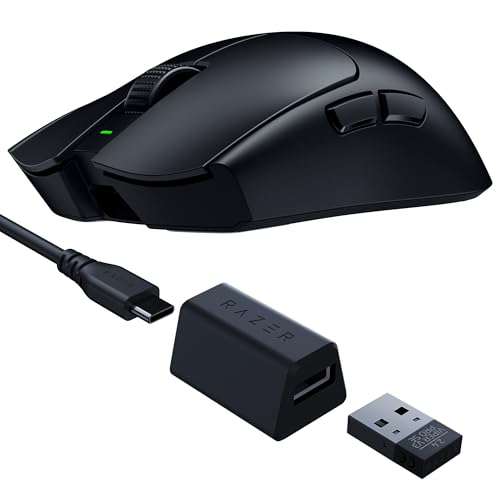 Razer Viper V3 Pro SE Wireless Gaming Razer Viper V3 Pro SE Wireless Gaming | Designed in collaboration with world-class esports pros, the… Experience pro grade tracking performance on a wider… With an optimized 1000 Hz polling rate USB-A… | Check price |
As an Amazon Associate we earn from qualifying purchases at no extra cost to you.
For most players in 2026, 1,000Hz remains a smart baseline. Competitive players with a fast display and a capable CPU may benefit from 2,000Hz, 4,000Hz, or 8,000Hz—especially in fast first-person shooters. The goal is not to chase the largest number. It is to choose the rate that makes your mouse feel consistent without compromising battery life, frame rate, comfort, or value.
Decide These 3 Things First
- What games do you play? Tactical shooters, arena shooters, battle royales, and competitive games with frequent fast flicks are the strongest candidates for 4,000Hz and 8,000Hz. Strategy games, RPGs, simulation games, and general work rarely require more than 1,000Hz.
- What is your monitor refresh rate? A 60Hz or 144Hz display will show less practical benefit from ultra-high polling than a 240Hz, 360Hz, 480Hz, or higher-refresh panel. You do not need to match polling rate to refresh rate, but faster displays make small input improvements easier to notice.
- Can your system sustain your preferred frame rate? High polling can add CPU overhead. If enabling 4,000Hz or 8,000Hz causes stutters or noticeably lowers frame rates in your main game, step down to 2,000Hz or 1,000Hz. Smooth, stable performance matters more than a maximum setting.
Game Type and Competitive Needs
Start with the game rather than the mouse specification. A high polling rate has the most relevance when you make rapid, precise movements and react to small positional changes on screen.
For casual single-player gaming, 500Hz to 1,000Hz is generally plenty. At 500Hz, the mouse updates every 2 milliseconds; at 1,000Hz, it updates every 1 millisecond. The difference is already responsive enough for nearly all noncompetitive uses.
For competitive shooters, use 1,000Hz as your minimum target. If you play titles where tracking and fast flicking matter, test 2,000Hz or 4,000Hz. These settings can make cursor motion data more granular, particularly when paired with a 240Hz-or-faster display. An 8,000Hz setting is best treated as an enthusiast or esports option—not a must-have feature.
For MMO, MOBA, and strategy players, button count, shape, side-button placement, and software reliability often matter more than moving from 1,000Hz to 8,000Hz. A stable 1,000Hz connection and comfortable shell will contribute more to long-session performance than an ultra-high report rate.
Monitor Refresh Rate and Frame Rate
Your display sets an important context for polling-rate choices. At 60Hz, the screen refreshes once every 16.67 milliseconds. At 144Hz, it refreshes every 6.94 milliseconds. A 240Hz panel refreshes every 4.17 milliseconds, while a 360Hz panel refreshes every 2.78 milliseconds.
Because an 8,000Hz mouse can report every 0.125 milliseconds, it provides far more input updates than even a 360Hz monitor can display in a single refresh cycle. That does not make 8,000Hz useless; it means the benefit is subtle and depends on the full input chain, including frame pacing, game engine behavior, and CPU performance.
A practical shopping guide looks like this:
- 60Hz to 144Hz monitor: Choose 1,000Hz. Consider 2,000Hz only if it is included and does not affect performance or battery life.
- 165Hz to 240Hz monitor: 1,000Hz remains good; 2,000Hz or 4,000Hz can be worthwhile for competitive FPS players.
- 360Hz to 540Hz monitor: A 4,000Hz or 8,000Hz mouse is easier to justify if your PC can maintain high frame rates.
Do not buy a new monitor solely to support higher mouse polling. Upgrade the display for its own motion clarity and responsiveness benefits, then choose a polling rate that complements it.
Wired vs. Wireless Connection
Wired mice are the simplest path to sustained 8,000Hz polling. There is no battery drain to manage, and models such as the Razer DeathAdder V3 Wired Gaming Mouse offer an 8,000Hz-capable connection in a lightweight 59-gram body. At about $50 to $70, this category can be an excellent value for players who do not mind a cable.
Wireless high-polling mice offer cleaner desk setups and unrestricted movement, but they can cost more and may use battery power quickly at their highest setting. A premium wireless model may advertise 80 to 95 hours of battery life under certain settings, but that figure should not be assumed to apply at 4,000Hz or 8,000Hz. Higher report rates generally reduce runtime.
If you play for 2 to 4 hours most evenings, a wireless mouse with a realistic 40-hour or longer runtime at your preferred polling setting is convenient. If you play 6 or more hours a day, consider a charging dock, a magnetic charging puck, or a mouse that can be used while charging through USB-C.
For tournament-style competitive play, a wired connection still offers straightforward reliability. For most home gaming desks, modern wireless models are excellent when used with the receiver positioned within roughly 8 to 12 inches of the mousepad rather than across the room behind a PC tower.
CPU Load, USB Setup, and Software Settings
High polling rates are not free. A mouse sending 8,000 reports per second gives the operating system and game more data to process than one sending 1,000 reports per second. On a strong modern gaming PC, this may be manageable. On an older processor, a laptop running hot, or a system already struggling to maintain target frame rates, the extra overhead may be counterproductive.
Test the setting in the games you actually play. Use 1,000Hz first, then try 2,000Hz, 4,000Hz, and 8,000Hz one step at a time. Play for at least 20 to 30 minutes per setting. Watch for frame-time spikes, hitching, unstable aim, or a drop in average frame rate. If any of those appear, lower the rate.
Use a direct motherboard USB port when possible. Avoid connecting a high-polling mouse through an overloaded unpowered hub shared with webcams, storage drives, and other accessories. If your mouse includes a dedicated wireless receiver extender, place it near the front edge of the desk.
Razer software typically lets you set polling rate by profile. That is useful: keep a 1,000Hz desktop profile for everyday use and a 4,000Hz or 8,000Hz profile for your primary competitive game. You get a quieter, more efficient setup outside of matches without giving up high-performance options when they matter.
Mouse Weight, Shape, and Sensor Control
Polling rate should never outweigh fit and control. A 54- to 59-gram mouse is light enough for fast low-sensitivity FPS movement, but the shape must still support your hand size and grip.
For reference, the Razer Viper V3 Pro is listed around 55 grams, while the Razer DeathAdder V4 Pro is listed around 56 grams. The DeathAdder V3 Wired is about 59 grams. These are all lightweight choices, but their shapes differ: the Viper-style design generally suits players who prefer a lower-profile ambidextrous form, while the DeathAdder family has a more pronounced right-handed ergonomic contour.
As a general guide, hands under about 7 inches long often do better with compact or low-profile shells. Hands from roughly 7 to 8 inches have the broadest selection. Players with hands longer than 8 inches may prefer a larger ergonomic body with fuller palm support. Measure from the tip of your middle finger to the crease at the base of your palm.
Choose a mousepad that supports your sensitivity. For low-sensitivity FPS play, a pad around 450 by 400 millimeters gives room for broad arm movements. A compact desk can work with a 360 by 300 millimeter pad, but a very high polling rate will not compensate for running out of tracking space during a flick.
Price Tiers and Smart Razer Buying
Razer polling-rate options appear across several price levels. The best value is often not the most expensive mouse; it is the model that gives you the shape, weight, and connection type you need.
- Budget: $45 to $75. Expect a wired lightweight mouse, often with 1,000Hz to 8,000Hz capability. The DeathAdder V3 Wired at approximately $57.99 is a strong example of why a wired model can make sense for high-polling gaming on a budget.
- Mid-range: $80 to $125. This range can include premium lightweight wireless designs on sale, such as a Viper V3 Pro SE listed around $99 or a Viper V3 Pro around $118.99. Confirm whether the included receiver supports the polling rate you want.
- Premium: $130 to $180. Expect flagship wireless construction, very low weight, advanced sensors, and high-polling support. A DeathAdder V4 Pro listed around $164.89 fits this category.
Paying an extra $50 to $100 for 8,000Hz only makes sense if you also value the mouse’s shape, switches, weight, wireless system, and build quality. If 1,000Hz feels excellent and your frame rate is stable, there is no reason to upgrade solely for a larger number.
Warranty, Charging, and Daily Practicality
Check the seller’s warranty terms and return window before opening packaging. A 14- to 30-day return period is especially useful because shape comfort cannot be judged from specifications alone. If a mouse causes finger strain, wrist tension, or grip instability after several sessions, a different shell is likely the better choice regardless of its polling rate.
For wireless models, verify what comes in the box: USB cable, receiver, receiver extender, and any high-polling wireless dongle. Some configurations may require a specific receiver to unlock 4,000Hz or 8,000Hz operation. Factor that into the actual purchase price.
No assembly is required beyond charging, connecting the receiver, and installing the configuration software. Set aside about 10 minutes for firmware updates and profile setup. Then give yourself several days to adapt before deciding whether a higher polling setting is genuinely improving your play.
Spec Checklist
| Spec | Budget | Mid | Premium |
|---|---|---|---|
| Typical price | $45–$75 | $80–$125 | $130–$180 |
| Recommended polling rate | 1,000Hz–8,000Hz wired | 1,000Hz–4,000Hz wireless | 1,000Hz–8,000Hz wireless |
| Connection | Wired USB | Wireless or wired | Wireless with wired charging use |
| Target weight | 55–75g | 54–65g | 50–60g |
| Best monitor pairing | 60Hz–180Hz | 144Hz–360Hz | 240Hz–540Hz |
| Best buyer | Value-focused competitive player | Regular wireless gamer | Esports-focused enthusiast |
Red Flags
- Buying 8,000Hz while playing mostly on a 60Hz display and expecting a dramatic change.
- Using maximum polling rate despite visible stutters, frame drops, or inconsistent frame pacing.
- Assuming a wireless mouse includes the receiver needed for its highest polling setting.
- Choosing a mouse solely by sensor or polling-rate claims without checking shape, grip, and weight.
- Ignoring battery-life tradeoffs on wireless models at 4,000Hz or 8,000Hz.
- Plugging the receiver into a crowded hub far from the mousepad.
- Paying flagship pricing for features you will leave set to 1,000Hz.
FAQ
Is 8,000Hz polling rate worth it for gaming?
It can be worthwhile for competitive FPS players using a 240Hz, 360Hz, or faster display with a powerful PC. For most players, 1,000Hz is already highly responsive, while 2,000Hz or 4,000Hz is a more balanced upgrade path.
Does higher polling rate improve aim?
It can provide more frequent movement updates, but it does not replace aim training, good sensitivity settings, a suitable mouse shape, or stable frame rates. If high polling creates stutters, it can hurt consistency rather than help it.
What polling rate should I use on a Razer wireless mouse?
Start at 1,000Hz for daily use. Move to 2,000Hz or 4,000Hz for competitive games if battery life and system performance remain acceptable. Use 8,000Hz when your receiver, PC, game, and display support it comfortably.
Will 8,000Hz drain battery faster?
Yes. Wireless mice generally consume more power as polling rate rises because they transmit data more frequently. If you want the longest time between charges, use 1,000Hz outside of competitive sessions.