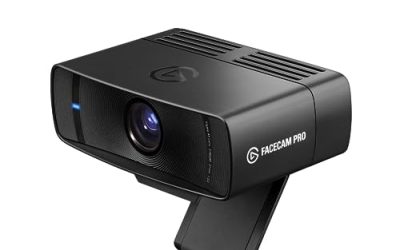
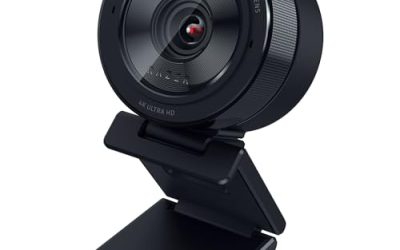
Key takeaways
- Find the best 4k webcams mac users can rely on for sharp calls, streaming and recording, with advice on resolution, low light, framing and macOS compatibility.
As an Amazon Associate we earn from qualifying purchases.
Picking a 4K webcam for a Mac is a decision about how you want to look on camera, and how much control you want. A built-in laptop camera can handle a quick call, but it flattens detail, struggles in dim rooms, and leaves you framed wherever the laptop sits. A 4K camera brings sharper edges, cleaner colour, and a wider or tighter view, yet the wrong one can also mean fiddly software, a mount that slips, or a picture that looks worse than the sensor promises.
This guide is written for Mac owners who want that step up without guessing. Remote workers who spend hours on video calls, streamers and creators recording from a desk, teachers and presenters who need to stay in frame while they move, and anyone replacing a tired built-in camera will find the criteria below useful. The cameras discussed here were compared using names and specifications on their Amazon product pages, so check the listing for your Mac model and macOS version before you buy.
How to Choose
True 4K Resolution and Frame Rate
A webcam that calls itself 4K should capture a genuinely detailed image at that resolution, not simply upscale a smaller picture. Look for a listing that states the capture resolution and the frame rate together, because 4K at 30 frames per second behaves very differently from 4K at 60 frames per second when you move, gesture, or turn your head. Higher frame rates keep motion smoother, while a steady 30 frames per second is usually enough for seated calls. A clear statement of resolution, frame rate, and any upscaling in the listing tells you far more than the word 4K on its own.
Sensor Size and Low-Light Performance
Sensor size shapes how a webcam copes when your room is not brightly lit, and Mac users often work in living rooms, bedrooms, and home offices with mixed lighting. A larger sensor gathers more light, which usually means less grain, softer noise, and more natural skin tones in the evening or on a cloudy day. Look for mentions of the sensor size, low-light correction, and automatic exposure in the product description, and treat vague claims about brightness with care. If you call from a dim room, put low-light behaviour near the top of your list.
Autofocus, Field of View, and Framing
Autofocus keeps your face sharp when you lean in to read a note or lean back to think, while a fixed-focus camera can drift soft at exactly the wrong moment. Field of view decides how much of the room appears behind you: a narrow view suits a tidy desk and a single speaker, a medium view suits a pair of presenters, and a wide view suits a whiteboard or a demonstration. Check whether the focus range, the field of view, and any zoom are stated plainly, and think about the distance between your chair and the camera before you settle on a number.
macOS Compatibility, Connection, and Software
A webcam for a Mac has to work with macOS first, not as an afterthought, so read the compatibility section of the listing before anything else. Confirm the supported macOS versions, whether the camera is recognised without extra drivers, and which apps it is listed for, such as common video calling and streaming tools. Also check what the companion software controls on a Mac, because some settings, such as exposure, white balance, or framing, may only be adjustable on another system. A camera that plugs in and appears in your app straight away saves a long evening of troubleshooting.
Which One Fits Your Situation
You Work From Home and Take Calls All Day
If your Mac is your office, choose a camera that looks good in ordinary room light and stays sharp through long meetings. A reliable autofocus, a natural field of view, and a microphone that picks up your voice without catching every keystroke matter more than dramatic extra features. Mount it at eye level on your monitor,
You Stream or Record Content From Your Desk
Creators need a camera that holds detail when the video is watched full screen, not just in a small call window. A true 4K image, smooth motion, and manual control over exposure and colour help your recordings look consistent from one session to the next, and a mount that stays put saves you from reframing before every take.
You Teach, Present, or Move Around While You Talk
Presenters who stand, gesture, or walk to a whiteboard need a camera that follows the action instead of leaving them half out of frame. A camera with tracking or a wide adjustable view can keep you centred as you move, while a fixed camera may need a second person to reframe it.
You Want a Simple Upgrade From the Built-In Camera
If you only want a clearer picture with little fuss, keep the setup simple and skip features you will never open. A plug-and-play camera with sensible automatic settings and a privacy shutter covers most everyday calls. Place it on top of your display, check that it does not block the screen, and spend your remaining effort on lighting and a quiet room rather than on extra software.
Common Mistakes
- Buying on the word 4K alone. A label that says 4K does not guarantee a sharp, detailed picture, because some cameras upscale a lower-resolution image or drop to a lower resolution in the app you actually use. Read the listing for the capture resolution and frame rate together, check whether upscaling is mentioned, and look for the sensor size and focus type alongside them. A camera with honest specifications and a solid sensor often looks better in a real call than a camera with a bolder label and a smaller sensor. Before you shortlist anything, decide what you need the picture for, whether that is a small call window or a full-screen recording, and judge the specifications against that use rather than against the headline alone. That habit keeps the focus on the picture you will actually send, not on a headline that says little about daily use.
- Ignoring how the camera behaves on macOS. A webcam can be excellent on one system and awkward on another, and Mac owners feel that gap most when software settings are missing. Some companion apps offer full control on one platform and only basic settings on macOS, while some features, such as custom framing or colour tuning, may not appear at all. Check the listing and the software notes for macOS support, confirm the macOS versions covered, and look for reports from Mac users describing what worked and what did not. If a feature matters to you, such as manual exposure or a particular field of view, confirm that you can reach it from your Mac before you buy, rather than discovering the gap after the camera arrives.
- Mounting the camera too high, too low, or too far away. Position changes how you look more than most specifications do, and a camera perched above a tall monitor or sitting on a low shelf can make you look distant or distorted. A lens at eye level, roughly an arm’s length away, gives the most natural framing for a seated call, while a camera placed far back makes your face small even at 4K. Test the mount on your own display, check that the clip grips the bezel without slipping, and sit in your usual chair to see the framing before your first important call. A tripod can help when a monitor mount does not suit your desk, and a small adjustment to height often does more for your image than a change of camera.
- Forgetting light, sound, and the background. A strong camera cannot fix a dark room, a noisy microphone, or a distracting background, and those three factors shape how professional you appear. Light falling on your face from the front, rather than from a window behind you, keeps your features clear and stops the camera from turning you into a silhouette. A microphone that sits close to you, or a quiet room with soft furnishings, keeps your voice clear without echo. Tidy the space behind you, close the door to household noise, and run a short test recording so you can hear and see the result as your audience will.
- Skipping a test call before the meeting that matters. A new camera deserves a trial run, because small problems only show up when you are actually on camera. Run a test call with a friend or record a short clip, then watch it back for focus drift, odd colour, flicker under your room lights, and audio that cuts in and out. Check that your calling app has selected the new camera and microphone, that the framing still suits your chair position, and that nothing in the background distracts from you. A ten-minute test can reveal a loose cable, a wrong app setting, or a mount that slowly tilts, and each of those is far easier to fix before a client call than during one.
Frequently Asked Questions
Do all 4K webcams work with a Mac?
Most modern USB webcams are recognised by macOS without extra drivers, but full support varies from model to model. Check the listing for macOS compatibility, the supported macOS versions, and whether the companion software offers the same settings on a Mac. A short test call after setup will confirm that your apps see the camera correctly.
Is 4K worth it for everyday video calls?
It can be, if your calling app and connection preserve enough detail for the other person to see it. Many apps downscale video, so the gain is largest in recordings, streams, and calls where the picture is shown large. Even then, good lighting, steady focus, and a sensible frame rate often matter as much as resolution.
What frame rate should I look for in a 4K webcam?
For seated calls, 4K at 30 frames per second usually looks smooth enough, while faster movement benefits from 60 frames per second. Check that the listing states the frame rate at 4K, not only at a lower resolution, and confirm that your Mac and app can sustain it. A stable lower frame rate beats a higher one that stutters.
How do I stop a 4K webcam looking dark on a Mac?
Start with light on your face from the front, such as a lamp behind the camera or a window to one side, and avoid bright light directly behind you. Then check the camera settings for exposure and low-light correction, and test the result in your usual app. If the image stays dark, a larger sensor or a brighter room will help more than a new label.
FAQ
Do all 4K webcams work with a Mac?
Is 4K worth it for everyday video calls?
What frame rate should I look for in a 4K webcam?
How do I stop a 4K webcam looking dark on a Mac?
More from Amazon
Programs that pair well with the guide above. Offers and eligibility are set by Amazon and may change.
Free shipping on eligible items, Prime Video and more. Eligible new members can start with a free trial.
Start a Prime free trialAd-free music streaming. Eligible new subscribers can start with a free trial.
Try Music Unlimited freeA Prime membership for ages 18-24 with a trial period. Eligibility is set by Amazon.
See Prime for Young AdultsAudiobooks and podcasts to listen to on the go. Eligible new members can start with a free trial.
Try Audible freeAs an Amazon Associate we earn from qualifying purchases.