Our Top Picks
A stream that stutters pulls the eye away from the game, and a webcam that drops frames makes every quick gesture look choppy. The real decision is not which webcam looks sharpest in a still photo, but which one holds smooth motion while you play, talk, and move. Frame rate decides that smoothness, and most webcams still top out at 30 frames per second. A high-FPS webcam keeps hand movements, head turns, and on-screen action fluid, so the picture feels live instead of laggy.


This guide is for Twitch and YouTube streamers who want fluid motion, for gamers who stream with a face camera, and for creators who record gameplay commentary. It also helps remote workers who want smoother video on calls. The five webcams below were chosen from names and specifications listed on their Amazon product pages, with a focus on models that record at 60 frames per second in at least one resolution.
Quick Picks
As an Amazon Associate we earn from qualifying purchases
| Product | Best for | Key spec from title |
|---|---|---|
| Elgato Facecam Pro | 4K60 streaming at the highest quality | True 4K60 |
| OBSBOT Tiny 2 | Moving around on camera while streaming | 4K60 with PTZ tracking |
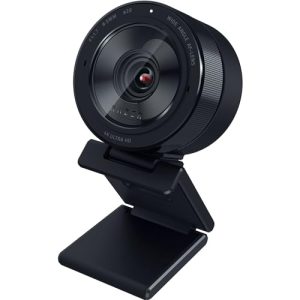
| Razer Kiyo Pro Ultra | Low-light streaming with a large sensor | 1080p60, 1/1.2-inch sensor |
| Logitech MX Brio | Work calls and streaming from one desk | 1080p60, Show Mode |
| Razer Kiyo Pro | A simple 1080p60 upgrade | 1080p60 HDR |
How to Choose
Frame Rate First: What 60 FPS Changes
At 30 frames per second, fast hand movements smear and quick head turns jump between positions. At 60 frames per second, the same motion stays smooth, and viewers stop noticing the camera altogether. That difference matters most when you gesture a lot, lean in and out of frame, or show physical objects on stream. For a mostly static talking-head stream, 30 frames per second looks fine, and the extra frames add little. Check the resolution tied to the frame rate, though: several webcams in this guide reach 60 frames per second only at 1080p, while their 4K mode runs at 30. Decide which combination fits your stream before you buy.
Resolution or Frame Rate: Pick Your Priority
A 4K picture shows more detail, so a 4K webcam suits creators who crop, zoom, or show close-ups of gear on stream. A 1080p picture at 60 frames per second looks smoother in motion, so it suits fast gameplay commentary and energetic presenters. You cannot always have both: uncompressed 4K at 60 frames per second needs a USB 3.0 port, a modern processor, and streaming software set to match. Older laptops and USB 2.0 ports often force the camera down to 30 frames per second or a lower resolution. Pick the trade-off that matches your machine and your content, not the biggest number on the box.
Sensor Size and Low Light
A larger sensor gathers more light, so the picture stays clean when the room is dim and the background blur looks more natural. The Razer Kiyo Pro Ultra uses a 1/1.2-inch Sony STARVIS 2 sensor, the largest in this guide, while the Elgato Facecam Pro uses a 1/1.8-inch Sony STARVIS sensor. A bright lens helps too: an f/1.7 aperture lets in more light than an f/2.0 lens, which matters for evening streams in a room with one lamp. Even so, no webcam fixes a dark room on its own. A single key light in front of you does more for image quality than any sensor upgrade, so budget for light as well as glass.
Autofocus, Tracking, and Field of View
Autofocus keeps your face sharp when you lean toward the camera to read chat or show an item, while a fixed-focus lens only stays sharp at one distance. Face tracking goes further: the OBSBOT Tiny 2 physically pans and tilts to follow you around the room, and the Kiyo Pro Ultra tracks your face in software. Field of view decides how much of the room appears behind you. A wide 90-degree view suits streamers who show their whole setup, while a narrower view near 65 degrees keeps the frame tight on one person. A built-in privacy shutter is worth having when the camera sits on a work monitor all day.
The 5 Best Options
Elgato Facecam Pro
The Facecam Pro is the only webcam here that records true 4K at 60 frames per second, and it is built for streamers who want the sharpest possible picture. Its large 1/1.8-inch Sony STARVIS sensor and f/2.0 autofocus lens hold detail in dim rooms, and the 90-degree field of view fits a full desk setup in frame. Camera Hub software adds manual focus, exposure control, and cinematic pan, tilt, and zoom without pixelation. Onboard memory keeps those settings every time you go live. The body is compact for a flagship, and the USB-C connection works with Windows and Mac machines.
Specs
- True 4K60: 2160p60, 2160p30, 1080p60, 1080p30, 720p60, 720p30
- Sensor: Sony STARVIS CMOS, 1/1.8-inch
- Lens: Elgato Premium autofocus lens, f/2.0, 21 mm, 90-degree field of view
- Focus range: 40 cm to infinity, manual or autofocus
- Connection: USB Type-C, UVC compatible
- Weight: 240 g without mount
- In the box: Facecam Pro, mount with 1/4-inch thread, USB-C to USB-C cable, quick start guide
Best for: Streamers who want true 4K60 video.
Watch out for: No built-in microphone — pair it with a separate mic. One tracker showed the listing as currently unavailable on Nov 24, 2026, so confirm availability before ordering.
OBSBOT Tiny 2
The Tiny 2 is the pick for streamers who move. Its motorized pan-tilt head follows you around the room with four tracking modes, including upper-body, close-up, hand, and zone tracking, so you can stand, pace, or show items without leaving frame. The 1/1.5-inch CMOS sensor records 4K at 60 frames per second with HDR light correction, and autofocus locks on in 0.3 seconds. Voice commands and gesture control let you start tracking or zoom without touching the keyboard. Beauty, desktop, whiteboard, portrait, and group modes cover meetings as well as streams.
Specs
- 4K video at 60 frames per second with HDR light correction
- Sensor: 1/1.5-inch CMOS
- AI tracking: 4 modes — upper body, close-up, hand, zone
- Autofocus: all-pixel autofocus in 0.3 seconds
- Control: voice commands and gesture control 2.0
- Connection: USB 3.0; Windows 10 or later, macOS 11 or later
- Weight: 5.1 ounces
- Not discontinued by manufacturer
Best for: Streamers who move around the room on camera.
Watch out for: The listing notes the camera may get warm during use and says that is normal. It needs a fairly modern PC — 7th-generation Core i5 or later with 8 GB of RAM.
Razer Kiyo Pro Ultra

The Kiyo Pro Ultra pairs the largest sensor in this guide with 1080p60 video, making it the strongest low-light pick for streamers who stay seated. Its 1/1.2-inch Sony STARVIS 2 sensor and f/1.7 lens pull in far more light than a typical webcam, and AI face tracking, autofocus, and auto exposure keep you sharp as you move. HDR at 30 frames per second adds detail in bright and dark areas, and uncompressed 4K at 24 frames per second or 1080p at 60 frames per second keeps the picture clean. A built-in microphone and privacy shutter round out a desk-ready package.
Specs
- Max resolution: 4K at 30 FPS, 1080p at 60 FPS
- Sensor: 1/1.2-inch Sony STARVIS 2, 2.9 micrometer pixels
- Lens: f/1.7, 8.5 mm, field of view 73.4 to 82 degrees
- HDR at 30 FPS; uncompressed 4K 24 FPS or 1080p 60 FPS
- AI face tracking, autofocus, auto exposure
- Built-in microphone and privacy shutter
- Connection: USB Type-A to Type-C; Synapse software
- Weight: 1.5 pounds
Best for: Seated streamers who stream in dim rooms.
Watch out for: At 1.5 pounds it is heavy for a webcam, so use a sturdy mount or tripod. HDR works at 30 frames per second only, not at 60.
Logitech MX Brio

The MX Brio is the most versatile camera here, built for a desk that handles both streams and work calls. It records 4K at 30 frames per second or 1080p at 60 frames per second, with a sensor Logitech describes as its largest yet and pixels 70 percent larger than earlier models. Dual omni-directional microphones with noise reduction keep your voice clear without a separate mic, and Show Mode tilts the camera down to share notes or objects on the desk. The field of view switches between 65, 78, and 90 degrees, and an integrated privacy shutter covers the lens when the workday ends.
Specs
- 4K at 30 FPS or 1080p at 60 FPS
- Sensor: CMOS, Logitech’s largest webcam sensor yet, 70 percent larger pixels
- Field of view: 65, 78, and 90 degrees
- Microphones: dual omni-directional with noise-reducing technology
- Show Mode: tilt down to share desk work
- Privacy shutter: integrated
- Connection: USB-C; Windows, macOS, ChromeOS, Linux
- Weight: 0.79 pounds; 1-year limited hardware warranty
Best for: A desk used for both streaming and work calls.
Watch out for: 4K tops out at 30 frames per second — 60 frames per second is 1080p only. Fine image controls need the Logi Options+ app.
Razer Kiyo Pro

The Kiyo Pro is the straightforward 1080p60 pick in this guide, and its age works in its favor: it has been a streaming staple since 2021, and its HDR support keeps bright windows and dark corners in balance. The adaptive light sensor adjusts to changing room light, and the wide-angle lens with adjustable field of view fits one person or a small group in frame. It connects over USB, works with OBS and XSplit, and pairs with Razer Synapse for settings. For streamers who want smooth 1080p video without paying for 4K they will not use, it covers the basics well.
Specs
- Full HD 1080p at 60 FPS, HDR enabled
- Sensor: adaptive light sensor, 2.1 MP
- Lens: wide-angle with adjustable field of view
- Connection: USB, USB 3.0 recommended for best streaming performance
- Works with OBS, XSplit, Twitch, Zoom, Teams
- Weight: 6.9 ounces
- Model: RZ19-03640100-R3U1; first available February 23, 2021
Best for: Streamers who want proven 1080p60 video without 4K.
Watch out for: No 4K mode at all, and it is a 2021 model, so confirm the listing is the current one before ordering.
Which One Fits Your Situation
For Twitch and YouTube Live Streams
Pick the Elgato Facecam Pro if your stream runs at 4K, since it is the only camera here with true 4K60. Pick the OBSBOT Tiny 2 if you present standing up or move between your desk and a whiteboard, because its tracking head follows you. Either way, feed the camera a USB 3.0 port and set your streaming software to 60 frames per second, or the extra smoothness never reaches your viewers.
For a Desk That Doubles as a Meeting Room
Pick the Logitech MX Brio. Its dual microphones and Show Mode suit calls and screen sharing, and the privacy shutter covers the lens between meetings. The 1080p60 mode keeps video smooth on calls, while 4K30 suits recorded presentations. If your workday ends with a stream, the same camera handles both without swapping hardware.
For Moving Around on Camera
Pick the OBSBOT Tiny 2. Its pan-tilt head and four tracking modes keep you centered while you walk, teach, or demonstrate gear, and gesture control starts tracking without a keyboard. Fixed webcams force you to stay in one spot, which looks stiff on longer streams. Give the Tiny 2 a clear view of the room and a USB 3.0 port, and keep the tracking area free of clutter.
For a First 60 FPS Upgrade
Pick the Razer Kiyo Pro if you stream at 1080p and want smooth motion without changing anything else about your setup. It mounts like any webcam, works with OBS and XSplit, and its HDR support handles mixed lighting. If you later want 4K, the Facecam Pro or Kiyo Pro Ultra is the next step, but for a first jump from 30 to 60 frames per second, the Kiyo Pro does the job.
Common Mistakes
- Buying a 4K webcam and assuming it records 4K at 60 frames per second — several models in this guide only reach 60 at 1080p.
- Plugging a 4K60 webcam into a USB 2.0 port, which forces lower resolutions or frame rates.
- Skipping lighting and expecting the sensor to fix a dark room — a key light matters more than sensor size.
- Choosing a webcam without a privacy shutter for a camera that stays mounted on a work monitor.
- Forgetting the microphone: the Facecam Pro has no built-in mic, so budget for a separate one.
Frequently Asked Questions
Do I need 60 fps for streaming?
Not always. A talking-head stream looks fine at 30 frames per second, and most viewers will not notice the difference. 60 frames per second matters when you move a lot, gesture, play fast games on camera, or show physical objects. If your content is mostly still, spend the money on lighting or a better microphone first, and upgrade the frame rate later.
Can these webcams record 4K at 60 fps?
Only the Elgato Facecam Pro and the OBSBOT Tiny 2 in this guide record 4K at 60 frames per second. The Razer Kiyo Pro Ultra and Logitech MX Brio top out at 4K30 and reach 60 frames per second only at 1080p, while the Razer Kiyo Pro is 1080p only. Check the resolution tied to the frame rate on the listing before you buy.
Will a 60 fps webcam work on an older laptop?
Usually, with limits. Most high-FPS webcams need a USB 3.0 port and a reasonably modern processor to hold 60 frames per second, especially at 4K. On an older laptop, the camera may drop to 30 frames per second or a lower resolution. Check the system requirements on the listing and test the frame rate in your streaming software before going live.
Do I still need a separate microphone?
For most of these webcams, yes if audio matters to your stream. The Kiyo Pro Ultra and MX Brio have built-in microphones that work for calls, but a dedicated mic sounds cleaner on a stream. The Elgato Facecam Pro has no built-in microphone at all, so it needs one. Even a basic USB mic placed close to you beats any webcam mic.
FAQ
Do I need 60 fps for streaming?
Can these webcams record 4K at 60 fps?
Will a 60 fps webcam work on an older laptop?
Do I still need a separate microphone?
More from Amazon
Programs that pair well with the guide above. Offers and eligibility are set by Amazon and may change.
Free shipping on eligible items, Prime Video and more. Eligible new members can start with a free trial.
Start a Prime free trialAd-free music streaming. Eligible new subscribers can start with a free trial.
Try Music Unlimited freeA Prime membership for ages 18-24 with a trial period. Eligibility is set by Amazon.
See Prime for Young AdultsAudiobooks and podcasts to listen to on the go. Eligible new members can start with a free trial.
Try Audible freeAs an Amazon Associate we earn from qualifying purchases.