Our Top Picks
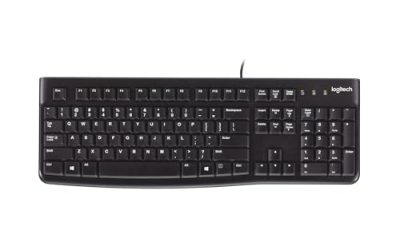
 Logitech MX Keys S Wireless Keyboard Low Profile1.701.56 x 5.81 x 17.74 inches1.79 poundsCheck on Amazon
Introduction
A MacBook already has a capable built-in keyboard, yet many people still want a separate keyboard for a desk setup or for longer typing sessions. An external keyboard lets you raise the MacBook screen to a comfortable viewing height and place the keyboard where your hands rest naturally. The best keyboards for MacBooks respect how macOS works, with Command and Option keys in the right places and a connection method that pairs cleanly with a MacBook.
Choosing well matters because not every keyboard is designed with Mac users in mind. Some ship with a Windows-first layout, so the modifier keys sit in unfamiliar positions. Others connect only through a USB-A receiver, which is awkward on a modern MacBook that uses USB-C ports. A keyboard made for Mac use, or one with a clear Mac mode, avoids those frustrations.
This guide focuses on keyboards that work well with MacBooks in everyday use: a full-size wireless keyboard with a numeric keypad, the official Apple keyboard with Touch ID, a compact mechanical keyboard with a Mac layout, and a small portable keyboard for travel. Each one connects by Bluetooth or USB-C and includes Mac-compatible key legends or a Mac mode. Use the comparison table to narrow the list, then read the detailed sections to find the typing feel, size, and feature set that fits your setup.
At a Glance
| Keyboard | Layout | Connection | Backlight | Best For |
|---|---|---|---|---|
| Logitech MX Keys S Wireless Keyboard | Full-size with numeric keypad | Bluetooth, USB-C | Yes, smart illumination | Long typing sessions at a desk |
| Apple Magic Keyboard with Touch ID and Numeric Keypad | Full-size with numeric keypad | Bluetooth, USB-C | No | A seamless Apple setup with Touch ID |
| Keychron K2 Version 2 Wireless Mechanical Keyboard | 75 percent, compact | Bluetooth, USB-C wired | Yes, RGB LED | Mechanical typing feel in a compact frame |
| Logitech K380 Multi-Device Bluetooth Keyboard | Compact, no numeric keypad | Bluetooth | No | Travel and switching between devices |
Logitech MX Keys S Wireless Keyboard
Logitech MX Keys S Wireless Keyboard
The Logitech MX Keys S is a full-size wireless keyboard built for people who type for long stretches and want a quiet, low-profile feel. Its spherically dished keys are shaped to guide fingertips toward the center of each key, which helps keep typing comfortable and accurate across a full workday. The keyboard includes a numeric keypad, a full function row, and dedicated keys for common actions, so it works well for writing, spreadsheets, email, and general office work alongside a MacBook.
Mac compatibility is a central part of the design. The MX Keys S lists macOS among its supported systems, and its key legends include Mac modifier labels, so Command, Option, and Control are easy to find. It connects by Bluetooth to up to three devices and can also charge and run over USB-C. Smart illumination turns the backlight on as your hands approach and adjusts it to the surrounding light. Logitech Options software for macOS lets you remap keys and assign app-specific shortcuts.
Listing Features
- Low-profile, spherically dished keys for fluid and quiet typing
- Full-size layout with numeric keypad and dedicated function keys
- Bluetooth connection for up to three devices with Easy-Switch keys
- Smart backlighting that adjusts to ambient light and hand proximity
- USB-C rechargeable battery
- Mac-compatible key legends with Command and Option labels
- Programmable keys through Logitech Options software for macOS
Considerations
- The full-size frame needs more desk space than a compact keyboard, so measure your desk before choosing it.
- The keyboard is heavier than travel keyboards, which makes it better suited to a fixed desk than a bag.
- Custom key assignments require installing Logitech software on the MacBook.
- The Pale Grey colorway in this listing may show marks more readily than darker finishes, so regular cleaning helps keep it looking neat.
Apple Magic Keyboard with Touch ID and Numeric Keypad
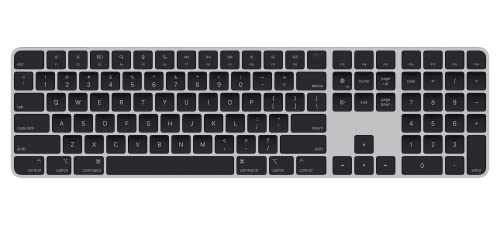
Apple Magic Keyboard with Touch ID and Numeric Keypad
The Apple Magic Keyboard with Touch ID and Numeric Keypad is the most seamless choice for a MacBook owner who wants an external keyboard that behaves exactly like an Apple keyboard. It uses the same low-profile scissor mechanism and key spacing as recent Apple keyboards, so the typing feel is familiar from the first minute. The aluminum enclosure matches the look of a MacBook and an Apple desktop setup, and the keyboard pairs over Bluetooth with a Mac that has Apple silicon.
Touch ID is the defining feature of this model. The fingerprint sensor sits in the top-right corner and lets you unlock a compatible Mac, authorize purchases, and sign in to supported apps with a touch. Touch ID on an external keyboard works with Mac models that use Apple silicon, so check that your MacBook supports it before choosing this model for that feature alone. The numeric keypad makes number entry faster for spreadsheets and data work. The keyboard charges over USB-C, and the internal battery is designed to last for a month or more between charges in typical use. There is no backlight, which keeps the design thin and helps battery life.
Listing Features
- Touch ID sensor for unlocking and authentication on Mac models with Apple silicon
- Full-size layout with numeric keypad and document navigation keys
- Low-profile scissor-switch keys with a familiar Apple typing feel
- Aluminum enclosure in a black-keys finish
- Bluetooth wireless connection with USB-C charging
- Rechargeable battery designed for extended use between charges
- No extra software required on macOS
Considerations
- Touch ID requires a Mac with Apple silicon, so the sensor will not unlock older Intel-based MacBooks.
- There is no backlight, which may matter if you often type in dim rooms.
- The keyboard is designed for Mac use, so it is not the right pick if you regularly switch to a Windows computer and want Windows key legends.
- The full-size layout needs a wide desk or a keyboard tray, and the numeric keypad adds width on the right side.
Keychron K2 Version 2 Wireless Mechanical Keyboard

Keychron K2 Version 2 Wireless Mechanical Keyboard
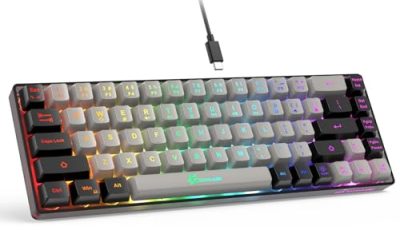
The Keychron K2 Version 2 is a compact mechanical keyboard for MacBook owners who prefer a tactile, clicky typing feel and a smaller footprint than a full-size board. Its 75 percent layout keeps the function row, arrow keys, and most navigation keys while dropping the numeric keypad, so it takes up less desk space and leaves more room for a trackpad or mouse beside it. The aluminum frame gives the keyboard a solid feel on the desk, and the RGB LED backlight adds visibility in low light.
Mac support is built into the hardware. The K2 ships with a physical switch that changes the keyboard between Mac and Windows modes, and it includes extra keycaps for both layouts, so the Command and Option keys sit in the correct Mac positions. It connects by Bluetooth to up to three devices and can also connect by USB-C cable. The model in this listing uses Gateron G Pro Blue switches, which have a distinct tactile bump and an audible click. That feedback suits many typists, but it is louder than the other keyboards in this guide, so it may not suit a shared office or a quiet library.
Listing Features
- 75 percent layout with 84 keys, function row, and arrow keys
- Mechanical Gateron G Pro Blue switches with tactile and audible feedback
- Physical Mac and Windows mode switch with Mac keycaps included
- Bluetooth connection for up to three devices plus USB-C wired mode
- RGB LED backlight with adjustable lighting modes
- Aluminum frame for a sturdy desk feel
- USB-C rechargeable battery
Considerations
- Blue switches are louder than the other keyboards in this guide, so consider your environment before choosing them.
- The 75 percent layout has no numeric keypad, which may slow number-heavy work.
- The keyboard is taller and heavier than a low-profile Apple or Logitech keyboard, so a wrist rest may help during long sessions.
- Check the listing variant carefully, because switch type, backlight color, and hot-swap support can vary between Keychron K2 configurations.
Logitech K380 Multi-Device Bluetooth Keyboard
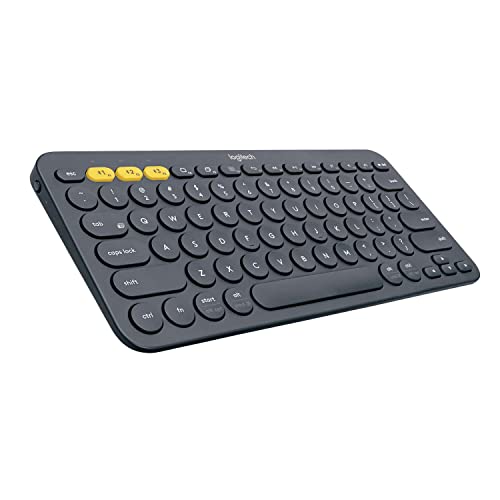
Logitech K380 Multi-Device Bluetooth Keyboard
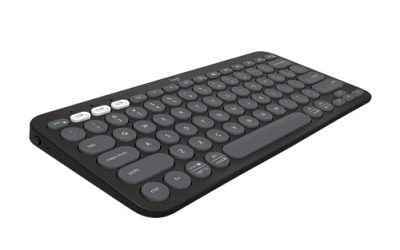
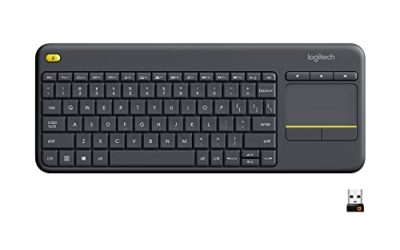
The Logitech K380 is a compact Bluetooth keyboard for MacBook owners who want a light, portable keyboard that can move between a MacBook, a tablet, and a phone. It uses round, low-profile keys in a small frame with no numeric keypad, so it slips easily into a laptop bag or a backpack pocket. The keyboard runs on two AAA batteries, and the battery life is designed to last for extended periods in typical use, so it is a practical companion for travel, study, and shared desks.
Multi-device switching is the main strength of the K380. Three Easy-Switch keys let you pair the keyboard with up to three Bluetooth devices and move between them with one press, so you can type on a phone, switch to a MacBook, and then move to a tablet without re-pairing. The keyboard lists macOS, iPadOS, Windows, ChromeOS, and Android among its supported systems, and its key legends include Mac modifier labels. The typing feel is quiet and laptop-like, with short key travel. It has no backlight, so it suits bright rooms and daytime use more than dark rooms.
Listing Features
- Compact frame with round, low-profile keys and no numeric keypad
- Bluetooth connection for up to three devices with Easy-Switch keys
- Mac-compatible key legends with Command and Option labels
- Quiet, laptop-like typing feel with short key travel
- Runs on two AAA batteries with extended battery life in typical use
- Works with macOS, iPadOS, Windows, ChromeOS, and Android
- Lightweight design that fits easily in a laptop bag
Considerations
- There is no backlight, so the keys can be hard to see in a dark room.
- The compact layout has no numeric keypad and no dedicated function row in the traditional sense, so number entry and some shortcuts take more steps.
- The round keycaps feel different from a standard rectangular keyboard, so allow a short adjustment period.
- The keyboard uses replaceable AAA batteries rather than a rechargeable USB-C battery, so keep spare batteries on hand for travel.
How to Choose
Start with layout and size. A full-size keyboard with a numeric keypad suits spreadsheets, accounting, and data entry, and it gives you dedicated navigation keys without using function-key combinations. A compact keyboard suits small desks, travel, and setups where the keyboard sits close to a trackpad or mouse. A 75 percent layout is a middle ground, keeping the function row and arrow keys while saving space. Think about how much desk width you have, whether you need a numeric keypad every day, and whether the keyboard will stay on one desk or travel with you.
Next, check Mac compatibility directly. Look for a keyboard that lists macOS support, includes Mac keycaps or a Mac mode switch, and places Command and Option in the correct positions. A keyboard with a physical Mac and Windows switch, like the Keychron K2, is easy to set up correctly, while a keyboard with dual-printed legends, like the Logitech models, works well once you know which label to read. Avoid a keyboard that only ships with Windows legends unless you are comfortable remapping keys in macOS settings.
Connection type matters on a modern MacBook. Bluetooth is the most convenient option, because it needs no port and no receiver, and most MacBooks pair with Bluetooth keyboards in a few steps. A USB-C cable connection is useful as a backup, for charging, and for a stable connection in timing-sensitive work. A keyboard that only connects through a USB-A receiver will need an adapter on a MacBook with USB-C ports only, so check the connection options before you buy.
Typing feel is personal, and it affects comfort more than any other feature. Low-profile scissor keys, like those on the Apple Magic Keyboard and the Logitech MX Keys S, feel familiar to MacBook users and are quiet. Mechanical switches, like the Gateron Blue switches on the Keychron K2, give a firmer tactile bump and a louder click that many typists enjoy. If you share a room or work in a quiet space, choose a quieter keyboard.
Fit and Installation Considerations
Setting up an external keyboard with a MacBook is usually simple, but a few steps help you get the layout and connection right. Start by charging the keyboard fully or inserting fresh batteries, then put it in pairing mode and open Bluetooth settings on the MacBook. Select the keyboard from the list of nearby devices and wait for the pairing confirmation. If macOS asks you to identify the keyboard, press the keys it prompts you to press so the system can map the layout correctly.
Place the keyboard at a comfortable distance and height. The top of the keyboard should sit low enough that your wrists stay straight and your shoulders stay relaxed. If you raise the MacBook on a stand to bring the screen to eye level, place the external keyboard on the desk in front of you, where your hands rest naturally. A wrist rest can help if the keyboard is taller than the built-in MacBook keyboard, especially with a mechanical keyboard that sits higher on the desk.
Check the modifier keys after pairing. Open a text document and test Command, Option, and Control to confirm they behave as expected. If the keys feel swapped, open System Settings, go to Keyboard, and adjust the modifier key settings for the external keyboard. Keep the keyboard firmware and companion software up to date, because updates can improve Bluetooth stability. If the keyboard disconnects often, move it closer to the MacBook. A USB-C cable connection is a useful fallback when Bluetooth is unreliable.
Frequently Asked Questions
Do I need a Mac-specific keyboard for a MacBook?
You do not need a keyboard labeled for Mac use, but a Mac-compatible keyboard makes daily use easier. A Mac-compatible keyboard places Command and Option in the correct positions, labels the modifier keys clearly, and matches macOS shortcuts without remapping. A Windows-only keyboard can still work, but you may need to adjust modifier key settings in macOS and learn which key acts as Command. For the smoothest setup, choose a keyboard that lists macOS support or includes a Mac mode.
Is Bluetooth or a wired connection better for a MacBook keyboard?
Bluetooth is the most convenient choice for most MacBook owners, because it needs no cable and no port, and it pairs in a few steps. A wired USB-C connection is useful when you want a stable connection, when the battery is low, or when you are charging the keyboard while you type. Many keyboards in this guide support both, so you can use Bluetooth day to day and switch to a cable when needed. A keyboard that only uses a USB-A receiver will need an adapter on a MacBook with USB-C ports only.
Will Touch ID work on any MacBook with an external Apple keyboard?
Touch ID on the Apple Magic Keyboard works with Mac models that use Apple silicon. It will not unlock an older Intel-based MacBook from the external keyboard, although the keyboard itself will still type normally on those models. Check your MacBook model and chip before choosing the Touch ID version for that feature. If Touch ID is not supported on your MacBook, the standard Magic Keyboard without Touch ID may suit your setup just as well.
Conclusion
The best keyboards for MacBooks combine a Mac-ready layout, a reliable Bluetooth or USB-C connection, and a typing feel that suits your daily work. The Logitech MX Keys S is a strong all-round choice for a fixed desk, with a full-size layout, quiet keys, smart backlighting, and multi-device switching. The Apple Magic Keyboard with Touch ID and Numeric Keypad is the most seamless fit for an Apple setup, with Touch ID on Apple silicon Macs and no extra software to install. The Keychron K2 Version 2 suits typists who want a mechanical feel and a compact frame, with a physical Mac mode switch. The Logitech K380 suits travel and small desks, with a light frame and easy switching between devices.
Choose by layout first, then by connection, typing feel, and the features you will actually use each day. Whichever model you choose, pair it carefully, check the modifier keys, and place it where your hands rest naturally, so the external keyboard feels like a natural extension of your MacBook.
As an Amazon Associate, we earn from qualifying purchases.
FAQ
Do I need a Mac-specific keyboard for a MacBook?
Is Bluetooth or a wired connection better for a MacBook keyboard?
Will Touch ID work on any MacBook with an external Apple keyboard?
More from Amazon
Programs that pair well with the guide above. Offers and eligibility are set by Amazon and may change.
Free shipping on eligible items, Prime Video and more. Eligible new members can start with a free trial.
Start a Prime free trialAd-free music streaming. Eligible new subscribers can start with a free trial.
Try Music Unlimited freeA Prime membership for ages 18-24 with a trial period. Eligibility is set by Amazon.
See Prime for Young AdultsAudiobooks and podcasts to listen to on the go. Eligible new members can start with a free trial.
Try Audible freeAs an Amazon Associate we earn from qualifying purchases.