Our Top Picks
The best webcams for teaching turn a laptop into a classroom that students can follow without straining to see the board or hear the lesson. A good teaching webcam keeps your face sharp and well lit even in a dim room, picks up your voice clearly from a normal seating distance, and starts working the moment you open your video call software. That reliability matters more than any single specification, because a lesson cannot pause while a camera is adjusted or a driver is reinstalled.
Teaching puts specific demands on a camera: you may stand and move while explaining a diagram, sit close while marking work on screen, or switch between your face and a document on the desk. Autofocus follows those changes without going soft, and a wide field of view lets you show a whiteboard without pushing the camera to the far end of the room. The five webcams below cover different teaching setups, from a simple plug-and-play camera for live lessons to a 4K model for recorded classes that need to look polished.
How to Choose
Resolution and frame rate
Resolution decides how much detail students can see, and 1080p is the practical baseline for teaching: it keeps facial expressions, handwriting on a held-up page, and small diagrams legible on the student side. A 4K camera adds detail that helps when a recording will be rewatched or when the video is cropped, but it also needs more bandwidth and a stronger computer, so it is not always the better choice for live calls. Frame rate matters for movement: 30 frames per second is smooth enough for a seated lesson, while 60 frames per second keeps hand gestures and demonstrations noticeably smoother.
Autofocus and field of view
Autofocus keeps the image sharp when you lean in to show a book or step back to point at a board. A fixed-focus camera is simpler and never hunts for focus, but it only stays sharp within a limited distance range, so it suits a teacher who sits still at a desk. Field of view decides how much of the room the camera captures: a narrow view around 65 to 78 degrees frames one person tightly, while a wide view around 90 degrees or more shows a whiteboard, a second person, or a demonstration area. Teachers who move around or share a physical space should look for a wider field of view or an adjustable one.
Low-light performance
Classrooms and home offices are rarely lit like a studio, and a camera that handles dim light well makes a real difference to how professional a lesson looks. Larger sensors, a wider lens aperture, and automatic light correction all help the image stay bright and clean when the room is dark. Look for features described as light correction, low-light compensation, or HDR, which brighten shadows without washing out the face. A camera that produces a grainy or dark image in a normal room will distract students, so low-light handling deserves as much attention as resolution.
Microphone quality
A built-in microphone is convenient, and dual microphones with noise reduction can sound perfectly clear for a lesson when the teacher sits close to the camera. For teaching, the microphone should pick up a normal speaking voice from a metre or so away without demanding that the teacher lean toward the camera. Noise reduction helps when a fan, a keyboard, or street sound competes with the voice. Teachers who move around the room or teach in a noisy space will still get better results from a separate headset or desk microphone, but a good built-in microphone is enough for most live lessons and recorded classes.
Ease of setup
A teaching webcam should work the moment it is plugged in, with no software installation required for basic use. USB plug-and-play cameras that appear as a standard video device work with Zoom, Microsoft Teams, Google Meet, and recording software without extra steps. Optional companion software can add useful controls such as zoom, pan, framing, and exposure adjustment, but it should never be required just to join a call.
Mounting and privacy
A flexible clip mount that grips a monitor, a laptop lid, or a tripod thread gives the most placement options: on top of the screen for face-to-camera lessons, or on a tripod at the back of a room for a wide view. A built-in privacy shutter or lens cover is equally important, since it gives a physical guarantee that the camera is off between lessons, and it is faster and more certain than any software toggle.
Software compatibility
The camera should work with the platforms your school or students use, and every webcam in this guide is a standard USB video device that works with the major video call and recording tools on Windows and Mac. Check that the camera is recognised by your chosen software before an important lesson, and confirm that any framing or zoom controls you plan to use are available in that software.
Top Picks
Logitech C920S Pro HD

View the Logitech C920S Pro HD on Amazon
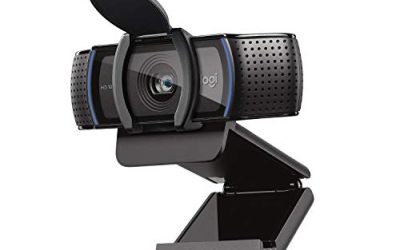
The Logitech C920S Pro HD is the most widely used webcam for teaching, and its popularity comes from doing the basics well. It records Full HD 1080p video at 30 frames per second, with autofocus that follows the teacher as they lean in or sit back, and a 78-degree field of view that frames one person comfortably at a desk. HD light correction brightens the image automatically in dim rooms, and dual microphones capture a clear voice from a normal seating distance.
A built-in privacy shutter flips over the lens between lessons, which is a simple physical guarantee that the camera is off. The clip mount grips a monitor or laptop lid securely, and a tripod thread on the base allows mounting on a standard tripod for a different angle. Setup is plug-and-play over USB-A, and the camera works immediately with Zoom, Microsoft Teams, Google Meet, and recording software on Windows and Mac.
Who it is for: teachers who want a reliable, inexpensive camera for live lessons and recorded classes, with no setup friction and a privacy shutter for peace of mind. It is the safest default choice for a first teaching webcam.
Caveats: 1080p at 30 frames per second is enough for live lessons, but the image is less detailed than a 4K camera when a recording is cropped or viewed on a large screen. The field of view is fixed at 78 degrees, so it cannot show a wide whiteboard without moving the camera further back. The microphones are good at desk distance but lose clarity if the teacher stands several steps away.
Logitech Brio 4K

View the Logitech Brio 4K on Amazon
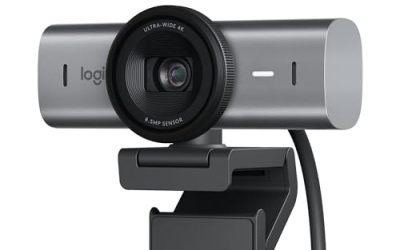
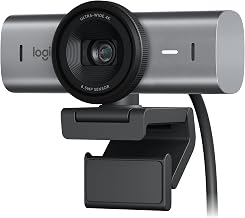
The Logitech Brio 4K is the premium pick in this guide, recording Ultra HD 4K video with a sensor that keeps the image sharp and detailed even when the video is cropped or the student watches on a large display. Its 5x digital zoom lets a teacher frame a whiteboard, a document, or a demonstration area without moving the camera, and RightLight 3 with HDR adjusts automatically to mixed lighting, brightening a face against a window without washing it out. Dual omnidirectional microphones with noise reduction pick up a clear voice, and the camera supports Windows Hello facial sign-in on Windows computers.
The field of view adjusts between 65, 78, and 90 degrees, so the same camera can frame a single teacher tightly or show a wider scene. A privacy shutter is built in, and the clip mount works on monitors and laptop lids, with a tripod thread for other placements. The Brio connects over USB-A and works with the major video call platforms, with optional Logitech software for fine control over zoom, framing, and exposure.
Who it is for: teachers who record lessons for rewatching, teach from a room with tricky lighting, or want the sharpest image available for professional-looking classes.
Caveats: 4K video needs more bandwidth and processing power than 1080p, so older computers and slow connections may struggle at full resolution, and the camera can be set to 1080p when needed. The camera is larger and heavier than a basic webcam, so the clip mount needs a stable monitor edge. Some of the advanced features, such as Windows Hello, only work on Windows.
Logitech C922x

View the Logitech C922x on Amazon
The Logitech C922x is a versatile webcam that records 1080p video at 30 frames per second or 720p at 60 frames per second, giving teachers a choice between sharper detail and smoother motion. The 60-frame mode suits lessons with frequent hand gestures, demonstrations, or movement, while the 1080p mode suits seated lessons where detail matters more. Autofocus keeps the image sharp as the teacher moves, and HD light correction handles dim rooms well. Dual microphones capture stereo audio, and the camera supports background replacement in compatible software, which is handy for teachers who want a tidy backdrop without a physical screen.
A small tripod is included in the box, which makes it easy to place the camera at the right height on a desk or a shelf, and the standard clip mount works on monitors too. The camera connects over USB-A and works immediately with Zoom, Microsoft Teams, Google Meet, and recording tools.
Who it is for: teachers who demonstrate with their hands, move around while teaching, or want the option of smoother 60-frame video. The included tripod also suits teachers who record lessons away from the computer.
Caveats: the 720p 60-frame mode trades resolution for smoothness, so it is not the best choice when fine detail matters. Background replacement depends on the software used and can look rough in uneven lighting. The camera is an older design, so its low-light performance is a step behind the newer models in this guide.
Elgato Facecam

View the Elgato Facecam on Amazon
The Elgato Facecam is a premium Full HD webcam built around a Sony sensor and a fixed prime lens, recording uncompressed 1080p video at 60 frames per second. The fixed lens keeps the image consistently sharp at desk distance without any autofocus hunting, and the 82-degree field of view frames a teacher and a small amount of the surrounding space. Advanced light correction handles mixed and dim lighting well, and the Camera Hub software gives detailed control over exposure, white balance, zoom, and pan, with settings that can be saved for different teaching setups.
The camera connects over USB-C and works with Zoom, Microsoft Teams, Google Meet, and OBS, making it a good fit for teachers who also record or stream lessons. A built-in lens cap and a clip mount with a tripod thread cover mounting and privacy. Because the video is uncompressed, the image stays clean even when the teacher moves quickly or gestures often, which is useful for demonstrations.
Who it is for: teachers who record with OBS or similar software, want detailed manual control over the image, and teach from a fixed desk position where the fixed focus range suits them.
Caveats: the fixed focus only stays sharp within a limited distance range, so teachers who stand up and move away from the desk may go soft. The full range of image controls needs the Camera Hub software, which is available on Windows and Mac but adds a setup step. There is no built-in microphone, so a separate microphone or headset is required for voice.
Razer Kiyo Pro

View the Razer Kiyo Pro on Amazon
The Razer Kiyo Pro is a Full HD webcam with an adaptive light sensor and HDR, designed to keep the image bright and detailed in rooms where the lighting changes through the day. It records uncompressed 1080p video at 60 frames per second, with autofocus that tracks the teacher as they move and an adjustable field of view that can be set to 103, 90, or 80 degrees. The wide setting shows a whiteboard or a demonstration area, while the narrow setting frames a single teacher tightly for a focused lesson.
The large sensor and adaptive light handling make this the strongest low-light camera in this guide, which suits teachers in dim rooms or evening classes. The camera connects over USB and works with Zoom, Microsoft Teams, Google Meet, OBS, and other standard video tools, with Razer Synapse software available for finer control over the field of view and image settings.
Who it is for: teachers who teach in dim or mixed lighting, move between a desk and a whiteboard, or want the widest field of view in this group for showing a physical teaching space.
Caveats: the camera is larger than a basic webcam, and the clip mount needs a stable edge. The adaptive sensor and HDR work best with the companion software, which adds a setup step for teachers who want the full effect. The microphone is built in, but teachers who move away from the desk will still get clearer voice from a separate microphone.
Comparison Table
| Webcam | Resolution | Frame rate | Focus | Field of view | Microphone |
|---|---|---|---|---|---|
| Logitech C920S Pro HD | 1080p | 30 fps | Autofocus | 78 degrees | Dual mics |
| Logitech Brio 4K | 4K Ultra HD | 30 fps | Autofocus | 65, 78 or 90 degrees | Dual omnidirectional mics |
| Logitech C922x | 1080p or 720p | 30 or 60 fps | Autofocus | 78 degrees | Dual stereo mics |
| Elgato Facecam | 1080p | 60 fps | Fixed focus | 82 degrees | None, separate mic needed |
| Razer Kiyo Pro | 1080p | 60 fps | Autofocus | 103, 90 or 80 degrees | Built-in mic |
Which One Is Right for You?
Choose the Logitech C920S Pro HD if you want a dependable camera for live lessons with no setup friction. It is the right default for most teachers, and its privacy shutter and autofocus cover the everyday needs of a classroom on video.
Choose the Logitech Brio 4K if you record lessons for students to rewatch, or if your teaching room has difficult lighting with windows behind you. The 4K detail and adjustable field of view make it the most capable camera here for polished recorded classes.
Choose the Logitech C922x if your lessons involve frequent hand movement, demonstrations, or a whiteboard, and you want the smoother 60-frame option. The included tripod also makes it easy to set up away from the computer.
Choose the Elgato Facecam if you record with OBS or similar software and want manual control over the image. It suits a fixed desk setup where the teacher stays at a consistent distance from the camera.
Choose the Razer Kiyo Pro if your room is dim, your lighting changes through the day, or you need the widest field of view to show a physical teaching space. Its low-light handling is the strongest in this group.
If you are unsure, start with the C920S Pro HD: it handles the common teaching situations well, and you can add a separate microphone later if your room is large or noisy.
Frequently Asked Questions
Do I need a 4K webcam for teaching?
Not for most live lessons. A 1080p camera is sharp enough for students to follow facial expressions, handwriting, and diagrams on a normal screen, and it uses less bandwidth than 4K. A 4K camera is worth considering when lessons are recorded for rewatching, when the video will be cropped, or when students watch on large displays.
Should I use the webcam microphone or a separate microphone?
The built-in microphones on the Logitech and Razer cameras in this guide are clear enough for live lessons when you sit at a normal desk distance. A separate headset or desk microphone becomes worth it when you move around the room, teach in a noisy space, or record lessons where voice clarity is central. If students say your voice sounds distant or muffled, a separate microphone is the first upgrade to make, before changing the camera.
What field of view is best for teaching?
A field of view around 78 to 82 degrees frames one teacher at a desk with a little room around them, which suits most lessons. A wider view of 90 degrees or more is better when you need to show a whiteboard, a second person, or a demonstration area, while a narrower view of 65 degrees suits a tightly framed talking-head lesson. Cameras with an adjustable field of view, such as the Brio 4K and the Kiyo Pro, let you change the framing without moving the camera.
Can I use a webcam with Zoom, Teams, and Google Meet?
Yes. Every webcam in this guide is a standard USB video device, so it appears as a camera choice inside Zoom, Microsoft Teams, Google Meet, and most recording software on Windows and Mac. Plug the camera in before opening the call software, then select it from the camera menu in the call settings. If a camera does not appear, close and reopen the call software with the camera already connected.
Disclosure: As an Amazon Associate, we may earn from qualifying purchases.
FAQ
Which One Is Right for You?
Do I need a 4K webcam for teaching?
Should I use the webcam microphone or a separate microphone?
What field of view is best for teaching?
Can I use a webcam with Zoom, Teams, and Google Meet?
More from Amazon
Programs that pair well with the guide above. Offers and eligibility are set by Amazon and may change.
Free shipping on eligible items, Prime Video and more. Eligible new members can start with a free trial.
Start a Prime free trialAd-free music streaming. Eligible new subscribers can start with a free trial.
Try Music Unlimited freeA Prime membership for ages 18-24 with a trial period. Eligibility is set by Amazon.
See Prime for Young AdultsAudiobooks and podcasts to listen to on the go. Eligible new members can start with a free trial.
Try Audible freeAs an Amazon Associate we earn from qualifying purchases.