Our Top Picks
As an Amazon Associate I earn from qualifying purchases.
The Short Answer
If you want one webcam that handles almost every kind of creator work, get the Logitech MX Brio. It records in 4K at 30 frames per second, drops to 1080p at 60 frames per second for smoother motion, and pairs a large Sony sensor with dual noise-reducing microphones. Creators who film in dim rooms should look at the Razer Kiyo Pro Ultra instead, because its oversized sensor and bright lens gather more light than a typical webcam. If smooth 4K at 60 frames per second matters most to you, the Elgato Facecam Pro is the pick, with one honest catch: it has no built-in microphone, so you will need a separate mic. For creators who move around on camera, the OBSBOT Tiny 2 Lite follows you with AI tracking and a motorized pan-tilt head. And if your budget is tight, the Logitech Brio 101 delivers dependable 1080p video with a built-in mic and a privacy shutter for far less than the 4K models.
Our Top Picks
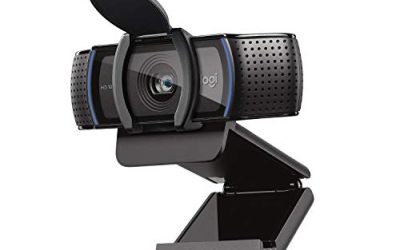
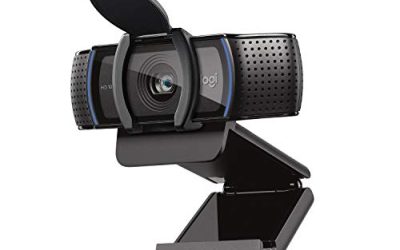
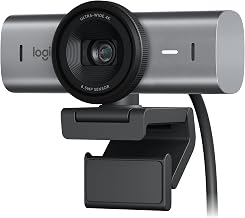
- Best overall: Logitech MX Brio — 4K at 30 fps, 1080p at 60 fps, Sony sensor, dual noise-reducing mics, and a wide choice of framing options.
- Best for low light: Razer Kiyo Pro Ultra — an unusually large sensor and a bright lens keep your image clean in dim rooms.
- Best 4K at 60 fps: Elgato Facecam Pro — true 4K60 video with DSLR-style controls, but no built-in microphone.
- Best for presenters who move: OBSBOT Tiny 2 Lite — AI tracking and a pan-tilt head keep you in frame while you move.
- Best budget pick: Logitech Brio 101 — reliable 1080p video, auto-light correction, a built-in mic, and a privacy shutter.
Quick Comparison
| Webcam | Max Resolution | Frame Rate | Microphone | Field of View | Best For |
|---|---|---|---|---|---|
| Logitech MX Brio | 4K | 30 fps at 4K, 60 fps at 1080p | Dual noise-reducing mics | 65, 78, or 90 degrees | All-around creator work |
| Razer Kiyo Pro Ultra | 4K | 30 fps at 4K (confirm on the listing) | Built-in mic | Wide (confirm on the listing) | Low-light filming |
| Elgato Facecam Pro | 4K | 60 fps at 4K | None — separate mic needed | Wide angle | Smooth 4K60 streams |
| OBSBOT Tiny 2 Lite | 4K | 30 fps (4K), 60 fps (1080p) | Noise-canceling mic | PTZ tracking | Moving presenters |
| Logitech Brio 101 | 1080p | 30 fps (confirm on the listing) | Built-in mic | Standard (confirm on the listing) | Budget creators |
How to Choose
Resolution and frame rate
Resolution decides how much detail your camera captures, and frame rate decides how smooth motion looks. For most creators, 1080p at 60 frames per second looks better on a live stream than 4K at 30 frames per second, because smooth motion matters more than extra pixels once a platform compresses your video. Choose 4K when you record videos you plan to crop, zoom, or reframe in editing, since the extra detail gives you room to work.
Low-light performance
Many creators film in bedrooms and home offices with a single lamp or a window behind them. A larger sensor gathers more light, which means less grain and more natural skin tones in dim rooms. Look for cameras with a large sensor, a bright lens, and automatic light correction. If your room is dark, no webcam fully replaces good lighting, but a strong low-light camera makes a visible difference.
Autofocus and field of view
Autofocus keeps your face sharp when you lean toward the camera or pull back to show a product. Phase-detection autofocus reacts faster than contrast autofocus, which is worth knowing if you move during a recording. Field of view controls how much of your room appears in frame. A narrow field of view around 65 degrees suits a talking-head setup, while a wider field of view around 90 degrees suits desk tours, unboxings, and multi-person shots.
Microphone quality
A built-in microphone is convenient for quick streams and calls, and dual microphones with noise reduction sound noticeably better than a single basic mic. That said, even the best webcam microphone sounds thinner than a dedicated USB or XLR microphone placed close to your mouth. If your channel depends on voice quality, plan for a separate mic and treat the webcam mic as a backup.
Software and controls
Creator webcams usually ship with companion software that lets you adjust exposure, white balance, zoom, and framing. DSLR-style controls, such as manual shutter speed and ISO, give experienced creators more control over the look of their video. Check that the software runs on your operating system before you buy, and confirm on the listing whether the camera needs a USB-C port or works over USB-A.
The Picks in Detail
1. Logitech MX Brio — Best Overall

The MX Brio is the most complete webcam in this guide, and the one we would hand to a creator who wants to buy once and stop thinking about cameras. It records in 4K at 30 frames per second and in 1080p at 60 frames per second, so it covers both crisp recorded video and smooth live streams. The 8.5MP Sony sensor is larger than the sensors in most webcams, which helps in dim rooms, and Logitech pairs it with AI-enhanced image quality and automatic light correction that adjust exposure and color as your lighting changes.
Framing is where the MX Brio pulls ahead. You can switch between 65, 78, and 90 degree fields of view in software, which means the same camera works for a tight talking-head shot, a normal desk setup, and a wide shot that shows your whole workspace. Show Mode lets you tilt the camera down to show something on your desk, which is handy for unboxings, sketches, and practical demos. The dual noise-reducing microphones pick up your voice clearly while cutting background noise, and the USB-C connection keeps setup simple. A privacy cover is built in.
Pros:
- 4K at 30 fps plus smooth 1080p at 60 fps
- Large Sony sensor with AI-enhanced image quality
- Three field-of-view settings for different shot types
- Dual noise-reducing microphones
- Show Mode for desk demos and unboxings
- Built-in privacy cover and USB-C connection
Cons:
- 4K tops out at 30 frames per second
- No motorized tracking for presenters who move around
- Larger and heavier than basic 1080p webcams
2. Razer Kiyo Pro Ultra — Best for Low Light

The Kiyo Pro Ultra is built around an unusually large 1/1.2 inch Sony sensor and a bright f/1.7 lens, hardware that is closer to a compact camera than to a typical webcam. That combination gathers far more light than a standard webcam sensor, so your video stays clean and detailed in rooms where other cameras turn grainy. If you film late at night, in a basement studio, or in a room with a single lamp, this is the camera that makes the biggest difference to your image.
It records in 4K and includes automatic light correction, a built-in microphone, and a privacy shutter. The wide lens gives your footage a natural sense of depth, and the large sensor produces a softer background behind you without any software blur. It works with OBS and XSplit, so it slots straight into a streaming setup. Confirm the exact frame rates and field-of-view settings on the listing before buying, since Razer lists them in the product details rather than the headline.
Pros:
- Very large sensor for clean video in dim rooms
- Bright f/1.7 lens for natural background blur
- 4K recording with automatic light correction
- Built-in microphone and privacy shutter
- Works with OBS and XSplit
Cons:
- Confirm exact frame rates on the listing before buying
- No motorized tracking
- Premium size and weight for a desk-mounted camera
3. Elgato Facecam Pro — Best 4K at 60 fps

The Facecam Pro is the only webcam in this guide that records true 4K at 60 frames per second, and that is its whole reason to exist. Fast, smooth motion at full 4K resolution makes it the strongest choice for creators who record high-motion content, such as gaming streams, fitness videos, or product demos with quick hand movements. The Sony sensor and autofocus keep the image sharp, and Elgato’s software gives you DSLR-style control over shutter speed, ISO, and white balance, which is rare in a webcam.
There is one honest trade-off to know before you buy: the Facecam Pro has no built-in microphone. Elgato expects you to use a separate microphone, which is the right call for serious creators anyway, but it means this camera is not a complete out-of-the-box solution. If you already own a USB or XLR mic, that is no problem at all. If you do not, budget for one, or pick a different camera from this guide.
Pros:
- True 4K at 60 frames per second
- Autofocus (confirm the autofocus type on the listing)
- DSLR-style manual controls in software
- Wide-angle lens with advanced light correction
- Built for OBS, Teams, and Zoom
Cons:
- No built-in microphone — a separate mic is required
- No privacy shutter listed; confirm on the listing
- Aimed at creators who already own audio gear
4. OBSBOT Tiny 2 Lite — Best for Presenters Who Move

Most webcams sit still and expect you to stay in frame. The Tiny 2 Lite does the opposite: its motorized pan-tilt head follows you around the room, so you can stand up, walk to a whiteboard, or pace while you present without drifting out of shot. AI tracking locks onto you and keeps you centered, gesture control lets you switch tracking on and off with a hand signal, and autofocus keeps you sharp as you move. For teachers, coaches, fitness creators, and anyone who presents standing up, this changes what a webcam can do.
The camera itself is no slouch either. It records in 4K at up to 30 frames per second (1080p at 60 fps), uses a 1/2 inch sensor with HDR light correction, and includes a noise-canceling microphone. Setup is plug and play over USB. The trade-off is that a moving camera is a more complex device than a fixed one, so keep the firmware updated and confirm on the listing that your operating system is supported.
Pros:
- AI tracking with a motorized pan-tilt head
- Gesture control for hands-free tracking
- 4K at 30 fps (1080p at 60 fps) with HDR
- Noise-canceling microphone included
- Plug-and-play USB setup
Cons:
- A moving camera has more parts that can wear over time
- Confirm operating-system support on the listing
- Wider shots can look busy if your room is cluttered
5. Logitech Brio 101 — Best Budget Pick

The Brio 101 is the camera for creators who are just beginning and want dependable video without paying for 4K. It records in full HD 1080p with automatic light correction, so your image stays balanced even when your lighting is uneven, and the built-in microphone is clear enough for tutorials, voiceovers, and live streams. A privacy shutter slides over the lens when you are done, and the USB-A connection works with almost any computer without an adapter.
What you give up at this level is resolution and flexibility. There is no 4K mode, no 60 frame-per-second mode listed, and no adjustable field of view, so you cannot crop your footage as aggressively in editing or switch between wide and tight shots. For a first channel, a second camera angle, or a backup webcam, none of that matters much.
Pros:
- Dependable 1080p video with auto-light correction
- Built-in microphone and privacy shutter
- USB-A plug-and-play setup on almost any computer
- Small and light for portable recording
Cons:
- No 4K recording
- No high-frame-rate mode listed; confirm on the listing
- Fixed field of view with no zoom presets
Who Should Choose What
- You stream and record in equal measure: the Logitech MX Brio. Its mix of 4K30 and 1080p60 covers both jobs, and the adjustable field of view adapts to any setup.
- You film in a dim room: the Razer Kiyo Pro Ultra. Its large sensor and bright lens do more for low-light video than any software trick.
- You want the smoothest 4K footage: the Elgato Facecam Pro. Just make sure you already own a microphone, because it does not include one.
- You present standing up or move while you talk: the OBSBOT Tiny 2 Lite. AI tracking keeps you in frame while you move, which no fixed webcam can do.
- You are launching your first channel: the Logitech Brio 101. It gives you clean 1080p video, a good mic, and a privacy shutter, and leaves budget for lighting and audio.
Common Mistakes
Buying 4K and ignoring frame rate. A 4K camera that tops out at 30 frames per second can look worse in motion than a 1080p camera running at 60 frames per second. Match the camera to how you publish: smooth motion for live streams, high resolution for edited videos you plan to crop.
Forgetting about audio. Viewers forgive a soft image far more readily than they forgive muffled or echoing audio. If your webcam has no built-in mic, like the Facecam Pro, plan for a separate microphone before you record your first video.
Filming with a window behind you. A bright window behind your head turns you into a silhouette, and no amount of auto light correction fully fixes it. Face the window, or put your key light in front of you, and let the camera’s light correction handle the rest.
Leaving the camera on the factory defaults. Every camera in this guide looks better after a few minutes in its companion software. Set your exposure, white balance, and field of view once, save the preset, and your videos will look consistent from one recording to the next.
FAQ
Do I need a 4K webcam for content creation?
Not always. If you stream live, 1080p at 60 frames per second often looks better than 4K at 30, because platforms compress your video anyway. Choose 4K if you record videos you plan to crop, zoom, or reframe in editing, or if you want your footage to stay sharp on large screens.
Is a built-in microphone good enough for YouTube videos?
For tutorials, voiceovers, and casual videos, a good built-in mic with noise reduction is usually enough. For channels where voice quality is central, such as podcasts or spoken-word videos, a dedicated microphone placed close to your mouth sounds noticeably better. Treat the webcam mic as a solid backup.
What frame rate should I use for streaming?
Use 60 frames per second at 1080p for live streams with movement, such as gaming, fitness, or demos. Use 30 frames per second at 4K for recorded videos where detail matters more than motion.
Does autofocus matter for a webcam?
Yes, if you move during a recording. Autofocus keeps your face sharp when you lean in to show a product or pull back to show your desk. Phase-detection autofocus reacts faster than contrast autofocus, which helps when you move quickly. If you sit still at a fixed distance, you can also lock focus manually in software.
Can I use these webcams with OBS?
Yes. All five cameras in this guide work as standard USB video devices, so OBS, Streamlabs, Zoom, and Teams recognize them without special drivers in most cases. Confirm operating-system support on the listing if you use a less common setup, and install the maker’s companion software to unlock framing and image controls.
Do I need a separate light for my webcam?
A webcam with a large sensor and good light correction handles dim rooms better than a basic camera, but no webcam replaces lighting entirely. A single affordable key light in front of you improves any camera in this guide more than upgrading to a more expensive camera would. Begin with light, then upgrade the camera.
Conclusion
The best webcam for content creators is the one that matches how you actually work. The Logitech MX Brio is the safest all-around choice, with 4K detail, smooth 1080p60, strong microphones, and framing options that cover almost any setup. Creators in dim rooms will see the biggest improvement from the Razer Kiyo Pro Ultra, while creators chasing the smoothest 4K footage should pair the Elgato Facecam Pro with a proper microphone. If you present on your feet, the OBSBOT Tiny 2 Lite is the only camera here that follows you, and if you are just beginning, the Logitech Brio 101 gives you clean 1080p video without a big outlay. Whichever you choose, add a simple light in front of you and check the listing for the exact frame rates and compatibility details before you buy.
FAQ
Do I need a 4K webcam for content creation?
Is a built-in microphone good enough for YouTube videos?
What frame rate should I use for streaming?
Does autofocus matter for a webcam?
Can I use these webcams with OBS?
Do I need a separate light for my webcam?
More from Amazon
Programs that pair well with the guide above. Offers and eligibility are set by Amazon and may change.
Free shipping on eligible items, Prime Video and more. Eligible new members can start with a free trial.
Start a Prime free trialAd-free music streaming. Eligible new subscribers can start with a free trial.
Try Music Unlimited freeA Prime membership for ages 18-24 with a trial period. Eligibility is set by Amazon.
See Prime for Young AdultsAudiobooks and podcasts to listen to on the go. Eligible new members can start with a free trial.
Try Audible freeAs an Amazon Associate we earn from qualifying purchases.