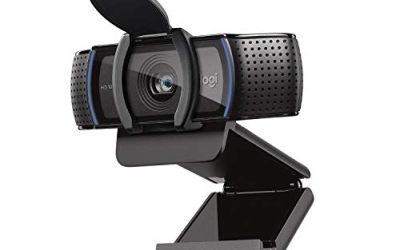
Our Top Picks
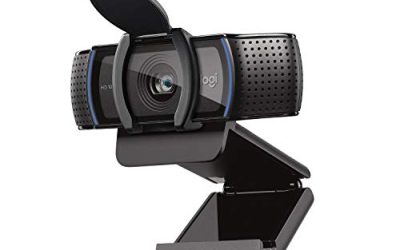
 Logitech C920x HD Pro PC Webcam with Microphone1 Pack2.8 x 1.7 x 3.7 inches0.4 poundsCheck on Amazon
Introduction
A city never really sleeps, and a good always-on webcam lets you watch it at any hour. The best 24 7 city webcams stay mounted in one place, hold a steady image through changing light, and keep streaming hour after hour without needing constant attention. Whether you want a window view of a skyline, a street scene below your apartment, or a riverfront promenade, the right webcam turns a fixed vantage point into a living picture of the city.

The phrase 24 7 in this guide means 24/7, around the clock. A webcam meant for this kind of use has different priorities from a webcam meant for a video call. Instead of framing a face at arm’s length, it needs to hold a wide scene in focus, handle harsh midday sun and dim street lighting in the same day, and run for long stretches without dropping its connection. A wide field of view matters because a city is broad, and low-light performance matters because the most interesting city moments happen after dark, when neon signs, headlights, and lit windows take over.
Most of the webcams in this guide are indoor USB webcams. A typical always-on city view runs from a window ledge or a desk facing a window, and a USB webcam pointed through glass delivers a clean, stable view while staying protected from rain, wind, and temperature swings. A camera fully exposed to the weather needs a weatherproof housing or an outdoor design, and none of the webcams below are weatherproof on their own. This guide compares five webcams that fit the job, each with a different strength: resolution, low-light handling, smooth motion, reliability, and hands-free movement.
At a Glance
| Webcam | Resolution | Field of View | Best For |
|---|---|---|---|
| Logitech Brio 4K | 4K at 30 frames per second | 65, 78, or 90 degrees | Sharpest detail on distant buildings and streets |
| Logitech C920x HD Pro | Full HD 1080p at 30 frames per second | 78 degrees | Reliable everyday always-on viewing |
| Razer Kiyo Pro | Full HD 1080p at 60 frames per second | Adjustable | Smooth motion and strong low-light handling |
| Logitech MX Brio | 4K at 30 frames per second | 65, 78, or 90 degrees | Modern 4K image with advanced light correction |
| OBSBOT Tiny 2 | 4K at 30 frames per second | Wide with pan and tilt | Panning across a wide scene without touching the camera |
Logitech Brio 4K
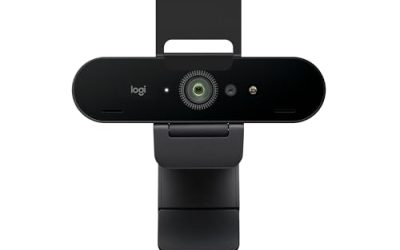
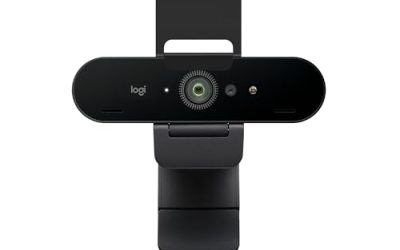
The Logitech Brio 4K is the detail pick in this guide. Its 4K sensor captures fine structure that a lower-resolution webcam cannot hold: window grids on a distant tower, the shape of a bridge, the flow of traffic on a far street. For a city view, that extra detail is not a luxury. It is what separates a recognizable skyline from a soft blur of lights, and it lets viewers zoom into the stream and still see a crisp picture.
RightLight 3 automatic light correction is the feature that makes the Brio 4K work across a full day. Morning glare off glass, harsh noon sun, and the blue hour after sunset all push a camera in different directions, and the Brio 4K adjusts exposure and contrast on its own to keep the scene readable. Autofocus keeps the middle distance sharp, the 5x digital zoom frames a tighter view of a landmark without moving the camera, and three field-of-view presets at 65, 78, and 90 degrees control how much of the city fills the frame. Dual microphones with noise-canceling technology pick up ambient city sound, and the attachable privacy shade covers the lens in seconds. It connects over USB-A and USB-C, works with Windows, Mac, and ChromeOS, and mounts on a monitor clip or a tripod.
Considerations
The Brio 4K is a premium webcam, and its strengths show most at high resolution. If your streaming setup downscales everything to a small frame, some of that detail will be lost. It is an indoor webcam, so it belongs behind glass or in a sheltered spot, not out in the rain. The 7.2-foot cable gives generous reach from a window to a computer, but measure your run before you commit to a mounting spot.
Logitech C920x HD Pro
The Logitech C920x HD Pro is the dependable workhorse of this guide, and for many always-on city views it is all you need. Full HD 1080p video at 30 frames per second is a proven format for continuous streaming, and the C920x has been a standard choice for long sessions for years. Its image is clean, its colors are natural, and it holds up well across a full day of changing light.
Autofocus keeps the scene sharp without any input from you, which matters when a camera runs for hours at a time. HD light correction adjusts for bright windows and dim evenings, so the picture stays balanced as the sun moves. The five-element glass lens is a genuine quality marker at this level, and the 78-degree field of view is a sensible middle ground: wide enough to take in a street or a stretch of skyline, tight enough that distant detail does not shrink to nothing. Dual microphones capture ambient sound that adds a sense of place. Setup is simple: the C920x is a plug-and-play USB-A webcam that works with Windows, Mac, and ChromeOS and with the major calling and streaming platforms. Clip it to a monitor, aim it out the window, plug it in, and it runs.
Considerations
The C920x records in Full HD rather than 4K, so fine detail on faraway buildings will be softer than on the 4K webcams in this guide. For a wide city view, that trade is often invisible to viewers, but if your goal is to let people read signs or pick out architectural detail across a river, a 4K model will serve you better. The fixed 78-degree field of view cannot be narrowed to isolate a single landmark the way an adjustable webcam can.
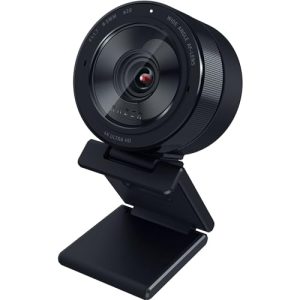
Razer Kiyo Pro

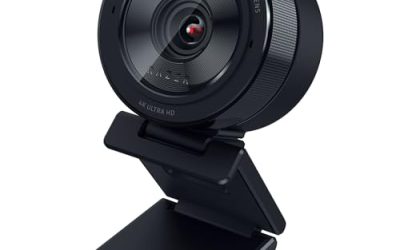
The Razer Kiyo Pro is the low-light and motion pick in this guide. Its adaptive light sensor and HDR support are built for exactly the conditions that challenge a city webcam after dark: a bright sign next to a shadowed street, headlights sweeping past, a skyline that is half lit windows and half darkness. Where a basic webcam would wash out the bright spots and lose the dark ones, the Kiyo Pro holds both ends of the scene together.
Full HD 1080p video at 60 frames per second gives the Kiyo Pro the smoothest motion in this guide. Traffic flows instead of stepping, pedestrians move naturally, and rain or snow reads as continuous movement rather than a stutter. The adjustable field of view lets you choose between a wide sweep of the city and a tighter frame on one street or square, and the wide-angle lens keeps the edges of the picture straight and natural. The Kiyo Pro connects over USB and works with OBS, XSplit, and the major calling and streaming platforms, and its uncompressed video output keeps the image clean when the scene has a lot of fine detail and movement at once.
Considerations
The Kiyo Pro captures in Full HD rather than 4K, so it trades top-end resolution for smoothness and low-light strength. On large screens, a 4K webcam will show more detail. The Kiyo Pro also benefits from its companion software for fine control of its settings, so plan a few minutes of setup to tune it for your window and your light before you leave it running.
Logitech MX Brio

The Logitech MX Brio is the modern 4K pick in this guide, and it brings the newest image processing of any Logitech webcam here. Its 8.5-megapixel sensor captures 4K video at 30 frames per second, and it can also run at 1080p at 60 frames per second when you want smoother motion instead of maximum detail. For a city view, that flexibility is useful: run 4K for a still skyline shot, switch to the smoother mode when you want traffic and crowds to flow naturally.
RightLight 5 with HDR is the headline feature for always-on use. It reads the scene and adjusts exposure across the frame, so a sunlit tower and a shaded street can both stay visible in the same picture. The wide 90-degree field of view takes in a broad sweep of the city, and the 65- and 78-degree presets let you narrow the frame to focus on one district or one landmark. Dual beamforming microphones focus on sound in front of the camera while reducing background noise. The MX Brio works with Windows, Mac, and ChromeOS and with the major calling and streaming platforms, and its aluminum body feels solid on a monitor clip or a tripod.
Considerations
The MX Brio is a current-generation webcam with a full feature set, and its companion software unlocks the finest control over its image. If you prefer a camera you never have to adjust, the defaults still work well, but a short tuning session will get the most from it. Like every webcam in this guide, it is an indoor device, so keep it behind glass or under shelter and mount it steadily for long sessions.
OBSBOT Tiny 2

The OBSBOT Tiny 2 is the most unusual webcam in this guide, and for a wide city scene it brings something none of the others can: it moves on its own. This is a 4K pan-tilt-zoom webcam with AI-powered tracking, a 1/1.5-inch sensor, and gesture and voice control. Mounted at a window, it can pan across a skyline, tilt to follow the action, and zoom in on a point of interest without anyone touching it.
The large sensor is the foundation of the Tiny 2’s image quality. A bigger sensor gathers more light, which helps at dawn and dusk and in the dim hours after midnight, when a city is lit mainly by windows and streetlamps. HDR light correction keeps bright signs and dark streets in balance, and 4K video at 60 frames per second keeps motion smooth. The AI tracking modes can follow a subject across the frame, which is useful if you want the camera to hold on a moving boat, a passing parade, or a busy intersection. Gesture control starts or stops tracking with a hand signal, and voice control directs the camera without reaching for it. The Tiny 2 connects over USB 3.0, works with the major streaming and calling platforms, and sits on a desk, a tripod, or a clip mount at a window.
Considerations
The Tiny 2 is the most complex webcam in this guide, and its tracking features are at their best when you set them up deliberately. For a purely fixed city view, you may never need the pan and tilt, and a simpler webcam would do the same job with less setup. The gimbal adds moving parts, so mount the camera securely and keep its path clear of curtains and cables. Learn the tracking modes before you leave it running unattended.
How to Choose
Start with your view. A broad skyline calls for a wide field of view, while a single street or landmark calls for a narrower frame or a zoom. If the scene is far away, resolution matters most, because distance shrinks detail: a 4K webcam will hold the shape of distant buildings better than a Full HD one. If the scene is close, such as a street directly below, Full HD is plenty and smoothness matters more.
Next, think about light. East-facing windows get harsh morning sun, west-facing windows get strong evening glare, and north-facing windows get soft, even light all day. The webcams with HDR and advanced light correction, the Brio 4K, the Kiyo Pro, the MX Brio, and the Tiny 2, cope better when the sun hits the glass directly or when the scene mixes bright signs with dark streets at night. If your city view is mainly a night view, put low-light handling first and choose the Kiyo Pro or the Tiny 2.
Then think about motion. A quiet skyline barely moves, so 30 frames per second is fine. A busy street, a river with boat traffic, or a square full of people will look better at 60 frames per second, which points you toward the Kiyo Pro or the MX Brio in its smoother mode. If you want the camera to move across the scene on its own, only the Tiny 2 does that.
Finally, think about your streaming setup. All five webcams connect over USB and work with the major streaming platforms, but check your cable run from the window to your computer and whether it can handle a continuous 4K stream. A long USB run may need an active extension cable, and a 4K stream needs a steady connection and enough headroom to encode video for hours. A Full HD webcam like the C920x is the safest choice if your computer is older or your connection is modest.
Fit and Installation
Mounting is the first decision, and it decides how good the picture will be. A monitor clip works well when the window is right behind your desk. A tripod gives you more freedom: you can place the camera exactly where the view is best, raise it above a windowsill, and angle it precisely. A small tripod on a shelf or a ledge is often best, because it lets you aim through the cleanest part of the glass and avoid reflections from the room behind you.
Reflections are the biggest enemy of a window webcam. Room lights reflecting in the glass will wash out the city view, especially at night. Turn off the lights behind the camera, close the curtains on either side, and push the lens as close to the glass as you can. A dark cloth draped over the camera can cut reflections further. Clean the inside of the window first, because every smudge will show up in the stream.
Power and connection need planning for a camera that runs all day. Use the cable that comes with the webcam, or a good-quality extension, and route it so it cannot be snagged or pulled. Keep the computer awake and set your streaming software to restart the stream automatically if it drops. Check the camera’s aim and focus once a day at first, and clean the lens and the window regularly. A camera in direct sun behind glass can get hot, so give it shade or airflow and avoid mounting it where the afternoon sun hits the lens directly.
Frequently Asked Questions
What does 24 7 mean for a city webcam?
It means the webcam runs around the clock, 24 hours a day, 7 days a week, so viewers can check the city view at any hour. That calls for a webcam built for long, continuous sessions, with stable autofocus and automatic light correction for day and night.
Can I point a USB webcam out a window for a city view?
Yes, and it is the most common way to set up an always-on city view. Mount the webcam indoors, aim it through clean glass, and keep the room behind the camera dark to control reflections. A camera fully exposed to rain and wind needs a weatherproof housing or an outdoor camera instead.
Is 4K or Full HD better for a city webcam?
It depends on distance. For a faraway skyline or a view across a river, 4K holds more detail. For a closer street view, Full HD is plenty and uses less bandwidth and computing power.
Do I need a webcam that moves, or is a fixed camera enough?
A fixed camera is enough for most city views, and it is simpler and more reliable. A moving camera like the OBSBOT Tiny 2 earns its place when the scene is very wide and you want the view to pan across it, or to follow action such as a parade or a busy intersection.
Conclusion
The best 24 7 city webcams are the ones that stay sharp, stay steady, and keep streaming through every kind of light a city can produce. The Logitech Brio 4K leads on detail, the Logitech C920x HD Pro leads on simple reliability, the Razer Kiyo Pro leads on low-light handling and smooth motion, the Logitech MX Brio brings modern 4K image processing to the job, and the OBSBOT Tiny 2 adds movement that no fixed camera can match.
Pick the webcam that fits your window, your light, and your streaming setup. Mount it carefully, kill the reflections, and give it a stable connection. Then leave it running and let the city do the rest.
As an Amazon Associate, we earn from qualifying purchases.
FAQ
What does 24 7 mean for a city webcam?
Can I point a USB webcam out a window for a city view?
Is 4K or Full HD better for a city webcam?
Do I need a webcam that moves, or is a fixed camera enough?
More from Amazon
Programs that pair well with the guide above. Offers and eligibility are set by Amazon and may change.
Free shipping on eligible items, Prime Video and more. Eligible new members can start with a free trial.
Start a Prime free trialAd-free music streaming. Eligible new subscribers can start with a free trial.
Try Music Unlimited freeA Prime membership for ages 18-24 with a trial period. Eligibility is set by Amazon.
See Prime for Young AdultsAudiobooks and podcasts to listen to on the go. Eligible new members can start with a free trial.
Try Audible freeAs an Amazon Associate we earn from qualifying purchases.