Our Top Picks
Intro
A good webcam changes how you look and sound on camera. Whether you stream games, join video calls for work, record lessons, or chat with friends online, the camera on top of your monitor does a lot of work. It frames your face, handles the light in your room, keeps you in focus when you lean forward, and picks up your voice. A weak built-in laptop camera often leaves the picture soft, dark, or washed out, while a dedicated webcam gives you a sharper image, steadier focus, and cleaner sound.


This guide looks at webcams as hardware, and it focuses on the things that matter in daily use: image quality, autofocus, field of view, microphone clarity, mounting options, and low-light performance. A camera with strong light handling and reliable autofocus can look better in a dim room than a higher-resolution camera that struggles with shadows and bright windows. Before you choose, think about how you will use the camera most. A streamer who moves around while talking needs a wide field of view and fast autofocus. Someone who joins meetings from a small home office may care more about a narrow frame, a privacy shutter, and a microphone that keeps background noise down.
The four webcams in this guide cover a useful range: a dependable everyday model with a privacy shutter and dual microphones, a compact model built for bright, clear video calls, a streaming-focused model with a wide-angle lens and high frame rates, and a studio-style model with a larger sensor and deep software controls.
At a Glance
| Webcam | Resolution and Frame Rate | Autofocus | Field of View | Microphone | Mounting |
|---|---|---|---|---|---|
| Logitech C920s HD Pro | Full HD 1080p at 30 frames per second | Yes, HD autofocus | 78 degrees diagonal | Dual stereo microphones | Monitor clip and tripod thread |
| Logitech Brio 101 | Full HD 1080p at 30 frames per second | Fixed focus | 58 degrees diagonal | Single built-in microphone | Monitor clip |
| Razer Kiyo Pro | Full HD 1080p at 60 frames per second | Yes, autofocus | Adjustable, up to 103 degrees diagonal | Built-in microphone | Monitor clip and tripod thread |
| Elgato Facecam | Full HD 1080p at 60 frames per second | Fixed focus | 82 degrees diagonal | No built-in microphone, use a separate microphone | Monitor clip and tripod thread |
Logitech C920s HD Pro Webcam
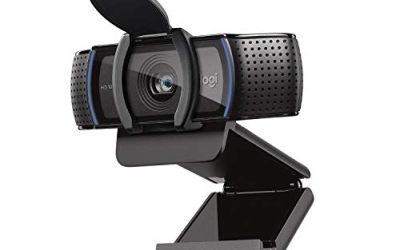
The Logitech C920s HD Pro is a familiar choice for video calls and streaming, and it earns that place with a balanced set of features. It records Full HD 1080p video at 30 frames per second through a glass lens, and its HD autofocus keeps your face sharp when you lean in toward the screen or sit back in your chair. Light correction adjusts the image when your room is brighter on one side than the other, so a window or a lamp to one side does less damage to the picture.
Sound is handled by dual stereo microphones built into the front of the camera. The C920s also includes a privacy shutter that slides over the lens when the camera is not in use. It mounts with a universal clip that grips the top of a monitor or a laptop lid, and the base fits a standard tripod thread. The 78-degree diagonal field of view shows your head and shoulders with some room around you, without pulling in too much background.
Listing Features
- Full HD 1080p video at 30 frames per second with a glass lens
- HD autofocus and light correction for sharp video in varied lighting
- Dual stereo microphones for clear speech on calls and recordings
- Privacy shutter that covers the lens when the camera is not in use
- Universal mounting clip for monitors and laptops, plus tripod compatibility
Considerations
- Fixed 30 frames per second, so motion looks less smooth than a 60-frame camera
- The field of view is fixed, with no wide-angle adjustment
- A room lamp or a small key light still helps in a dark room
- The attached cable is a fixed length, so check that it reaches your computer
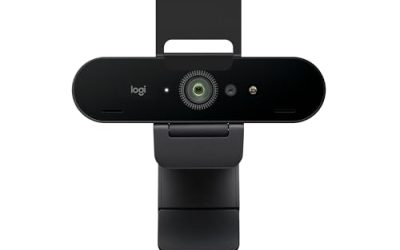
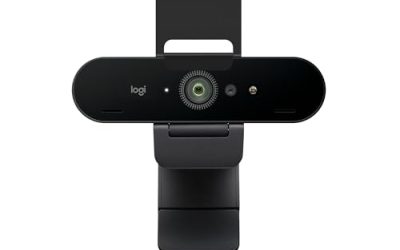
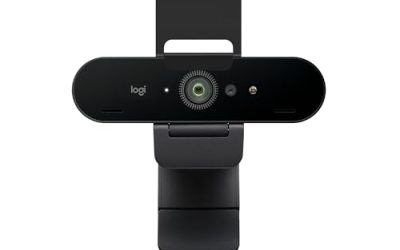
Logitech Brio 101 Full HD 1080p Webcam
The Logitech Brio 101 is a compact webcam built for clear, bright video calls. It records Full HD 1080p video at 30 frames per second, and its RightLight technology boosts brightness so your face stays visible in rooms where the light is uneven or dim.
The Brio 101 uses fixed focus, so there is no autofocus motor hunting for your face as you move. At a normal desk distance, that is an advantage: the picture stays steady, with no momentary blur when you lean forward to read something on screen. The 58-degree diagonal field of view is narrower than most webcams in this guide, and it keeps the shot tight on your face and shoulders while keeping more of the room out of frame. A single built-in microphone captures your voice for calls and meetings, and the integrated privacy shutter slides across the lens. The camera mounts on top of a monitor or laptop lid with a clip, connects over USB-A, and works with Windows, macOS, and ChromeOS.
Listing Features
- Full HD 1080p video at 30 frames per second
- RightLight auto-light balance for brighter video in dim or uneven light
- Integrated privacy shutter built into the camera body
- Single built-in microphone for clear speech on calls
- Narrow 58-degree field of view that keeps the frame tight on the speaker
- USB-A connection with support for Windows, macOS, and ChromeOS
Considerations
- Fixed focus, so it is best at a steady desk distance
- The narrow field of view will not show a wide scene or a second person beside you
- No tripod thread, so mounting is limited to the monitor clip
- One microphone, so voice pickup is simpler than a dual-microphone camera
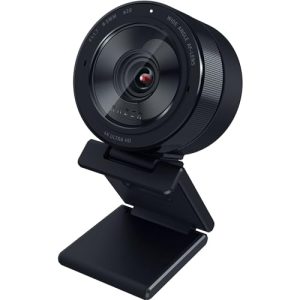
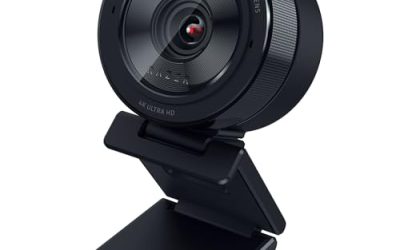
Razer Kiyo Pro Webcam

The Razer Kiyo Pro is built for streaming, with high frame rates, a wide-angle lens, and strong low-light handling. It captures Full HD 1080p video at 60 frames per second, which makes motion look smoother than a 30-frame camera.
The lens is a wide-angle design with an adjustable field of view. You can set it wide, up to 103 degrees diagonal, to show more of your room and your setup, or narrow it to 80 or 90 degrees for a tighter shot on your face. The autofocus is fast and keeps your face sharp as you move, and the adaptive light sensor adjusts to changing light in the room. Low-light performance is one of the strongest points of the Kiyo Pro. The sensor gathers more light than a typical webcam sensor, and HDR support helps when part of the scene is bright and part is dark. The Kiyo Pro connects over USB, works with common streaming software such as OBS and XSplit, mounts on a monitor with a clip, and the base fits a tripod.
Listing Features
- Full HD 1080p video at 60 frames per second for smooth motion
- Adjustable field of view, up to 103 degrees diagonal, with narrower settings
- Adaptive light sensor and HDR support for mixed and dim lighting
- Fast autofocus that tracks movement during streams
- Built-in microphone for calls and streaming
- Monitor clip mounting plus tripod thread for desk stands
Considerations
- Some settings are best adjusted in software rather than left on automatic
- A USB 3.0 connection is recommended for full 1080p 60-frame output
- The widest field of view pulls in a lot of background, so frame your shot first
- No built-in privacy shutter, so cover the lens or unplug the camera when idle
Elgato Facecam

The Elgato Facecam takes a studio approach to webcam design. It captures uncompressed Full HD 1080p video at 60 frames per second through a Sony sensor and a fixed-focus prime lens. Uncompressed video means the camera sends a cleaner signal to your computer, with less of the softness that compression can add.
The lens is a fixed-focus design with an 82-degree diagonal field of view. Fixed focus keeps the image steady at desk distance, with no autofocus hunting while you talk, and the 82-degree frame shows your head and shoulders with a comfortable amount of space around you. The Sony sensor handles light well, and the camera software gives you manual control over exposure, white balance, ISO, and shutter speed, so you can tune the image to your room. Elgato Camera Hub software also lets you save settings on the camera itself. The Facecam has no built-in microphone, so plan to add a separate microphone. It mounts on a monitor with a clip, and the mount includes a thread for a tripod or a desk arm.
Listing Features
- Uncompressed Full HD 1080p video at 60 frames per second
- Sony sensor with a fixed-focus prime lens for a sharp, steady image
- 82-degree diagonal field of view for a natural head-and-shoulders frame
- Manual controls for exposure, white balance, ISO, and shutter speed
- Onboard memory that saves your settings on the camera
- Monitor clip mounting plus tripod thread for desk stands and arms
Considerations
- No built-in microphone, so a separate microphone is needed for voice
- Fixed focus, so the camera is best at a steady desk distance
- The full benefit comes from spending time in the software settings
- A USB 3.0 connection is needed for uncompressed 1080p 60-frame video
How to Choose
Start with resolution and frame rate. Full HD 1080p is the standard for clear video calls and streaming, and it is enough for most uses. A 60-frame camera makes motion smoother, which matters for streaming and for anyone who moves a lot on camera. A 30-frame camera is fine for meetings and lessons, where the speaker mostly sits still.
Next, look at autofocus and field of view together. Autofocus helps if you lean in and out or move around, while fixed focus gives a steadier picture at a fixed distance. Field of view decides how much of the room appears in frame. A narrow field of view, around 55 to 65 degrees, keeps the shot tight and hides a busy background. A medium field of view, around 75 to 85 degrees, shows head and shoulders with some room to breathe.
Low-light performance is easy to overlook until you join an evening call in a dim room. A larger sensor gathers more light, and light correction software lifts shadows without turning the picture grey. Check whether the camera has a light sensor, HDR support, or a low-light mode, and think about your room. If your desk faces a window, you need a camera that handles backlight.
Microphone quality decides how you sound, and it is just as important as how you look. Dual microphones pick up more of your voice and less of the room, while a single microphone is fine for quiet rooms. Some cameras have no microphone at all and expect a separate one. Mounting and connection round out the choice. A monitor clip is the simplest mount, and a tripod thread opens up desk tripods, taller stands, and monitor arms. Check the cable length and the USB type: some cameras need USB 3.0 for their highest frame rate, and a short cable limits where you can place the camera.
Fit and Installation
Setting up a webcam takes a few minutes, and a little care at this stage saves a lot of adjustment later. The top center of your monitor is the usual place, because it puts the lens at eye level and keeps your gaze near the screen. Clip the camera on firmly and tilt it so the lens points at your face, not at the top of your head or at your chest. If the clip feels loose on a thin monitor, add a small pad behind it or move the camera to a tripod.
Connect the camera to a USB port on your computer, not through a busy hub if you can avoid it. Once it is plugged in, open your video calling or streaming software, select the webcam as the video source, and do a short trial call or a recording to check the framing: your eyes should sit in the upper third of the frame, with a little space above your head and your shoulders visible at the bottom.
Lighting makes the biggest difference after framing. Face a light source if you can, such as a window during the day or a desk lamp in the evening, and avoid sitting with a bright window behind you. A single lamp placed behind the camera and aimed at your face lifts shadows and gives the camera enough light to work with. Keep the lens clean with a soft cloth, check the cable run so it does not pull on the camera, and close the privacy shutter when the call ends. If your camera has no shutter, unplug it or cover the lens when it is not in use.
FAQ
Do I need a 60-frame webcam for video calls?
No, a 30-frame webcam is enough for most video calls, where the speaker sits still and talks to the camera. A 60-frame camera makes motion smoother, which is more noticeable in streaming, where the speaker gestures and moves around. If you mostly join meetings and lessons, a 30-frame camera with good light handling will look clear and natural.
Is a built-in microphone good enough for streaming?
A built-in microphone is good enough for meetings, lessons, and casual streams, especially in a quiet room. Dual microphones capture speech clearly at desk distance, and they keep the setup simple. For longer streams or recordings where sound quality matters more, a dedicated microphone gives you more control over volume, tone, and background noise.
What field of view should I choose for a small room?
A narrow to medium field of view, around 58 to 82 degrees, suits a small room, because it keeps the frame tight and leaves clutter out of the shot. A wide field of view above 90 degrees shows more of the room, which can make a small space look crowded on camera.
How do I improve low-light performance without buying a new camera?
Add light in front of you, not behind you. A desk lamp placed behind the camera and aimed at your face gives the sensor more light to work with, and it reduces the grain that appears in dark video. Close curtains behind you if a window is causing backlight, and turn on the room light rather than relying on the glow of the monitor alone.
Conclusion
A good webcam is a practical upgrade for anyone who spends time on camera. The Logitech C920s HD Pro is a dependable all-rounder with autofocus, dual microphones, and a privacy shutter. The Logitech Brio 101 is a compact choice for bright, clear video calls in a small space. The Razer Kiyo Pro is a streaming-focused camera with smooth 60-frame video, an adjustable wide-angle lens, and strong low-light handling. The Elgato Facecam is a studio-style camera with uncompressed video, a clean fixed-focus image, and deep software controls. Choose by matching the camera to your room and your habits: your lighting, your desk distance, how much of the room you want in frame, and whether you need a built-in microphone. Mount the camera at eye level, light your face from the front, and check the framing before your next call or stream.
As an Amazon Associate, we earn from qualifying purchases.
FAQ
Do I need a 60-frame webcam for video calls?
Is a built-in microphone good enough for streaming?
What field of view should I choose for a small room?
How do I improve low-light performance without buying a new camera?
More from Amazon
Programs that pair well with the guide above. Offers and eligibility are set by Amazon and may change.
Free shipping on eligible items, Prime Video and more. Eligible new members can start with a free trial.
Start a Prime free trialAd-free music streaming. Eligible new subscribers can start with a free trial.
Try Music Unlimited freeA Prime membership for ages 18-24 with a trial period. Eligibility is set by Amazon.
See Prime for Young AdultsAudiobooks and podcasts to listen to on the go. Eligible new members can start with a free trial.
Try Audible freeAs an Amazon Associate we earn from qualifying purchases.