5 Best Android Keyboards with Emoji Keys (November 2026)
Five Bluetooth keyboards that pair with Android phones and tablets and put emoji one tap away, from swappable emoji keys to a dedicated emoji menu key.
Typing on a phone screen gets old fast when you message all day, and switching to the on-screen emoji panel breaks your flow every time you want to drop a smile or a thumbs-up. A physical keyboard that pairs with your Android phone or tablet fixes the typing part, and one with an emoji key or an emoji shortcut fixes the second part too: one tap opens the emoji panel or drops your chosen emoji straight into the message.
This guide is for Android phone owners who type long messages, tablet users who turn a slate into a small workstation, and anyone who chats across several devices and wants the same keyboard everywhere. The five keyboards below were picked from their names and specs on Amazon pages, and each one pairs with Android over Bluetooth and carries an emoji key or an emoji shortcut.
Quick Picks
As an Amazon Associate we earn from qualifying purchases
Product
Best for
Key spec from title
Logitech POP Keys
Swapping emoji keys to match your mood
8 swappable emoji keys
Logitech Pebble Keys 2 K380s
Carrying one slim keyboard everywhere
Emoji menu Fn shortcut key
Logitech POP Icon Keys
Custom shortcuts plus an emoji menu
15 customizable keys
Logitech MX Keys S
Full-size typing with a backlit board
Dedicated emoji key
Microsoft Designer Compact Keyboard
A slim board for a tidy desk
Expressive input (emoji) key
How to Choose
Match the Emoji Key to How You Actually Type
Not every emoji key does the same job, so start with how you type. The POP Keys sends a chosen emoji with one press, which suits people who use the same few faces and gestures all day. The Pebble K380s, the POP Icon Keys, and the MX Keys S open the emoji menu instead, which suits people who pick a different emoji every time. The Microsoft board has a dedicated emoji key too, but it is built for Windows, so on Android it will not open the emoji panel. Decide whether you want one-tap emoji or one-tap access to the whole menu.
Check Android Pairing Before You Buy
Every keyboard here pairs with Android over Bluetooth, but the details matter. Check that the board lists Android 8 or later, and remember that the Logi Bolt receiver plugs into a USB port, so it works with a laptop or a desktop and not with a phone. Multi-device switching matters too: all five boards pair with three devices, so one keyboard can serve a phone, a tablet, and a laptop. Finally, the setup software that assigns emoji and shortcuts runs on Windows and macOS only, so set the keys up on a computer first and then switch the board over to your Android device.
Pick the Size and Feel for Your Setup
A keyboard that lives in a bag should be slim and light, while a keyboard that lives on a desk can be full-size. The Pebble K380s and the Microsoft board are the lightest picks here, and both disappear into a sleeve next to a tablet. The POP Keys and the POP Icon Keys are compact but thicker, with a playful shape that suits a desk. The MX Keys S is the only full-size board, with a number pad and backlighting for long sessions. Try the key feel in your head before you buy: mechanical keys bounce, scissor keys stay flat and quiet.
Mind Battery Life and What Is in the Box
Battery type decides how often you think about charging. The POP Keys, the Pebble K380s, and the POP Icon Keys run on two AAA batteries and last up to three years, so you can forget about power almost entirely. The Microsoft board uses four coin batteries and lasts up to three years too. The MX Keys S is the only rechargeable board here, with a USB-C cable and a battery that lasts months between charges. Check the box as well: the POP Icon Keys ships without a Logi Bolt receiver, and the POP Keys ships with four spare emoji keycaps.
The 5 Best Options
Logitech POP Keys
Top Pick
Logitech POP Keys
Best for: Android chatters who want their favorite emoji on a physical key.
8 swappable emoji keys (4 on the board, 4 extra) plus 1 emoji menu key
The POP Keys is the only keyboard here that puts real emoji on the keys themselves. Four emoji keycaps sit on the board out of the box, four more wait in the box, and one extra key opens the full emoji menu, so your most-used faces and gestures are always one press away. The typewriter-style mechanical keys give each press a bouncy, tactile feel that suits long chats, and the compact body slips into a bag next to a tablet. It pairs with three devices at once, so you can jump from your Android phone to a laptop without re-pairing.
Logitech Pebble Keys 2 K380s
Runner-Up
Logitech Pebble Keys 2 K380s
Best for: Travelers who want one slim keyboard for phone, tablet, and laptop.
The Pebble Keys 2 K380s is the travel pick of this set. Its slim, rounded body weighs less than a paperback, and the scooped low-profile keys stay quiet enough for a shared room or a late-night chat session. An Fn shortcut opens the emoji menu without touching the screen, and ten Fn keys can be reassigned through Logi Options+ for the shortcuts you use most. It pairs with three devices at once and runs on two AAA batteries, so there is no cable to pack and no charging routine to remember.
Logitech POP Icon Keys
Logitech POP Icon Keys
Best for: People who want an emoji menu plus shortcuts they can shape to their day.
The POP Icon Keys is the customizable middle ground. Its emoji menu key sits beside four Action Keys that can open apps, launch tools, or trigger shortcuts, so the board grows into whatever you use most. The contoured low-profile keys type quietly, the transparent frame and bold colors stand out on a desk, and the three-device Easy-Switch covers a phone, a tablet, and a laptop at once. It runs on two AAA batteries for up to three years, which means the keyboard is ready whenever you pick it up.
Logitech MX Keys S
Logitech MX Keys S
Best for: Desk typists who want a full-size backlit board with an emoji key.
Desk typists who want a full-size backlit board with an emoji key.
Watch out for
On Android only basic functions work without software, so the emoji key may open the system picker or do nothing depending on the app; it is also the heaviest board here.
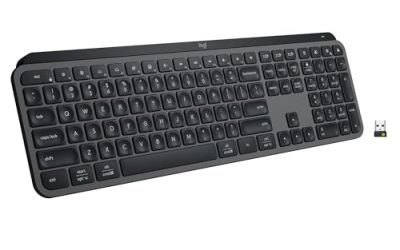
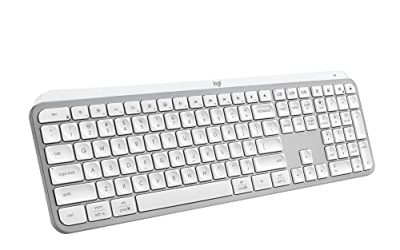
The MX Keys S is the desk keyboard of this set. Its full-size layout keeps a number pad for spreadsheets and long documents, and the spherically-dished scissor keys stay stable and quiet through hours of typing. Smart backlighting brightens the keys when your hands approach and dims when you step away, and the dedicated emoji key sits in the function row beside dictation and screen capture shortcuts. It connects over Bluetooth or the included Logi Bolt receiver and switches between three devices.
Microsoft Designer Compact Keyboard
Microsoft Designer Compact Keyboard
Best for: Anyone who wants the slimmest Bluetooth board and mostly types on Windows too.
Dedicated expressive input (emoji) key and screen snipping key
Anyone who wants the slimmest Bluetooth board and mostly types on Windows too.
Watch out for
The expressive input key needs Windows 10 with the latest updates, so on Android it will not open the emoji panel; buy it for the slim shape, not for Android emoji.
The Microsoft Designer Compact is the slimmest board here. Its low-profile slab drops the number pad so your mouse sits closer, and the scissor keys give short, precise travel that suits fast typing on a tablet stand. A dedicated expressive input key sits above the arrows for quick emoji and symbols, next to a screen snipping key for captures. It pairs with three devices over Bluetooth and runs for years on coin batteries, so it stays light in a bag and ready on a desk.
Which One Fits Your Situation
You Message All Day from Your Phone
Pick the POP Keys. Its swappable emoji keys put your most-used faces one press away, and the compact body pairs with your phone over Bluetooth while the phone stays in your hand or on a stand. Set the emoji keys up on a computer first, then switch the board to your phone and start typing.
You Want One Keyboard for Phone, Tablet, and Laptop
Pick the Pebble Keys 2 K380s or the POP Icon Keys. Both pair with three devices at once and switch between them with one button, so the same board covers every screen you own. The Pebble is the lighter travel pick, while the POP Icon Keys adds Action Keys for apps and shortcuts.
You Type Long Documents at a Desk
Pick the MX Keys S. Its full-size layout, number pad, and backlit scissor keys are built for hours of typing, and the dedicated emoji key keeps your messages lively without reaching for the mouse. It is the heaviest board here, so keep it on the desk.
You Want the Slimmest Board Possible
Pick the Microsoft Designer Compact Keyboard. At a third of an inch thick and under 300 grams, it is the lightest board here and the easiest to slip into a bag. Just know the trade-off: its emoji key is built for Windows, so on Android it will not open the emoji panel, and you will use the on-screen emoji button instead.
Common Mistakes
Shopping for a keyboard app when you want hardware: emoji apps live on the screen, and none of them gives you a physical key to press.
Assuming every emoji key works the same on Android: some keys open the emoji menu, some send a chosen emoji, and the Microsoft key needs Windows to do anything at all.
Forgetting that the Logi Bolt receiver needs a USB port: it works with a laptop or a desktop, not with a phone.
Choosing a full-size board for a bag: the MX Keys S is a desk keyboard, and its weight shows on the move.
Skipping the computer setup step: emoji assignments and shortcuts are set through software on Windows or macOS before the board moves to Android.
Frequently Asked Questions
Do these keyboards really work with Android phones?
Yes. All five pair with Android phones and tablets over Bluetooth, and their manuals list Android 8 or later. Typing, shortcuts, and multi-device switching work on Android, while the deeper customization software runs on Windows and macOS only. Pair the board in your phone’s Bluetooth settings and start typing; no extra app is needed for basic use.
Can I change which emoji a key sends?
On the POP Keys, yes: swap the emoji keycaps and assign each key an emoji through Logitech software on a Windows or Mac computer, and the assignment stays with the keyboard. On the other boards, the emoji key opens the emoji menu instead of sending one fixed emoji, so you pick a different emoji every time. The Microsoft key cannot be reassigned for Android use.
Will the emoji key work in every app?
Mostly. The emoji menu key opens the system emoji picker in most messaging and social apps, and the POP Keys sends its assigned emoji wherever text goes. A few apps with custom text fields may ignore the shortcut, and on Android the Microsoft key does nothing at all. If the key fails in one app, open the emoji panel from the on-screen keyboard instead.
Do I need the Logi Bolt receiver for Android?
No. Android phones and tablets connect over Bluetooth, so the receiver stays in the box. The receiver matters only for a laptop or desktop without Bluetooth, or for a stronger wireless link at a desk. The POP Icon Keys ships without a receiver at all, which is fine for Android use and worth knowing before you buy.
R
Razer Gaming Series Editorial Team
We compare specs, materials and verified owner reviews before a product earns a spot. Rankings are never paid.
FAQ
Do these keyboards really work with Android phones?
Yes. All five pair with Android phones and tablets over Bluetooth, and their manuals list Android 8 or later. Typing, shortcuts, and multi-device switching work on Android, while the deeper customization software runs on Windows and macOS only. Pair the board in your phone’s Bluetooth settings and start typing; no extra app is needed for basic use.
Can I change which emoji a key sends?
On the POP Keys, yes: swap the emoji keycaps and assign each key an emoji through Logitech software on a Windows or Mac computer, and the assignment stays with the keyboard. On the other boards, the emoji key opens the emoji menu instead of sending one fixed emoji, so you pick a different emoji every time. The Microsoft key cannot be reassigned for Android use.
Will the emoji key work in every app?
Mostly. The emoji menu key opens the system emoji picker in most messaging and social apps, and the POP Keys sends its assigned emoji wherever text goes. A few apps with custom text fields may ignore the shortcut, and on Android the Microsoft key does nothing at all. If the key fails in one app, open the emoji panel from the on-screen keyboard instead.
Do I need the Logi Bolt receiver for Android?
No. Android phones and tablets connect over Bluetooth, so the receiver stays in the box. The receiver matters only for a laptop or desktop without Bluetooth, or for a stronger wireless link at a desk. The POP Icon Keys ships without a receiver at all, which is fine for Android use and worth knowing before you buy.
Affiliate disclosure. As an Amazon Associate we earn from qualifying purchases at no extra cost to you. Prices accurate as of the date shown.
Compare the best one handed keyboards and gaming keypads: analog thumbsticks, d-pads and analog keys explained, with key counts and switches as listed.
Discover the best cherry mx brown keyboards with genuine Cherry MX Brown switches, quiet tactile feedback, and full-size, tenkeyless, and compact layouts.
Find the best keyboards for MacBooks with Mac-ready layouts, Bluetooth and USB-C connections, and comfortable typing for work, study, and everyday use.

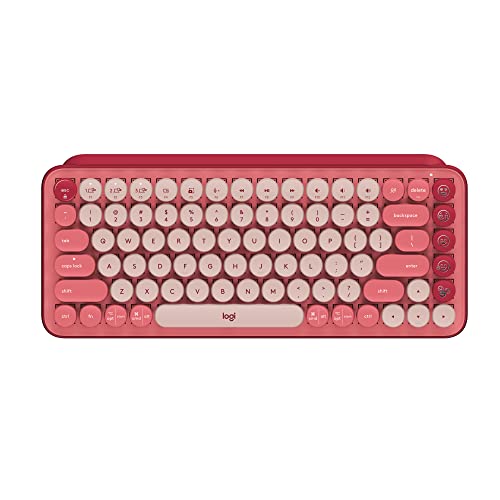


 Logitech MX Keys S
 Microsoft Designer Compact Keyboard