Key takeaways
- The best gaming pc desks with builtin cable management keep every cable out of sight. Compare trays, grommets, sizes and frames before you buy the right one.
As an Amazon Associate we earn from qualifying purchases.
A gaming desk with built-in cable management solves a problem that a bigger desk alone cannot: the tangle of monitor, keyboard, headset, charger, and PC cables that creeps across the desktop and down the back of the desk. The real decision is not how large the surface is, but how the desk moves cables from your gear to the wall without leaving them visible, snagged, or pulling at your mouse. A desk that routes cables well keeps your aim consistent, your workspace calm, and your setup easy to clean.
This guide is for competitive players who want a clear mouse area, streamers juggling monitors and microphones, and anyone who works and plays at the same desk and is tired of dust collecting in a cable nest. It compares desks by the cable-management features stated on their product pages — trays, grommets, channels, and cutouts — alongside size, frame strength, and legroom, so you can judge the routing before you order rather than discovering the gaps after assembly.
How to Choose
Tray, Grommet, or Channel: Pick the Routing Style
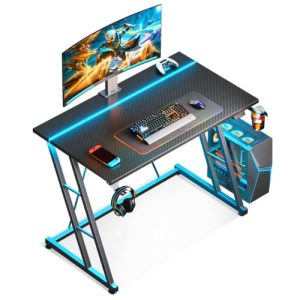
A tray under the rear edge is the most forgiving option because it holds a power strip and spare cable length out of sight, and you can rearrange plugs without re-threading cords. Grommets are holes that drop cables through the desktop, which suits a single monitor and a wired keyboard, but they do little for the slack below. A rear channel or slot runs the full width and lets you slide cables sideways, which helps dual-monitor setups with screens at different heights. Check whether the tray is full width or a short basket, whether it is metal or mesh, and whether the grommets sit where your monitor arm and PC stand.
Size and Depth for Your Monitors and PC
Width decides how many screens fit, but depth decides comfort. A shallow desk pushes the monitor close and leaves no room for a full-size keyboard, so your wrists hang off the edge during long sessions. A depth of around 24 inches or more gives a monitor arm room to clamp, a keyboard room to sit flat, and a mouse pad room. Measure your widest monitor combination, add space for speakers or a headset stand, and leave a clear strip at the back for cables to drop. An L-shaped desk adds a return wing for a second screen or a streaming deck, yet it needs a corner that truly fits it.
Frame Strength and Weight Capacity
A gaming setup is heavy: two monitors, a PC tower, speakers, and a monitor arm can load one side more than the other. A steel frame with cross bracing resists wobble when you lean in during a tense round, while thin legs and a light top can flex and shake the monitors with every keystroke. Read the stated weight capacity and check whether it covers the whole desktop or one point, since a monitor arm concentrates its load on one clamp area. Look at how the legs attach, whether the frame has adjustable feet for uneven floors, and whether the desktop is one solid panel or joined boards that may sag.
Height, Legroom, and Room to Grow
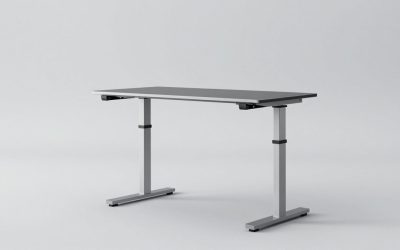
Fixed-height desks suit most players, yet the wrong height causes sore shoulders and a cramped mouse arm within weeks. Your elbows should rest near a right angle with the keyboard flat, and your knees need clear space under the desktop without the cable tray pressing against your legs. A height-adjustable desk costs more and adds motors and a control box to route cables for, but it lets you switch between sitting and standing and adapts when a new chair arrives. Before ordering, sit in your chair, measure from the floor to your elbow, and compare that number with the desk height, the tray depth, and the space left for a PC tower underneath.
Cable Management Systems Explained
Not every desk that claims built-in cable management routes cables the same way, and the differences show up the first time you add a new device. A full-width tray is the most complete system: it runs along the back of the desktop, holds a power strip flat, and gives every cable a place to rest so nothing dangles to the floor. A mesh basket does the same job in a lighter form, though very thick power bricks can press against the mesh and sag it over time. Grommets handle the trip from the top of the desk to the tray, and their position matters more than their count — a grommet behind the monitor is useful, while one stranded in the middle of the mouse area is a hole you will never use.
Rear channels and modesty panels take a different approach by hiding cables behind a vertical strip at the back of the desk. A channel that is open at the top lets you drop cables in from above without unplugging anything, which is a real advantage when you swap a headset or add a capture card. A closed panel looks tidier from the front, but it can turn a simple cable swap into a furniture-moving job. Some desks combine a channel with a tray, so cables drop through grommets, run sideways in the channel, and rest in the tray — that combination is the easiest to live with long term.
The rest of the system is small hardware that still matters. Velcro straps hold bundles together without pinching cables the way zip ties can, and adhesive clips keep a headset or controller lead from sliding off the back of the desk. A monitor arm with its own cable clips keeps display and power leads tight against the arm instead of looping across the wall. Plan the route before you plug anything in: power strip in the tray, monitor and PC leads down the nearest grommet, and peripheral cables grouped by device, with a little slack left at each end so a cable never pulls tight when you adjust a screen.
Which One Fits Your Situation
Competitive Players With One Monitor and a Tight Routine
A single-monitor player needs a clean mouse area above all else, so a straight desk with a full-width tray and two grommets behind the screen is usually enough. Keep the desktop deep enough for a large mouse pad, route the keyboard and headset leads straight down, and leave the sides free so your arm never catches a cable mid-flick. Skip extra shelves and risers that eat into the sweep zone.
Streamers Running Two Monitors, a Mic, and Lights
A streamer adds a microphone arm, a key light, a camera, and sometimes a second PC or console, so cable count climbs fast. Choose a wide desk with a full-width tray, a rear channel, and grommets at both ends, then group cables by device. A monitor arm with built-in clips keeps display leads off the wall, and a tray deep enough for two power strips saves rerouting later.
Work-and-Play Setups in a Shared Room
When the same desk serves daytime work and evening games, tidiness matters twice over, because the desk is visible to everyone in the room. A desk with a closed rear panel or a deep tray hides the work laptop charger and the gaming leads together, while a neutral finish blends with the room. Pick a size that fits a laptop stand beside the monitor, and keep one spare grommet free for the next device.
Small Rooms and Corner Spaces
A small room punishes a desk even a few inches too wide, so measure twice and leave room for the chair. An L-shaped desk uses a corner well and gives a second surface for a console or notebook, but its wing must clear doors and radiators. A compact straight desk with a slim tray can work too, provided the tray fits a power strip and the PC tower does not block the cables.
Measure Your Space and Gear Before Ordering
Ordering a desk without measuring is the fastest way to end up with a surface that blocks a door or a monitor that sits too close. Start with the wall: measure the width available, the distance to the nearest door swing, and the height of any windowsill or radiator behind the desk. Then measure your gear: the combined width of your monitors on their stands or arm, the depth of your keyboard and mouse pad together, and the footprint of your PC tower, including the space its side panel needs for airflow. Add a few inches behind the desk for cables to bend without kinking, since a cable forced into a sharp turn at the grommet can fail early.
Check the chair as well. Roll it back fully and measure the floor space it needs, then confirm that the desk legs and the cable tray leave your knees clear when you sit close. If the desk will sit on carpet, confirm that the feet adjust enough to stop wobble, and if the floor is uneven, look for levelling feet rather than fixed pads. Finally, count your wall outlets and their positions: a desk with a great tray still leaves cables trailing if the nearest outlet is on the far side of the room. A short extension lead routed through the tray is neater than a long one draped across the floor, and it keeps the walkway clear.
Common Mistakes
- Buying on width alone: A wide desk with a shallow top still crowds your monitor, keyboard, and mouse pad into the same strip, so check depth and legroom before you fall for a big width number.
- Ignoring the power strip: Trays that fit cables but not a full power strip force the strip onto the floor, which defeats the purpose, so measure your strip and its bulkiest plug before ordering.
- Forgetting slack for moving parts: Cables pulled tight to a monitor arm or a height-adjustable frame will tug, unplug, or wear out, so leave a gentle loop at every joint that moves.
- Blocking the tray with the PC tower: A tower parked hard against the back edge covers the grommets and the tray opening, turning every cable change into a wrestling match, so give the tower its own space to one side.
- Mixing power and signal leads in one tight bundle: Power bricks and audio leads bundled tightly together can add hum to a headset or microphone, so keep power in one part of the tray and audio and data leads in another.
Frequently Asked Questions
Do built-in cable trays fit a large power strip?
Most full-width trays fit a standard power strip lying flat, but short baskets and slim trays often do not, especially with a wide plug or bulky adapter. Measure the strip and its widest plug, and compare them with the tray depth and length before ordering. If the strip will not fit, plan a separate mounting point under the desk.
Is a desk with cable cutouts enough without a tray?
Cutouts alone work for a minimal setup with one monitor and a wired keyboard, since little slack needs hiding. Once you add a second screen, speakers, a headset stand, or a console, the slack below grows fast and needs a tray or basket. A tray also keeps spare cable length off the floor, where it collects dust.
How much depth do I need for a monitor arm and keyboard?
Around 24 inches of depth is a practical minimum for a monitor arm, a full-size keyboard, and a mouse pad. Shallower desks push the screen close and leave wrists hanging off the front edge, while deeper desks give the arm and cables room. Measure your keyboard and pad together, then add the arm base.
Can I add cable management to a desk that has none?
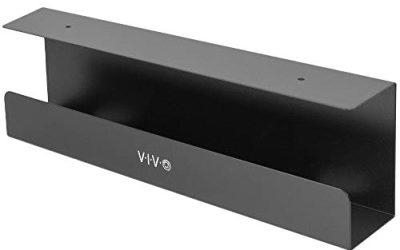
Yes: a screw-on or clamp-on tray under the rear edge, adhesive clips along the back, and velcro straps to bundle leads by device. A stick-on raceway hides a vertical run down a leg, and a monitor arm with cable clips tidies display leads. These add-ons rarely look as clean as a built-in system, but they solve the same problem.
FAQ
Do built-in cable trays fit a large power strip?
Is a desk with cable cutouts enough without a tray?
How much depth do I need for a monitor arm and keyboard?
Can I add cable management to a desk that has none?
More from Amazon
Programs that pair well with the guide above. Offers and eligibility are set by Amazon and may change.
Free shipping on eligible items, Prime Video and more. Eligible new members can start with a free trial.
Start a Prime free trialAd-free music streaming. Eligible new subscribers can start with a free trial.
Try Music Unlimited freeA Prime membership for ages 18-24 with a trial period. Eligibility is set by Amazon.
See Prime for Young AdultsAudiobooks and podcasts to listen to on the go. Eligible new members can start with a free trial.
Try Audible freeAs an Amazon Associate we earn from qualifying purchases.