Key takeaways
- Find the best monitor stands and desks for gaming with this November 2026 guide to sizing, ergonomics, stability, cable management and layouts for any setup.
As an Amazon Associate we earn from qualifying purchases.
A gaming setup lives or dies by where the screen sits and how much room the desk gives you. A monitor that is too low forces your neck down for hours, a desk that is too narrow crowds your keyboard and mouse, and a wobbly surface turns every excited movement into screen shake. The real decision is not which stand or desk looks best in a photo, it is which combination puts your monitor at eye level, leaves your arms free to move, and still fits the room you actually play in.
This guide is for competitive players chasing a stable aim, streamers building a tidy on-camera setup, students and remote workers sharing one desk between games and work, and anyone upgrading from a kitchen table to a dedicated battlestation. It draws on manufacturer dimensions and listed specifications to explain what to measure, what to prioritise, and which layout fits each kind of player, so you can choose with confidence before you spend anything.
How to Choose
Screen Height and Viewing Distance
Your monitor should sit so the top third of the screen is roughly at eye level when you sit upright, with the screen about an arm’s length away. Too low, and your neck bends forward for hours; too high, and your shoulders creep up toward your ears. A fixed riser adds a set amount of lift, which suits a single monitor that never moves, while an adjustable arm lets you change height, tilt, and distance in seconds. Measure your seated eye height before shopping, then check how much lift a stand actually provides. If you share the desk with someone taller or shorter, adjustability matters far more than a few extra inches of desktop space.
Desk Size and Layout
Start with the footprint your gear actually needs: monitor width, keyboard depth, mouse space, and room for a headset or controller when they are not in use. A compact desk can work for a single monitor and a tenkeyless keyboard, but dual monitors usually need a wider surface so the screens sit at a comfortable angle instead of crowding the edges. Depth matters as much as width, because a shallow desk pushes the monitor too close to your face. Leave a margin at the back for cables and a monitor arm clamp, and walk through your normal play session in your head, checking that your elbows and mouse hand never run out of room.
Weight Capacity and Stability
Every stand and desk has a weight limit, and it is worth respecting with room to spare. Add up the monitor, any second screen, speakers, and anything else that will rest on the surface, then choose a stand rated comfortably above that total. A steel frame or a solid wood top resists wobble better than a thin hollow panel, and a wide base spreads the load more evenly. Shake the desk gently in the shop or check how it is braced: crossbars, sturdy legs, and a level floor make a bigger difference than a heavy top alone. If your floor is uneven, adjustable feet keep the surface level and stop the monitor from slowly drifting.
Cable Management and Future Upgrades
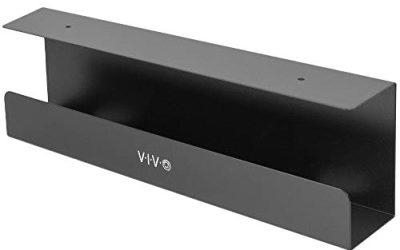
A tidy setup is easier to clean, easier to upgrade, and far less likely to snag a cable mid-match. Look for a desk with a cable tray, grommet holes, or a channel along the back edge, and a stand that leaves space underneath for a power strip. Route monitor, keyboard, headset, and charger cables together with reusable ties, leaving a little slack where a monitor arm moves. Think one upgrade ahead: a second monitor, a stream deck, or a speaker pair all need surface space and spare ports. Choosing a desk with room to grow costs less than replacing a cramped one a year later.
Monitor Stand or New Desk: Which Upgrade Comes First
When your desk already fits the room and feels solid under your hands, a monitor stand is usually the smarter first purchase. A riser lifts the screen to eye level, frees the space underneath for a keyboard, notebook, or controller, and costs far less than replacing furniture. A clamp-on arm goes further, letting you swing the monitor aside when you need the desk for homework or pull it close for a competitive match. Stands also travel well: if you move rooms or swap desks later, the same arm or riser moves with you. The only time a stand cannot help is when the desk itself is the constraint, and that is where the next question comes in.
A new desk is the right call when the surface itself is the problem. If your mouse hand hangs off the edge, your monitor sits too close because the desk is shallow, or the whole surface shakes when you type, no stand will fix the geometry. Measure the wall or corner the desk will occupy, then look for a top deep enough to hold the monitor at arm’s length with the keyboard in front of it, plus a few inches to spare. L-shaped desks suit corners and dual-monitor rigs, while a straight desk keeps a small room feeling open. Check the leg design too: a frame that leaves your knees free matters more over long sessions than a decorative edge or an extra shelf.
If you can only buy one thing this month, spend it on the piece that removes your biggest daily annoyance. Neck pain points to a stand, cramped hands point to a desk, and cable chaos points to a tray and ties before either. Whichever you buy first, measure twice: note your seated eye height, the width of everything that must share the surface, and the space behind the desk for cables and a clamp. Write those three numbers down before you shop, and compare every option against them. A setup chosen from measurements instead of photos is the one that still feels right a year later, when the novelty has worn off and only the ergonomics remain.
Which One Fits Your Situation
Single Monitor in a Small Room
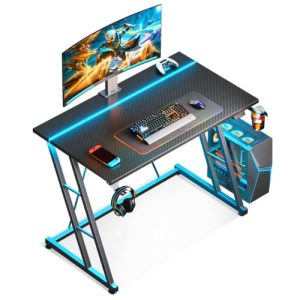
A single monitor on a compact desk is the small-room setup, and a riser or an arm is all it needs. Pick a stand that lifts the screen to eye level without eating desktop space, and keep the keyboard and mouse in the space underneath. A desk around the width of your monitor plus a hand’s breadth leaves room to aim without knocking things over, and a shelf or drawer underneath the riser hides the cables.
Dual Monitors for Streaming and Work
Two screens change the maths: the desk needs width for both monitors at a slight angle, plus space for a microphone arm. A dual-arm mount keeps both screens at the same height and frees the whole desktop, while a wide riser suits fixed setups that never move. Angle the second screen inward so your neck stays centred on the main display, and leave a gap behind the desk for the extra cables a second screen brings.
Ultrawide or Triple-Monitor Battlestation
Ultrawide and triple-monitor rigs are heavy, wide, and unforgiving of weak supports. Choose a stand or arm rated well above the combined weight, with a clamp that grips a thick desktop firmly. A deep desk keeps a curved ultrawide at a comfortable distance, and an L-shaped top gives triple screens room to wrap around you. Before buying, confirm the arm’s supported screen sizes and weight limit, because a wide screen stresses a mount differently from a small one.
Shared Desk for Gaming and Study
When one desk serves games, homework, and calls, flexibility beats a fixed layout. A monitor arm lets you push the screen back for writing or pull it forward for a match, and a riser with storage underneath keeps notebooks and chargers out of the way. Pick a desk with a neutral finish rather than a themed one you may tire of, and keep cables in a tray so the surface can switch roles in seconds.
Common Mistakes
- Buying a stand that cannot hold your monitor. A stand rated below your screen’s weight will sag, tilt, or slowly sink over weeks, and an ultrawide is heavier than it looks. Weigh the monitor with its base removed if you plan to mount it, add any second screen or speaker that will share the stand, and choose a rating comfortably above the total rather than exactly matching it.
- Choosing a desk by looks instead of depth. A stylish narrow desk photographs well and plays badly, because a shallow top pushes the monitor too close and leaves no room for your wrists. Measure the depth you need for the screen at arm’s length plus the keyboard in front of it, and treat that number as a hard minimum before you look at colours or lighting.
- Forgetting that a clamp needs a desk edge. Clamp-on monitor arms grip the back edge of a desktop, so a desk with a thick modesty panel, a raised lip, or a glass top may not accept one at all. Check the clamp’s supported thickness range and the shape of your desk edge before ordering, or plan on a grommet mount or a freestanding riser instead.
- Ignoring the space behind the desk. Cables, a power strip, and a monitor arm clamp all live behind the desktop, and a desk pushed flush against the wall leaves them nowhere to go. Leave a few inches of clearance at the back, route cables through a tray or grommet holes, and confirm there is a nearby outlet before the desk is assembled and too heavy to move.
- Placing the monitor too high or too close. Raising the screen above eye level strains the neck just as surely as leaving it too low, and sitting too close to a large panel forces constant head turning. Set the top third of the screen at eye level, sit about an arm’s length away, and re-check the position after a week, since small adjustments are easier to notice once the novelty wears off.
Frequently Asked Questions
How high should my gaming monitor sit?
Set the monitor so the top third of the screen is at eye level when you sit upright in your normal chair. That usually means lifting the screen above the desktop, which is exactly what a riser or an adjustable arm is for. If you catch yourself tilting your chin after an hour of play, adjust the height in small steps until your neck feels neutral.
Do I need a monitor arm or is a riser enough?
A riser is enough when one monitor never moves and the fixed lift puts it at eye level. An arm is better when you share the desk, switch sitting positions, or want to swing the screen aside for other work. Arms also free the desktop underneath, while a riser still occupies surface space. Choose by how often the screen needs to move, not by which looks more impressive.
What size desk do I need for two monitors?
Two standard monitors side by side generally need a desk wide enough for both screens plus a little margin at each edge, with enough depth to keep them at arm’s length. A wider top also leaves room for a keyboard, mouse, and microphone without crowding. Measure both monitors, add the space your peripherals need, and treat that total as your minimum width before shopping.
Can a monitor stand hold an ultrawide monitor?
Yes, provided the stand is rated for both the weight and the width of the screen. Check the manufacturer’s listed weight limit and its supported screen-size range, and confirm the mount pattern matches your monitor’s VESA holes. A freestanding riser only needs a top wide enough for the monitor base, while an arm must also handle the extra leverage a wide panel creates.
FAQ
How high should my gaming monitor sit?
Do I need a monitor arm or is a riser enough?
What size desk do I need for two monitors?
Can a monitor stand hold an ultrawide monitor?
More from Amazon
Programs that pair well with the guide above. Offers and eligibility are set by Amazon and may change.
Free shipping on eligible items, Prime Video and more. Eligible new members can start with a free trial.
Start a Prime free trialAd-free music streaming. Eligible new subscribers can start with a free trial.
Try Music Unlimited freeA Prime membership for ages 18-24 with a trial period. Eligibility is set by Amazon.
See Prime for Young AdultsAudiobooks and podcasts to listen to on the go. Eligible new members can start with a free trial.
Try Audible freeAs an Amazon Associate we earn from qualifying purchases.