Our Top Picks
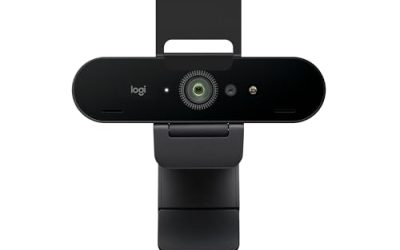
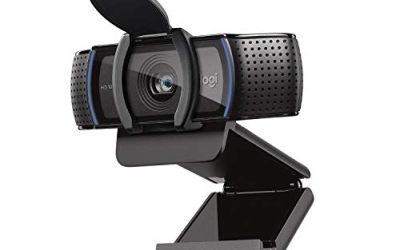
 Logitech StreamCam Premium Webcam for Streaming and ContentFull HD 1080p 60 fps1.89 x 2.28 x 3.35 inches0.6 poundsCheck on Amazon

As an Amazon Associate, we earn from qualifying purchases made through links on this page.


A desktop PC almost never has a camera of its own. The monitor is a separate purchase, the tower sits under the desk, and the first time many desktop owners think about a webcam is the moment a call, an interview or a stream asks for one. That makes the external webcam a permanent part of a desktop setup rather than an accessory you clip on for one meeting, and it changes what matters. The mount has to grip a thick gaming monitor or stand on a tripod. The cable has to reach from the top of the screen down to a tower on the floor. The port at the PC end is often USB-A on an older case, not the USB-C socket a laptop would give you.
This roundup collects five external USB webcams that suit a fixed desktop: two 4K models with large sensors for streamers and creators, an uncompressed 1080p60 camera built for OBS work, a compact 1080p60 camera with a tripod mount in the box, and a 2K model with an adjustable field of view for desk calls. Every pick below is judged on the facts its manufacturer publishes: resolution and frame rate, field of view, focus system, microphone arrangement, mounting hardware and cable length. Where a spec creates a real limit for a desktop user, the product section says so plainly.
What to look for in a desktop webcam
Resolution and frame rate. Video call apps cap the picture they send, usually at 720p or 1080p, so a 4K sensor earns its place when you record, stream with a cropped facecam window, or want headroom to zoom in digitally without going soft. Frame rate is the other half: 60 frames per second at 1080p keeps motion smooth on a stream, while 30 frames per second is fine for meetings. Check the pairing, not just the headline number, because several 4K webcams only reach 60 fps once you drop to 1080p.
Field of view. A desktop camera sits closer to you than a laptop camera usually does, and it stays in one place. A field of view around 78 to 84 degrees frames one person at a desk without pulling in the whole room. Wider views, up to the mid-90s, suit two people or a desk you want to show. Adjustable fields of view, whether optical settings or a digital crop in software, let one camera cover both jobs.
Focus system. Autofocus matters more at a desk than it sounds: you lean in to read, lean back to think, and hold products or notes up to the lens. Phase-detection autofocus locks on quickly and holds. Fixed-focus lenses are tuned for a set distance band, which is predictable but less forgiving if you sit further back or move a lot.
Mounting and cable reach. Measure two things before you buy. First, the mount: most clip mounts fold over the top bezel and rest a foot against the back of the monitor, which works on slim screens but can wobble on thick or curved panels; a standard tripod thread underneath solves that and also allows a desk tripod or boom arm. Second, the cable: a tower under a desk can leave barely a metre between the USB port and the top of the monitor once the cable drops behind the desk, so a 1.5 m cable is the practical minimum and a 2 m cable is easier to route.
Microphones and privacy. Built-in microphones are a useful fallback, but most desktop users already own a headset or a USB microphone, and one pick below has no microphone at all by design. A physical privacy shutter or cover is worth having on a camera that points at you all day, because it closes the lens in hardware rather than in software.
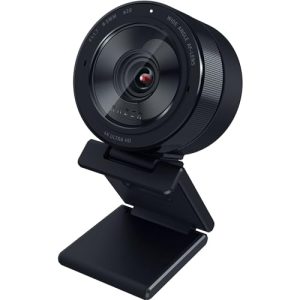
Razer Kiyo Pro Ultra
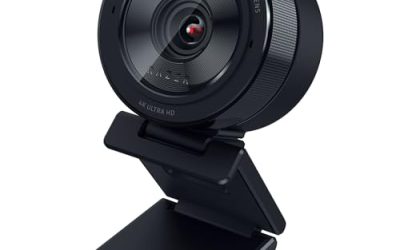
The Kiyo Pro Ultra is built around the largest sensor in this roundup, a Sony unit in the 1/1.2 inch class, behind an f/1.7 lens. Razer publishes 4K at 30 frames per second uncompressed, 1440p at 30, 1080p at 60 and 720p at 60, with an adjustable field of view from 72 to 82 degrees and autofocus. Dual microphones and a built-in privacy shutter are part of the package, and the connection is USB-C running over USB 3.0, which the uncompressed 4K feed needs.
For a desktop, the appeal is low-light headroom. A big sensor and a fast lens hold a clean picture in a room lit by a monitor and a desk lamp, which is the lighting most gaming and streaming desks actually have. The narrower end of the field of view keeps the frame on you rather than the room, and the shutter gives the camera a physical off state between sessions.
The limits follow from the same specs. Four K stops at 30 frames per second, so fast motion still belongs to the 1080p60 mode. Uncompressed 4K over USB 3.0 means the camera wants a direct rear port on the motherboard rather than a front-panel hub on an older case. It is also the bulkiest body here, so check the clip against a thick monitor bezel before relying on the mount alone.
Best for: streamers and creators on a fixed desk who record or crop their facecam and work in dim rooms.
OBSBOT Meet 2
The Meet 2 takes the opposite approach to size: the body measures 45 by 36 by 22.2 mm and weighs 40.5 g without its mount, yet OBSBOT fits in a 1/2 inch CMOS sensor with an f/1.8 aperture. Published video modes run to 4K at 30 frames per second and 1080p at 60 in MJPEG, with a 79.4 degree diagonal field of view, phase-detection autofocus that works from 10 cm, 4x digital zoom and HDR. AI auto-framing and gesture control are built in, there are dual noise-cancelling microphones, and the USB-C 2.0 cable is detachable, with a USB-C to USB-A adapter in the box.
On a desktop that footprint is the point. The magnetic mount sits on top of a monitor without the deep clip a heavier camera needs, and the camera can rotate in its mount for vertical framing. The adapter also answers the older-tower problem directly: a case with only USB-A ports can still run it, and the detachable cable can be swapped for a longer one if your routing needs more reach than the bundled lead gives.
The trade-offs are compression and scale. The 4K feed is MJPEG rather than uncompressed, and AI framing works by cropping into the sensor, so the framed picture uses fewer pixels than the full frame. A body this small also has a small mount footprint, which is fine on a monitor but less planted on a tall tripod in a busy room.
Best for: tidy desks and smaller monitors, and anyone who wants 4K detail with auto-framing in the smallest body available.
Elgato Facecam MK.2

The Facecam MK.2 is a streaming specialist. Elgato publishes uncompressed 1080p at 60 frames per second in YUY2 over USB 3.0, with HDR, a Sony sensor, an f/2.4 fixed-focus lens and an 84 degree field of view. Digital pan, tilt and zoom run through Elgato Camera Hub, settings are stored on the camera itself, and a sliding privacy shutter covers the lens. The USB-C cable is 2 m long, the longest bundled lead in this group.
Two of those facts are unusually desktop-friendly. The 2 m cable reaches a floor-standing tower without an extension, and because the settings live on the camera, your exposure and framing choices survive a move between apps or machines. Uncompressed video also matters to streamers: OBS receives a clean feed with no MJPEG artefacts to magnify when the facecam window is enlarged.
The headline limitation is audio: the Facecam MK.2 has no built-in microphone at all. That is a deliberate design choice for streamers with a dedicated microphone, but a desktop buyer who expects to talk through the webcam needs a separate mic or headset. Fixed focus is the second limit; the lens is set for a typical desk distance band, so sitting well back from the monitor softens the picture in a way an autofocus model would correct.
Best for: streamers who already own a microphone and want an uncompressed 1080p60 feed with a long cable run.
Logitech StreamCam
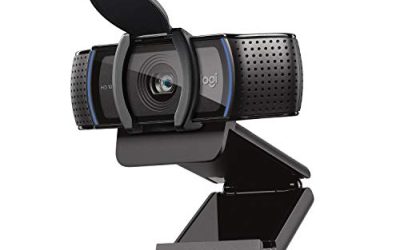
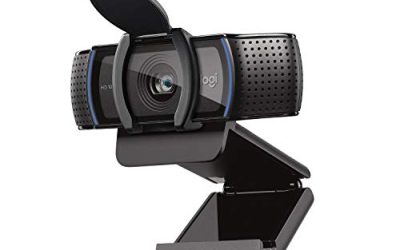
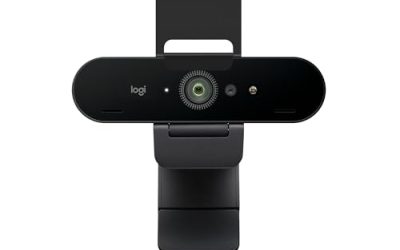
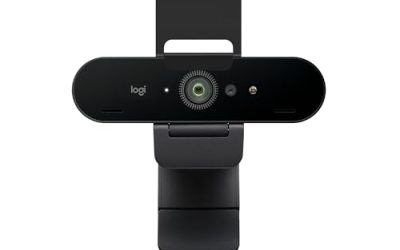
The StreamCam is Logitech’s creator camera: Full HD 1080p at 60 frames per second in MJPEG, a glass f/2.0 lens with a 78 degree diagonal field of view, and autofocus from 10 cm to infinity with face-based tracking in Logitech software. Dual omnidirectional microphones with a noise reduction filter are built in. It connects over USB-C, the cable is 5 ft (1.5 m), and the box includes both a monitor mount and a tripod mount, which is rarer than it should be.
For a desktop setup the mounts are the story. The monitor mount handles a standard screen, and the tripod mount lets you move the camera off the monitor entirely, onto a small desk tripod or a boom, which is the easiest way to fix framing on an ultrawide or a very thick panel. Rotating the camera in its mount also switches it to vertical framing for short-form video, with no extra hardware.
The ceiling is resolution. There is no 4K mode, and the 60 fps rate applies to MJPEG only; the uncompressed formats top out at 30 fps. Buyers who record footage to crop later should look at the 4K models above instead. The 1.5 m cable is also the joint shortest here, so a tower on the floor may need the camera on a tripod closer to the PC, or a USB extension.
Best for: creators who want 1080p60, flexible mounting and vertical video from one camera.
Anker PowerConf C200
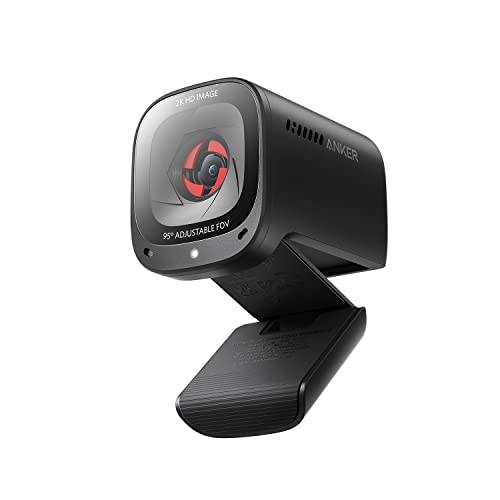
The C200 is the meeting-focused pick. Anker publishes 2K video at 2560 by 1440 and 30 frames per second, with 1080p and 720p modes below it, autofocus, and a field of view that adjusts between 65, 78 and 95 degrees. Dual stereo microphones carry AI noise cancelling, a privacy cover is built into the body, and the connection is USB-C.
The adjustable field of view is the spec that fits a desktop best. Set 65 degrees for a tight one-to-one call, 78 for a normal desk frame, and 95 when a second person pulls up a chair or you present something on the desk behind you. The 2K sensor gives a sharper picture than 1080p in apps that accept it, and the built-in cover closes the camera between calls without a separate cap to lose.
Its limits are motion and light. Every mode runs at 30 frames per second, so it is the wrong pick for a stream where movement smoothness matters. Anker does not headline a large sensor for this model, and its low-light correction is processing rather than glass and sensor size, so a dim room will not look like the Razer above. It is a calls camera first, and it is best bought as exactly that.
Best for: work calls from a desktop, especially where the framing needs to change between solo and two-person calls.
Comparison table
| Webcam | Max resolution / fps | Field of view | Focus | Microphone | Cable |
|---|---|---|---|---|---|
| Razer Kiyo Pro Ultra | 4K / 30 (1080p / 60) | 72–82 degrees, adjustable | Autofocus | Dual mics | USB-C, USB 3.0 |
| OBSBOT Meet 2 | 4K / 30 (1080p / 60) | 79.4 degrees | PDAF autofocus | Dual noise-cancelling mics | USB-C, detachable, USB-A adapter included |
| Elgato Facecam MK.2 | 1080p / 60 uncompressed | 84 degrees | Fixed focus | None | USB-C, 2 m |
| Logitech StreamCam | 1080p / 60 | 78 degrees | Autofocus | Dual omnidirectional mics | USB-C, 1.5 m |
| Anker PowerConf C200 | 2K / 30 | 65 / 78 / 95 degrees, adjustable | Autofocus | Dual stereo mics, AI noise cancelling | USB-C |
FAQ
Why does a desktop need an external webcam at all?
Most desktop monitors ship without a camera, and a tower has none built in, so any video call, interview, stream or recording on a desktop PC needs an add-on camera. An external model also sits at the top of your actual screen, which keeps eye lines natural in a way a phone propped on the desk cannot.
Should I plug a webcam into USB-A or USB-C on my tower?
Either works for most models, but check the requirement behind the headline mode. Uncompressed feeds such as the Facecam MK.2 and the 4K mode of the Kiyo Pro Ultra assume USB 3.0 bandwidth, so use a rear motherboard port where you can. Several cameras here include or support a USB-C to USB-A adapter for older cases.
Is 4K worth it if my call app only sends 1080p?
For calls alone, mostly not: the app decides what leaves your PC. Four K earns its place when you record locally, stream with a facecam window you crop or enlarge, or use digital zoom, because the extra pixels keep those crops sharp. If the camera only ever feeds meetings, a good 1080p or 2K model covers the job.
How long a cable do I need for a tower under the desk?
Measure from the USB port, up the back of the desk, to the top centre of the monitor, and add slack for routing. For most desks that lands between 1.5 and 2 m. A detachable cable, like the Meet 2 uses, or the 2 m lead on the Facecam MK.2, saves buying an extension later.
Can these webcams mount on a tripod instead of the monitor?
Some can out of the box: the StreamCam includes a tripod mount, and the Meet 2 rotates in its magnetic mount for different placements. A tripod or boom arm is the practical fix for curved and ultrawide monitors whose top edge makes clip mounts sit at an angle.
Conclusion
For a desktop, the right webcam is the one whose mount, cable and port requirements fit the desk you already have, and whose sensor matches the work. The Kiyo Pro Ultra is the image-quality pick for streamers in dim rooms, the Meet 2 packs 4K and auto-framing into the smallest body, the Facecam MK.2 serves OBS users who own a microphone and need cable reach, the StreamCam is the flexible 1080p60 all-rounder with the best mounting kit, and the C200 covers work calls with framing you can change on the day. Match the camera to the job and the desk, and any of the five will outlast the setup it was bought for.
More from Amazon
Programs that pair well with the guide above. Offers and eligibility are set by Amazon and may change.
Free shipping on eligible items, Prime Video and more. Eligible new members can start with a free trial.
Start a Prime free trialAd-free music streaming. Eligible new subscribers can start with a free trial.
Try Music Unlimited freeA Prime membership for ages 18-24 with a trial period. Eligibility is set by Amazon.
See Prime for Young AdultsAudiobooks and podcasts to listen to on the go. Eligible new members can start with a free trial.
Try Audible freeAs an Amazon Associate we earn from qualifying purchases.