Our Top Picks
The best external webcams for laptop use fix the two problems built-in laptop cameras almost always have: a low, unflattering angle and soft, grainy video in ordinary room light. A clip-on external webcam sits higher, frames your face at eye level, and usually brings a larger sensor, better autofocus, and a microphone that picks up your voice instead of your keyboard. Whether you join video calls for work, stream games, record lessons, or study with classmates online, the right external camera makes you easier to see, easier to hear, and easier to follow.


A laptop is a moving target, though. Thin lids, glossy screens, a single free USB port, and a bag that already weighs enough all shape the choice. A camera that works beautifully on a desktop monitor can wobble on a slim laptop lid, block part of the screen, or demand software your laptop does not run well. This guide walks through what actually matters for laptop use, then compares five external webcams that suit different laptops, rooms, and budgets of attention rather than money. Every pick below is a real webcam sold on Amazon US, with a direct link so you can confirm the exact model and current availability on the listing before you buy.
How to Choose
Resolution and frame rate
Resolution decides how much detail the camera captures, and frame rate decides how smooth motion looks. For laptop calls, 1080p at 30 frames per second is the practical baseline: it looks clean on a laptop screen, it works with common meeting apps, and it does not demand much from your laptop. A 2K or 4K camera adds headroom for cropping, digital zoom, and recording, which matters if you stream or record lessons and want to reframe the shot later. A 60 frames per second mode helps when you move, gesture, or show objects to the camera, because motion stays smooth instead of smearing. Match the camera to your laptop as well as to your audience: a 4K camera on an older laptop can still be used at 1080p, and that flexibility is worth having.
Field of view
Field of view is the width of the scene the camera captures, measured in degrees. A narrow view around 65 to 78 degrees frames one person tightly and keeps a messy room out of shot, which suits a small desk or a shared bedroom. A wide view around 90 to 95 degrees fits two people side by side, a whiteboard, or a desk demonstration, which suits teaching, pair work, and group calls. Some cameras let you switch between several fields of view in software, so one camera can serve a solo call in the morning and a group session in the afternoon. Think about your room before you choose: a wide camera in a small room shows everything, while a narrow camera at a shared table cuts people out of frame.
Autofocus and light correction
Autofocus keeps your face sharp when you lean in to read a note and lean back to think. Fixed-focus cameras can be fine if you sit still at one distance, but they punish anyone who moves, holds up a book, or shifts in a chair. Light correction matters just as much, because laptop users rarely sit under studio lighting. A camera with automatic light correction brightens a dim room, balances a bright window behind you, and keeps skin tones natural instead of washed out. If your desk faces a window or a lamp, this feature does more for your image than a jump in resolution. Look for a camera that handles backlight and low light without manual adjustment, so every call starts well without a lighting ritual.
Microphone quality
The microphone decides whether people hear your words or your room. Most external webcams carry dual microphones with noise reduction, and the better ones filter out keyboard clicks, fan hum, and street noise while keeping your voice clear. A webcam microphone will not replace a dedicated headset or a desk microphone for recording, but for calls and casual streaming it is often enough, and it keeps your setup simple. If you take calls in a noisy shared space, favour a camera whose microphones are described as noise-cancelling or noise-reducing. If you already own a good headset, the camera microphone becomes a backup, and you can weigh video quality more heavily.
Mounting and laptop lid fit
Mounting is the detail laptop buyers overlook most often. A good external webcam needs a clip that grips a thin laptop lid firmly without sliding, scratching, or tipping the screen backwards. Look for a clip with a flat, padded foot, a hinge that lets you tilt the camera, and a standard tripod thread underneath, which lets you move the camera to a small tripod or a desk stand when the lid mount does not suit the shot. Weight matters here too: a heavy camera on a light laptop can pull the lid back or wobble when you type. A compact camera that folds flat also travels better, slipping into a laptop sleeve without a separate case. Check the cable as well: a short cable suits a laptop, while a long cable gives you room to place the camera on a shelf or a tripod.
Privacy and software
A built-in privacy shutter is a small feature with a large effect on peace of mind. A sliding cover or a flip-down shutter lets you block the lens between calls without unplugging the camera or sticking anything to the lens. Software matters too: some cameras offer companion apps for zoom, framing, exposure, and field of view, while others are fully plug-and-play with no software at all. Plug-and-play suits a shared or work laptop where you cannot install extra programs, while companion software suits a personal laptop where you want finer control. Either way, confirm the camera works with your operating system and your meeting apps before you settle on a model, and favour cameras that work over a standard USB connection without a hub or adapter.
Top Picks
Logitech C920s Pro HD Webcam
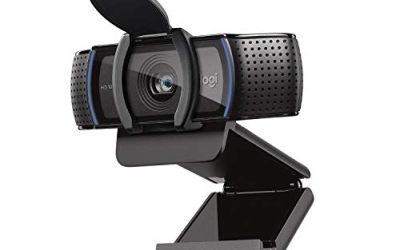
The Logitech C920s Pro HD is the dependable all-rounder of this list, and it is the easiest recommendation for a first external laptop webcam. It records 1080p video at 30 frames per second through a glass lens, with autofocus, a 78-degree field of view, and light correction that handles ordinary room lighting well. Dual stereo microphones capture clear voice audio for calls, and a built-in privacy shutter slides over the lens when the call ends. The clip mount grips a laptop lid securely, and the camera folds down for travel.
Who it is for: anyone who wants a laptop webcam that simply works, for daily video calls, online classes, and casual streaming, without learning new software. It suits a work laptop, a student laptop, and a family laptop equally, and it is a sensible upgrade from any built-in camera.
Caveats: the 78-degree view frames one person well but is tight for two people at one laptop. Low-light performance is good rather than outstanding, so a dim room still benefits from a lamp in front of you rather than behind you. The camera records at 30 frames per second, so fast hand movements can blur slightly compared with a 60 frames per second model.
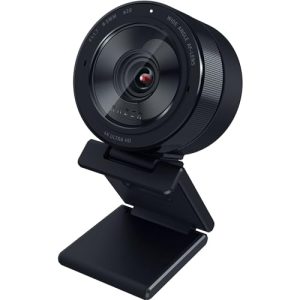
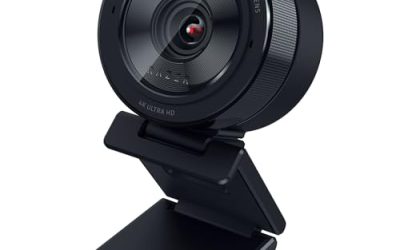
Razer Kiyo Pro Webcam
The Razer Kiyo Pro is the pick for laptop users who stream, record, or call in rooms where the light is never quite right. It captures 1080p video at 60 frames per second, with an adaptive light sensor, HDR support, and a wide-angle lens whose field of view adjusts between 80, 90, and 103 degrees. That combination keeps motion smooth, brightens dim scenes, and lets you widen the frame for a second person or narrow it for a solo call. A built-in omnidirectional microphone picks up voice from across a desk, and the camera connects over USB 3.0.
Who it is for: streamers, creators, and frequent callers who want smoother motion and stronger low-light handling than a basic 1080p camera offers, and who are happy to adjust settings for different scenes. It suits a gaming laptop well, and it pairs naturally with streaming software.
Caveats: the Kiyo Pro draws more from your laptop and your attention than a plug-and-play camera, because its best results come with settings adjusted for the room. The wide-angle settings can distort the edges of the frame if you sit very close, so the middle setting usually looks most natural for a solo call. Confirm your laptop has a USB 3.0 port free, since the camera benefits from the faster connection.
OBSBOT Tiny 2 4K PTZ Webcam

The OBSBOT Tiny 2 is the most capable camera here, and the most different. It is a small 4K PTZ webcam with a large sensor, AI tracking, gesture control, voice control, and autofocus, mounted on a motorised base that pans and tilts to follow you. It records 4K video at up to 60 frames per second, with HDR light correction, and it can zoom and reframe automatically as you move around the room. That makes it ideal for a laptop user who presents, teaches, or streams while standing, pacing, or demonstrating something away from the desk.
Who it is for: teachers, presenters, and streamers who move during a session and want the camera to keep them in frame without a camera operator. It also suits a laptop user who records lessons and wants 4K footage to crop and reframe later.
Caveats: the tracking features need companion software and a little setup time, so this is not the camera to buy for a locked-down work laptop. The motorised base adds weight and bulk compared with a clip-on camera, and the camera performs best on a stable surface or a tripod rather than perched on a thin laptop lid. Read the listing carefully to confirm you are buying the base Tiny 2 model, since bundled versions with a remote carry different identifiers.
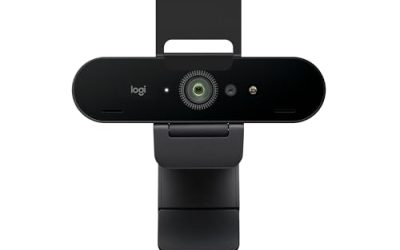
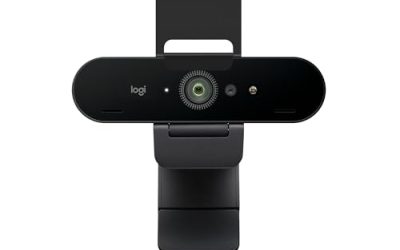
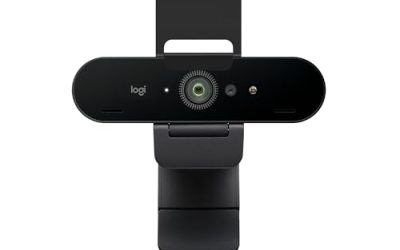
Logitech Brio 101 Full HD 1080p Webcam, Black

Logitech Brio 101 Full HD 1080p Webcam, Black
The Logitech Brio 101 is the simplest camera on this list, and that simplicity is its strength. It records 1080p video at 30 frames per second, with auto-light balance, a built-in microphone, and an integrated privacy shutter, over a standard USB-A connection. The clip mount fits a laptop lid easily, the camera is light enough not to tip a slim screen, and it works with common meeting apps without extra software. Its fixed, relatively narrow view keeps the frame tight on one person, which suits a small desk or a shared room.
Who it is for: students, remote workers, and anyone who wants a light, inexpensive-feeling upgrade that takes seconds to set up and never needs adjusting. It is a good match for a thin ultrabook or a Chromebook-style laptop where a heavy camera would be a poor fit.
Caveats: the Brio line has several close variants, so confirm the listing names the Brio 101 in black before you buy, and do not assume a Brio 100 listing is the same model. The fixed view and 30 frames per second capture are modest next to the tracking cameras here, and the camera has no advanced framing controls. It is a call camera first, and a recording camera second.
NexiGo N60 1080p Webcam

The NexiGo N60 is the wide-angle value pick of the group, and the one to choose when you want more of the room in frame. It records 1080p video at 30 frames per second, with a built-in noise-cancelling microphone, a privacy cover, and software control for the field of view and zoom. The wide lens captures a desk, a whiteboard, or two people at one laptop more comfortably than the narrower cameras here, and the clip mount works on a laptop lid or a monitor. A standard tripod thread underneath gives you a second mounting option.
Who it is for: pairs, tutors, and small-group callers who share one laptop, and anyone who demonstrates objects, notes, or crafts on camera. It also suits a laptop user who wants a spare camera for a second desk or a travel bag.
Caveats: the wide field of view shows more background, so a tidy backdrop or a plain wall helps the image. Image quality in very dim light is adequate rather than strong, and the software controls need a download, which may not suit a managed work laptop. As with any wide camera, sitting close to the lens can make the edges of the frame look stretched.
Comparison Table
| Product | Video | Field of view | Microphone | Privacy | Mounting |
|---|---|---|---|---|---|
| Logitech C920s Pro HD | 1080p at 30 fps | 78 degrees, fixed | Dual stereo mics | Sliding shutter | Lid clip, tripod thread |
| Razer Kiyo Pro | 1080p at 60 fps | 80, 90 or 103 degrees | Omnidirectional mic | No built-in shutter listed | Lid clip, tripod thread |
| OBSBOT Tiny 2 | 4K at up to 60 fps | AI tracking, auto framing | Dual mics, noise reduction | Software and gesture control | Desk base, tripod thread |
| Logitech Brio 101, Black | 1080p at 30 fps | Narrow, fixed | Built-in mic | Integrated shutter | Lid clip |
| NexiGo N60 | 1080p at 30 fps | Wide, software adjustable | Noise-cancelling mic | Privacy cover | Lid clip, tripod thread |
Which One Is Right for You?
Start with how you use your laptop. If your day is mostly video calls from one desk, the Logitech C920s Pro HD or the Logitech Brio 101 will cover you well: the C920s brings autofocus and a proven clip mount, while the Brio 101 brings lightness and simplicity for a thin laptop. If you stream or record and your room light changes through the day, the Razer Kiyo Pro earns its place with smoother motion and adaptive light handling. If you teach, present, or move while you talk, the OBSBOT Tiny 2 is the only camera here that follows you, and its 4K capture gives you room to crop later. If you share the laptop with another person, or you show your desk on camera, the NexiGo N60 and its wide view make the most sense.
Check the practical details before you buy: a free USB port of the right type, a lid thick enough for the clip, and room on your desk for the cable. A camera that needs companion software is a poor fit for a managed work laptop, while a plug-and-play camera is a poor fit for a creator who wants framing control. Buy the camera that matches your room and your routine, not the one with the longest specification list, and confirm the exact model on the Amazon listing before you order.
Frequently Asked Questions
Do I need an external webcam if my laptop already has a camera?
A built-in laptop camera works for occasional calls, but it usually sits low, captures soft video in dim light, and frames you from below. An external webcam sits higher, captures sharper video, and usually brings a better microphone and a privacy shutter. If you take calls daily, teach, or stream, the upgrade is noticeable to everyone on the other end of the call.
Will these webcams work with Zoom, Teams, and Google Meet?
Yes, in general. These cameras connect over USB and present themselves as standard video devices, so common meeting apps recognise them without special drivers. Companion software is optional for most models and adds framing or light controls. If you use a managed work laptop, favour the plug-and-play models and check with your IT setup before installing extra software.
Can I mount an external webcam on a thin laptop lid?
Most clip mounts in this guide fit thin lids, but weight and balance matter. Light cameras such as the Brio 101 sit happily on a slim screen, while heavier cameras such as the OBSBOT Tiny 2 are better on a desk stand or a small tripod. If the clip feels loose or the lid tips back, move the camera to a tripod and place it behind the laptop at eye level.
Is 4K worth it for laptop video calls?
For live calls, usually not on its own, because most meeting apps transmit at lower resolutions. For recording, 4K is worth it when you want to crop, zoom, or reframe the footage later without losing detail. A 4K camera used at 1080p still gives you flexibility, so it suits creators and teachers more than it suits a caller who only joins meetings.
Disclosure: As an Amazon Associate, we may earn from qualifying purchases.
FAQ
Which One Is Right for You?
Do I need an external webcam if my laptop already has a camera?
Will these webcams work with Zoom, Teams, and Google Meet?
Can I mount an external webcam on a thin laptop lid?
Is 4K worth it for laptop video calls?
More from Amazon
Programs that pair well with the guide above. Offers and eligibility are set by Amazon and may change.
Free shipping on eligible items, Prime Video and more. Eligible new members can start with a free trial.
Start a Prime free trialAd-free music streaming. Eligible new subscribers can start with a free trial.
Try Music Unlimited freeA Prime membership for ages 18-24 with a trial period. Eligibility is set by Amazon.
See Prime for Young AdultsAudiobooks and podcasts to listen to on the go. Eligible new members can start with a free trial.
Try Audible freeAs an Amazon Associate we earn from qualifying purchases.