Key takeaways
- Focused work: warm white or amber keyboard lighting, dim backlighting, and no rapid motion.
- Competitive gaming: dark blue base with brighter WASD, arrow keys, or number-row highlights.
- Ambient entertainment: a slow color cycle on rear lighting, with the keyboard set to a low static color.
- Minimalist desk: one muted shade across all devices at 15% to 30% brightness.
Razer Chroma lighting can make a desk, gaming room, or entertainment setup feel coordinated rather than cluttered—but only when the profiles are planned well. A rushed setup often leads to mismatched colors, distracting animations, devices that do not sync, and bright LEDs reflecting off monitors or glossy furniture. The most reliable approach is to start with a simple base profile, confirm every device is detected, then add effects gradually. In 2026, Razer Synapse remains the main control center for supported Chroma keyboards, mice, headsets, laptops, controllers, light strips, and select smart-home accessories.
What You Need
| Item | Why | Optional? |
|---|---|---|
| Windows PC or compatible Razer laptop | Runs Razer Synapse and stores your Chroma profiles. | No |
| Razer Synapse software | Detects compatible devices and provides Chroma lighting controls. | No |
| Razer Chroma-compatible devices | Examples include a keyboard, mouse, laptop, headset stand, controller, or light strip. | No, but you need at least one compatible device |
| USB cable, wireless receiver, or Bluetooth connection | Lets each device connect reliably before you build a profile. | No |
| Razer Aether Light Strip 3 ft Extender | Adds a 36-inch RGB accent behind a monitor, desk edge, or shelving unit. The listed price is $29.99. | Yes |
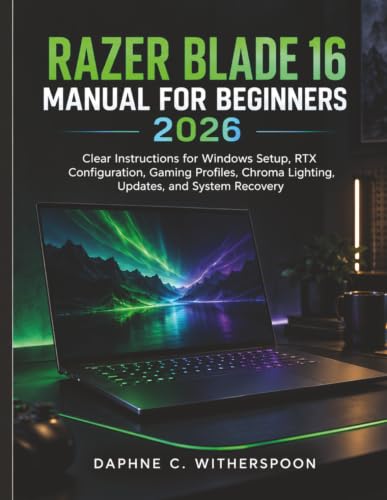
| Razer Blade 16 Manual for Beginners 2026 | A $19.99 reference guide for owners who also need help with Windows setup, gaming profiles, updates, and recovery. | Yes |
| Microfiber cloth and cable clips | Helps clean light-facing surfaces and route cables before mounting accessories. | Yes |
Step-by-Step
1. Update Synapse and connect every device (10–20 minutes)
Install or open Razer Synapse on your Windows computer, then let it check for software and device updates. Connect each wired Chroma device directly to the computer or a powered USB hub. For wireless gear, connect the included receiver and make sure the battery has sufficient charge. Bluetooth accessories should be paired through Windows first if the product instructions require it.
Our top picks
 Razer Aether Light Strip 3 ft Extender
- Must have the Razer Aether Light Strip (sold…
- Cover more area and enhance the ambient lighting…
- Whether it’s floor to ceiling or wall to…
As an Amazon Associate we earn from qualifying purchases at no extra cost to you.
Open Synapse and confirm that each compatible device appears on the dashboard. If a keyboard, mouse, or lighting accessory does not appear, disconnect it, restart Synapse, and reconnect it to a different USB port. Do not begin designing a multi-device profile until detection is stable; otherwise, you may have to repeat your work later.
2. Decide what the lighting should accomplish (5–10 minutes)
Before selecting colors, choose the purpose of the profile. A work profile should be low-glare and calm. A gaming profile can use brighter contrast, reactive key highlights, or game-linked effects. A movie or relaxation profile usually looks best with one slow-moving ambient color rather than several competing effects.
For a desk setup, limit the main palette to two or three colors. For example, use soft blue as the base color, violet as an accent, and white only for important keys or a small perimeter highlight. This approach is easier on the eyes than rainbow effects running at full brightness across every device.
3. Create a basic profile first (5 minutes)
In Synapse, select the first device and open its lighting controls. Create a new profile with a clear name, such as “Work Warm White,” “Night Gaming,” or “Movie Backlight.” Avoid vague names like “Profile 1,” especially if more than one person uses the computer.
Start with a static effect. Set a single color and reduce brightness to roughly 20% to 40% for a workstation used after dark. If your monitor sits about 24 to 30 inches from your eyes, this lower brightness typically helps keep lighting decorative instead of visually dominant. Save the profile before moving to more complex effects.
4. Build a synchronized room or desk profile (10–15 minutes)
Use the Chroma Studio area in Synapse for layouts involving more than one compatible device. The interface generally displays a visual map of detected hardware. Select all devices you want to coordinate, then apply a shared color or effect layer.
For a cohesive setup, place the brightest lighting behind or below the monitor instead of directly in front of you. If you use a 3-foot light strip, mount it on the rear edge of a desk, behind a 24- to 34-inch monitor, or under a shelf where the individual LEDs are not directly visible. Clean the mounting surface first, let it dry fully, and avoid placing the strip over vents, hinges, or moving drawer fronts.
Try one of these dependable layouts:
- Focused work: warm white or amber keyboard lighting, dim backlighting, and no rapid motion.
- Competitive gaming: dark blue base with brighter WASD, arrow keys, or number-row highlights.
- Ambient entertainment: a slow color cycle on rear lighting, with the keyboard set to a low static color.
- Minimalist desk: one muted shade across all devices at 15% to 30% brightness.
5. Add effects sparingly and adjust speed (10 minutes)
Once the basic profile looks balanced, add one animated layer if desired. Effects such as breathing, wave, ripple, or color cycle can look polished when their speed is low or medium. At high speed, the same effects can become distracting and make it harder to focus on a screen.
Keep moving effects on secondary lighting whenever possible. For example, use a subtle wave on a rear light strip while leaving the keyboard static, or apply a gentle breathing effect to a headset stand while your mouse remains a single color. This creates depth without turning the desk into a visual blur.
6. Create app- or game-specific profiles (10–20 minutes)
Set up separate profiles for the programs you use most. In Synapse, use the profile linking or application association controls to assign a lighting profile to a game, streaming app, design program, or work application. When the program opens, Synapse can switch to the matching profile automatically.
For games, prioritize useful key visibility over decoration. Highlight movement keys, push-to-talk, inventory, or macro keys in colors that contrast clearly with the rest of the keyboard. Keep the main background dim enough that the highlighted keys stand out.
7. Test the profile in normal room lighting (5–10 minutes)
Test your lighting with the overhead lights on, then again in the way you normally use the room at night. Look for monitor glare, reflected LEDs on a glass desktop, and bright hotspots on a white wall. Lower brightness before changing colors; excessive brightness is usually the real issue.
Finally, save your changes and switch between each profile once. Confirm that all selected devices respond together and that app-linked profiles return to your preferred default after you close the program.
Mistakes to Avoid
- Using maximum brightness by default. Full brightness can cause glare and make a small desk feel harsh. Start around 20% to 40% and increase only if necessary.
- Combining too many animated effects. A wave on the keyboard, ripple on the mouse, and color cycle on a light strip can look uncoordinated. Choose one moving focal point.
- Mounting light strips where LEDs are visible. Direct LED points are more distracting than reflected light. Hide strips behind edges whenever possible.
- Skipping software and firmware updates. Detection and synchronization problems are often resolved by current Synapse and device software.
- Using generic profile names. Clear names make it faster to troubleshoot and switch modes later.
- Overloading USB connections. If devices disconnect or flicker, move them from an unpowered hub to direct ports or a powered hub.
How Often
Review your Chroma profiles every three to six months, or whenever you add a device, rearrange the desk, replace a monitor, or change the room’s main lighting. Clean visible light strips and device surfaces monthly with a dry microfiber cloth. Check for Synapse and device updates about once a month, particularly if a previously reliable profile stops syncing.
You may also want a seasonal adjustment: lower brightness during darker months, or use a cooler, slightly brighter profile when daylight makes ambient lighting less noticeable.
When to Call a Pro or Replace
You usually do not need a professional for keyboard, mouse, or USB light-strip setup. However, call a qualified electrician or smart-home installer if your lighting plan involves hardwired wall power, in-wall cable routing, modifying electrical outlets, or integrating accessories with permanent built-in cabinetry.
Replace an accessory rather than repeatedly troubleshooting it if it has visible cable damage, cracked housings, loose connectors, overheating, persistent flickering on multiple ports, or LEDs that remain stuck on incorrect colors after updates and resets. For adhesive light strips, replace the mounting material or reposition the strip if it repeatedly falls from a clean, dry surface; do not use staples, nails, or screws through the strip itself.
FAQ
Can I use one Chroma profile on several Razer devices?
Yes. When the devices are compatible and detected in Synapse, Chroma Studio can apply coordinated colors and effects across multiple devices. Some device-specific settings may still need to be adjusted individually.
Why is my Razer device not showing up in Synapse?
Check the cable, receiver, battery level, and USB port first. Restart Synapse and Windows, then install available updates. If the device is connected through an unpowered hub, connect it directly to the computer or use a powered hub.
What is the best Chroma brightness for a bedroom setup?
For most bedrooms, begin at 15% to 30% brightness. Use indirect placement behind a monitor, desk, or headboard-area shelving rather than aiming LEDs toward the bed or screen.
Can I turn off Chroma lighting without deleting my profiles?
Yes. Use the device lighting controls or a dedicated low-light/off profile. Keeping a profile named “Lights Off” or “Sleep” makes it easy to disable illumination while preserving your preferred work and gaming settings.