Key takeaways
- Verify the outlet with a lamp or phone charger.
- Flip the PSU rocker switch to “on” (the “I” side).
- Reseat the power cable firmly at both ends.
- Bypass power strips and surge protectors temporarily.
What's inside
Few things spike the heart rate like pressing the power button on your gaming PC and getting nothing, no fans, no lights, no beep. The good news is that a dead-on-arrival boot is usually caused by a short list of common culprits, and most are fixable in minutes without any new parts. Before you panic or buy a replacement, work through the checks methodically.
This guide walks you from the simplest possibilities, like a flipped power switch, to deeper issues such as a failed power supply or reseated components. Follow the steps in order so you rule out the cheap, easy fixes before touching anything inside the case. A calm, systematic approach solves the vast majority of no-boot problems.
As an Amazon Associate we earn from qualifying purchases at no extra cost to you.


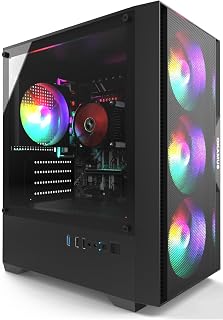


⚡ Save on Your Next PC — Amazon Prime
Prime members get fast free shipping on the systems above, plus early access to Prime Day & Black Friday PC deals. New members get a 30-day free trial.
Watch: Why Won’t My Gaming PC Turn On? (2026 Fixes) — Video Review
Start With Power and Cables
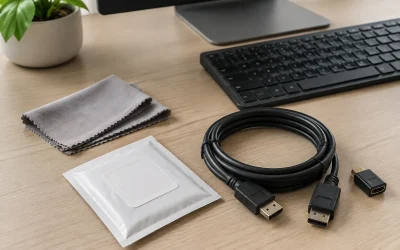
Begin at the wall. Confirm the outlet works with another device, then check that the PSU’s rear rocker switch is set to the “on” position, since it is easy to bump to off. Reseat the power cable at both the wall and the PSU, and if you use a surge protector, plug directly into the wall to rule it out.
- Verify the outlet with a lamp or phone charger.
- Flip the PSU rocker switch to “on” (the “I” side).
- Reseat the power cable firmly at both ends.
- Bypass power strips and surge protectors temporarily.
Check the Front-Panel and Power Button
If there is still no response, the issue may be the case’s power button wiring. The tiny front-panel connectors on the motherboard are easy to knock loose during a build or a move. Locate the PWR_SW header and confirm the two-pin power-switch connector is seated on the correct pins. You can even briefly bridge those two pins with a screwdriver to test whether the case button is the fault.
Reseat RAM, GPU, and Power Connectors
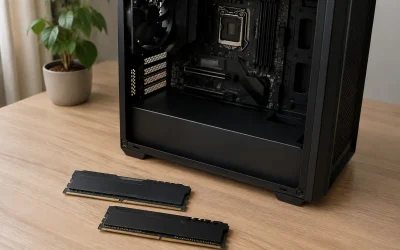
A machine that powers on but shows no display often has a seating problem. Power down, open the case, and firmly reseat the RAM sticks until both clips click, and remove and reinstall the graphics card in its PCIe slot. Confirm the 24-pin motherboard connector, the 8-pin CPU power (top of the board), and the GPU power cables are all fully inserted, because a partially seated CPU power connector is a frequent no-boot cause.
- Reseat each RAM stick until it clicks on both ends.
- Try one stick at a time in the recommended slot.
- Reseat the GPU and its dedicated power cables.
- Double-check the 8-pin CPU (EPS) connector at the top of the board.
Test the Power Supply
If nothing spins at all, the PSU is a prime suspect. Confirm its fan attempts to move when you power on; a totally dead unit may need replacement. If you have a spare known-good supply, swapping it in is the fastest way to confirm. Budget prebuilt owners should be especially mindful, as lower-cost units are a common early failure point.
Look for Beep Codes and Debug LEDs
Modern motherboards help you diagnose. Many have small labeled debug LEDs (CPU, DRAM, VGA, BOOT) that light to show where the boot stalls, and older boards beep in patterns via a speaker header. If the DRAM light stays lit, focus on memory; if VGA is lit, focus on the GPU. A good beginner reference like a step-by-step PC building guide can decode these signals for your specific board.
Tips
- Change one thing at a time so you know exactly what fixed the problem.
- Clear CMOS by resetting the BIOS if a bad setting or failed overclock caused the hang.
- Keep a spare PSU or RAM stick for fast swap testing if you build often.
- Watch static discharge by touching bare metal before handling components.
Frequently Asked Questions
My PC has power but no display, what now?
Focus on RAM and GPU seating first, then check the monitor cable and input. Motherboard debug LEDs for DRAM and VGA will point you to the failing subsystem.
Could a failed overclock stop my PC from booting?
Yes. An unstable CPU or memory overclock can prevent POST. Clear CMOS using the jumper or by removing the battery briefly to restore default settings.
How do I know if my power supply is dead?
If no fans spin and there are no lights even with a known-good cable and outlet, the PSU is likely at fault. Swapping in a spare known-good unit confirms it quickly.
Is a single beep bad?
Usually the opposite; one short beep often means a successful POST. Repeated or patterned beeps indicate an error whose meaning depends on your board’s beep code chart.
Conclusion
A gaming PC that will not turn on is far more often a loose cable, an off switch, or a reseat away from working than a catastrophic failure. Move from the wall inward, change one variable at a time, and use your motherboard’s debug LEDs or beep codes to zero in on the culprit. With patience and this checklist, most no-boot situations end with a satisfying fan spin rather than a costly repair.