Key takeaways
- Beginners: Bazzite or Nobara come with drivers and gaming tweaks preinstalled.
- Handheld feel: SteamOS-style images replicate the Steam Deck experience on other hardware.
- General desktop: Pop!_OS offers strong gaming support with a familiar layout.
Installing Linux for gaming is far less intimidating than it was even a couple of years ago, and in 2026 the whole process can be done in an afternoon. Thanks to Proton, modern drivers, and gaming-ready distros, you no longer need to memorize terminal commands or hunt down obscure fixes to get your Steam library running. If you can install Windows, you can absolutely install a gaming Linux distro, and this guide walks you through every stage from preparation to your first game launch.
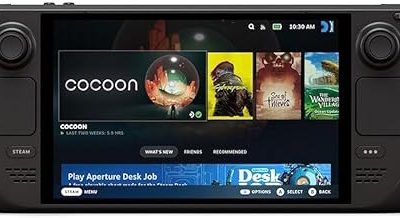
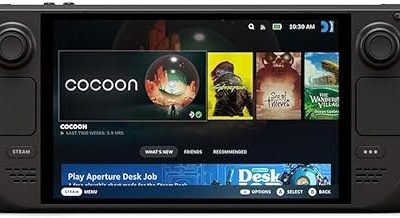
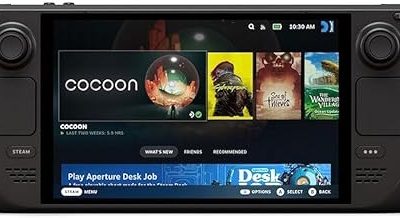
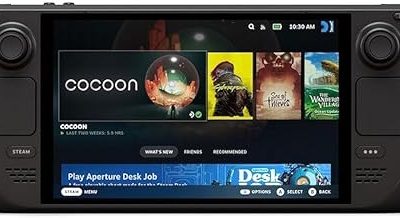
Throughout the guide we reference the Valve Steam Deck as a real-world example, since it ships with the Arch-based SteamOS and is the clearest demonstration of what a finished Linux gaming setup looks like. If you want to skip the installation entirely and just play, a Steam Deck gives you the result out of the box, but the steps below apply to installing Linux on any desktop or laptop you own. Let us get your machine ready to game.
Our top picks
 Valve Steam Deck OLED 1TB Handheld Gaming
- 1TB NVMe SSD
- 1280 x 800 HDR OLED display with premium…
- Wi-Fi 6E
 VALVE Steam Deck OLED 1TB SSD +
- International (UK) Version
- 7.4” diagonal, HDR OLED, 1280 x 800 x…
- SteamOS 3.0 (Arch-based)
| Product | Key specs | |
|---|---|---|
| Valve Steam Deck OLED 1TB Handheld Gaming | 1TB NVMe SSD 1280 x 800 HDR OLED display with premium… Wi-Fi 6E | Check price |
| VALVE Steam Deck OLED 1TB SSD + | International (UK) Version 7.4” diagonal, HDR OLED, 1280 x 800 x… SteamOS 3.0 (Arch-based) | Check price |
 VALVE Steam Deck OLED 512GB SSD + VALVE Steam Deck OLED 512GB SSD + | Check price | |
 How Linux Works How Linux Works | Check price | |
 Valve Steam Deck Oled 1TB Handheld Gaming Valve Steam Deck Oled 1TB Handheld Gaming | Check price | |
 Linux Mint Made Simple for Beginners: A Linux Mint Made Simple for Beginners: A | Check price | |
 Valve Steam Deck OLED 2TB Handheld Gaming Valve Steam Deck OLED 2TB Handheld Gaming | 【Upgraded】We sells product with professionally upgraded to 2TB… 【Stunning 7.4" HDR OLED & 90Hz Motion】 Experience… 【30-50% More Battery & Efficient Performance】 Play your… | Check price |
 Valve Steam Deck 1TB Upgraded Handheld Gaming Valve Steam Deck 1TB Upgraded Handheld Gaming | Valve is entering the gaming console marketplace with… Players can play a huge variety of games… Like the name suggests, the Steam Deck will… | Check price |
As an Amazon Associate we earn from qualifying purchases at no extra cost to you.
⚡ Save on Your Next PC — Amazon Prime
Prime members get fast free shipping on the systems above, plus early access to Prime Day & Black Friday PC deals. New members get a 30-day free trial.
Watch: How To Install Linux For Gaming — Video Review
Step 1: Back Up Your Data and Pick a Distro
Before touching anything, back up any files you cannot afford to lose, because installing an operating system can wipe a drive. Then choose a gaming-focused distro that matches your comfort level.
- Beginners: Bazzite or Nobara come with drivers and gaming tweaks preinstalled.
- Handheld feel: SteamOS-style images replicate the Steam Deck experience on other hardware.
- General desktop: Pop!_OS offers strong gaming support with a familiar layout.
Step 2: Create a Bootable USB Drive
Download the distro’s ISO file, then use a tool like Balena Etcher or Rufus to write it to a USB drive of at least 8GB. This turns the USB into an installer you can boot from. Once the tool finishes flashing, safely eject the drive and keep it plugged into the machine you plan to install on.
Step 3: Boot from USB and Run the Installer
Restart the computer and enter the boot menu, usually by tapping F12, F2, or Delete during startup, then select the USB drive. Most modern distros load a live environment where you can try the desktop before committing. Launch the installer, choose your language and keyboard, and when prompted decide whether to erase the whole drive or dual-boot alongside Windows. Follow the on-screen steps and let it complete.
Step 4: Install Drivers, Steam, and Proton
After the first reboot, run the system updater to pull the latest patches. Gaming distros like Nobara and Bazzite already include GPU drivers, but if you chose a general distro, install the proprietary NVIDIA driver now for the best performance. Then open Steam, sign in, and enable Proton by going to Settings, then Compatibility, and turning on Steam Play for all titles. This is the switch that lets Windows games run on Linux.
Step 5: Verify Compatibility and Launch Your First Game
Before installing your whole library, check ProtonDB for your favorite titles to confirm they run and to grab any recommended tweaks. Install a well-supported game first, launch it, and confirm that graphics, sound, and your controller all work. Once you see that first game running smoothly, you can confidently install the rest of your collection. The Steam Deck reaches this same finished state automatically, which is why it is such a useful reference for what success looks like.
Frequently Asked Questions
Do I need to know how to code to install Linux for gaming?
No. Modern gaming distros use graphical installers and preconfigure drivers, so you can complete the whole process with mouse clicks. Terminal commands are optional and rarely needed for basic gaming.
Can I keep Windows and install Linux too?
Yes. During installation you can choose to dual-boot, which lets you pick between Windows and Linux each time you start the computer. This is a safe way to try Linux gaming without giving up Windows.
How long does the installation take?
The core installation usually takes 20 to 40 minutes, plus some time for updates and downloading your games. Setting aside an afternoon gives you plenty of margin to do it without rushing.
Why should I consider a Steam Deck instead of installing Linux myself?
The Steam Deck arrives with SteamOS already installed and fully tuned, so there is nothing to configure. It is the fastest path to Linux gaming if you would rather play immediately than set up the software yourself.
Conclusion
Installing Linux for gaming in 2026 is a straightforward, one-afternoon project that opens up a fast, flexible, and free platform for your Steam library. Back up your data, pick a gaming-ready distro, flash a USB drive, run the installer, and switch on Proton, and you will be playing in no time. If you would rather skip the setup entirely, a Steam Deck delivers the same polished SteamOS experience out of the box. Either way, the barrier to gaming on Linux has never been lower, and the payoff is a lean, responsive system built around how you actually play.