Key takeaways
- Form factor: 2280 (22mm wide, 80mm long) is the standard for desktop gaming boards. All of our featured drives including the Samsung 990 PRO 2TB, SanDisk Optimus 5100 500GB, WD_Black SN8100 2TB, and SIX 1TB PCIe 4.0 SSD use this size.
- Interface and generation: You need an M-key slot that supports PCIe NVMe, not SATA-only. A PCIe 4.0 drive like the Samsung 990 PRO will work in a PCIe 3.0 slot but will be limited to about 3,500 MB/s. A PCIe 5.0 drive like the WD_Black SN8100 needs a PCIe 5.0 M.2 slot to hit its full 14,900 MB/s read speed — otherwise it will downshift to PCIe 4.0 speeds.
- Heatsink clearance: High-performance drives throttle at around 75-80°C. The SIX 1TB PCIe 4.0 SSD comes with a pre-installed heatsink that is ideal for PS5 and PCs without a motherboard heatsink, while the Samsung 990 PRO and WD_Black SN8100 are typically installed under your motherboard’s integrated M.2 shield. If your board has no shield, buy a drive with a heatsink or add a low-profile one.
Installing an M.2 NVMe SSD is the single fastest upgrade you can make to a gaming PC in 2026. In under 15 minutes you can cut load times by 40-60%, eliminate texture pop-in, and add 1TB to 2TB of ultra-fast storage without running a single cable. Most modern motherboards have at least two M.2 slots, so you can add a drive for games while keeping your existing boot drive.
This guide walks you through the entire process, from checking compatibility to formatting the drive in Windows. You don’t need prior PC building experience — just a Phillips screwdriver, about 10 minutes, and the right drive for your motherboard. We’ll cover PCIe 4.0 and the newer PCIe 5.0 standard, when you need a heatsink, and how to avoid the small mistakes that prevent a drive from being detected.
Our top picks
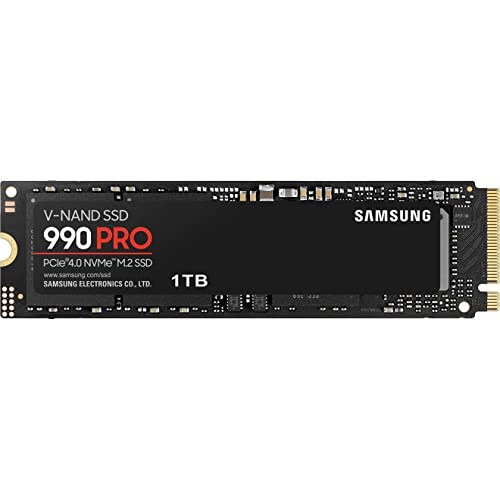
 Samsung SSD 990 PRO 2TB
- Product Group: Personal Computer
- Binding: Personal Computers


As an Amazon Associate we earn from qualifying purchases at no extra cost to you. Ratings are shown as listed on Amazon.
⚡ Save on Your Next PC — Amazon Prime
Prime members get fast free shipping on the systems above, plus early access to Prime Day & Black Friday PC deals. New members get a 30-day free trial.
Watch: How to Install an M.2 NVMe SSD — Video Review
1. Check Compatibility Before You Buy
Not every M.2 slot is the same, so confirm these three details in your motherboard manual or on the manufacturer’s spec page before ordering:
- Form factor: 2280 (22mm wide, 80mm long) is the standard for desktop gaming boards. All of our featured drives including the Samsung 990 PRO 2TB, SanDisk Optimus 5100 500GB, WD_Black SN8100 2TB, and SIX 1TB PCIe 4.0 SSD use this size.
- Interface and generation: You need an M-key slot that supports PCIe NVMe, not SATA-only. A PCIe 4.0 drive like the Samsung 990 PRO will work in a PCIe 3.0 slot but will be limited to about 3,500 MB/s. A PCIe 5.0 drive like the WD_Black SN8100 needs a PCIe 5.0 M.2 slot to hit its full 14,900 MB/s read speed — otherwise it will downshift to PCIe 4.0 speeds.
- Heatsink clearance: High-performance drives throttle at around 75-80°C. The SIX 1TB PCIe 4.0 SSD comes with a pre-installed heatsink that is ideal for PS5 and PCs without a motherboard heatsink, while the Samsung 990 PRO and WD_Black SN8100 are typically installed under your motherboard’s integrated M.2 shield. If your board has no shield, buy a drive with a heatsink or add a low-profile one.
2. Prepare Your PC Safely
NVMe drives are sensitive to static and power, so a proper shutdown takes less than two minutes and prevents damage.
- Back up important saves and files. Cloning or formatting errors are rare but irreversible.
- Shut down Windows completely, flip the power supply switch to OFF (0), and unplug the power cable. Press the case power button for 3-5 seconds to discharge residual power.
- Work on a non-carpeted surface and touch the metal case frame periodically to ground yourself. An anti-static wrist strap is ideal but not required.
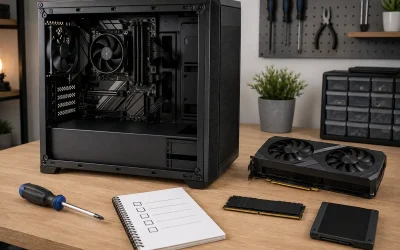
- Gather your tools: a single #1 Phillips screwdriver is usually enough. Keep your M.2 standoff and screw handy. If your motherboard is missing them, an ASTARON M.2 SSD Screws Kit or the 46PCS NVMe M.2 SSD Mounting Screws Kit for Asus, Gigabyte, ASRock and MSI boards includes the correct M2x3mm screws and standoffs and solves the most common reason new builds fail to mount the drive.
- Identify the correct slot. For a boot drive, use the top M.2_1 slot closest to the CPU — it connects directly to the CPU lanes for lowest latency. For game storage, any secondary PCIe 4.0 x4 slot is fine.
3. Install the M.2 Drive in 7 Steps
Most of the work is handling one tiny screw. The drive itself only fits one way and requires very little force.
- 1. Remove the heatsink or slot cover. Most 2024-2026 motherboards use a tool-less latch or a single screw for the M.2 shield. Keep the thermal pad intact underneath.
- 2. Install the standoff if needed. Check that the brass standoff is in the 2280 position (80mm from the connector). Screw it into the board if it is not pre-installed.
- 3. Insert the drive at an angle. Hold the SSD by its edges, align the notch with the key in the slot, and slide it in at about a 20-30 degree angle until the gold contacts are fully seated. Do not press straight down.
- 4. Secure the drive. Gently push the drive down so the half-circle cutout rests on the standoff, then fasten it with the M.2 screw. Tighten until snug — about 0.3 to 0.4 Nm — do not overtighten or strip the threads.
- 5. Reapply the thermal solution. If your board has a heatsink, peel the plastic from the thermal pad and screw the heatsink back down evenly. For drives like the SIX 1TB SSD with Heatsink, you can install it as-is without adding the motherboard shield.
- 6. Cable check and close up. Ensure no cables touch the SSD or heatsink fan, then reattach the side panel, plug in power, and flip the PSU switch back on.
- 7. First boot. Enter BIOS (usually Del or F2) to confirm the drive appears under NVMe devices. If it does not, power off and reseat the drive.
4. Initialize, Format, and Verify Performance
A new SSD must be initialized in Windows before it shows up in File Explorer. This takes about 30 seconds.
- Boot into Windows. Right-click the Start button and open Disk Management. You will be prompted to Initialize Disk — choose GPT for any PC running Windows 10 or 11 in 2026. GPT is required for drives over 2TB and for boot drives.
- Find your new drive labeled Unallocated. Right-click it, select New Simple Volume, use NTFS, default allocation size, and assign a drive letter like D: or E:. Quick Format is sufficient.
- For blazing PCIe 4.0 performance around 7,350-7,450 MB/s on the Samsung 990 PRO or the SIX 1TB drive, and up to 6,600 MB/s on the SanDisk Optimus 5100 500GB, verify the drive is running at PCIe 4.0 x4. You can check with CrystalDiskInfo or HWInfo — it should read PCIe 4.0 x4, NVMe 2.0, not PCIe 3.0 x2.
- Run a quick benchmark with CrystalDiskMark. Sequential reads should be within 5-10% of the advertised spec. If you are 50% low, recheck that you used the correct CPU-connected slot and that your BIOS is set to PCIe Auto or Gen4/Gen5, not forced to Gen3.
- If you plan to move games, Steam, Battle.net and the Xbox app let you add a new Library folder on the new drive and move titles without redownloading. For a boot drive, clone first using Samsung Magician, Acronis, or Macrium Reflect, then change boot priority in BIOS.
Tips
- Don’t reuse old M.2 screws from a different board if they feel loose. Thread pitch can vary slightly between vendors — a proper kit like the ASTARON or 46PCS M.2 SSD Screw Kit ensures the correct M2x3mm size and prevents a drive from popping up under its heatsink.
- Leave 15-20% free space on any NVMe SSD. Sustained write speeds can drop by 30% or more when drives are over 90% full due to SLC cache saturation.
- Update your motherboard BIOS before installing a PCIe 5.0 drive like the WD_Black SN8100 2TB. Many 2024 boards needed AGESA or Intel ME updates to stabilize 12,000+ MB/s signaling.
- If you are installing on PlayStation 5, use only a heatsink-equipped PCIe 4.0 drive that meets Sony’s 5,500 MB/s minimum — the SIX 1TB SSD with Heatsink is designed for this exact use case and fits within the PS5’s 11.25mm height limit.
Frequently Asked Questions
Do I need a heatsink for my NVMe SSD?
Yes for sustained gaming. Bare drives can exceed 70°C in 90 seconds of heavy loads, which triggers thermal throttling and cuts speeds from 7,000 MB/s to under 2,000 MB/s. Use your motherboard’s integrated heatsink if it has one. If not, choose a model with a pre-installed heatsink or add a 3-6mm aluminum heatsink with a thermal pad.
Can I add an M.2 SSD without reinstalling Windows?
Yes. If you are adding storage for games, simply format the drive and point your game launchers to it. No reinstall is needed and your existing boot drive stays untouched. You only need to clone or fresh-install Windows if you want the new SSD to become your boot drive.
Will a PCIe 5.0 SSD work in a PCIe 4.0 motherboard?
Yes, it is backward compatible. A drive like the WD_Black SN8100 2TB will function perfectly in a PCIe 4.0 slot but will be limited to PCIe 4.0 x4 bandwidth of about 7,500-8,000 MB/s. You get full 14,900 MB/s only on a PCIe 5.0 M.2 slot with a compatible CPU in 2026. The benefit today is future-proofing, as you can move the drive to your next build.
What if my PC doesn’t detect the M.2 drive?
First, check BIOS under NVMe Configuration. If not listed, power off and reseat the drive fully at an angle, ensure the standoff is correct, and try the other M.2 slot. Second, check for shared lane conflicts — some boards disable SATA ports 5/6 or a secondary M.2 slot when others are populated. Finally, initialize the disk in Disk Management; a brand new drive will not appear in File Explorer until you create a GPT partition and format it.
Conclusion
A modern NVMe install is one screw, one slot, and one format — then you immediately get faster boots, shorter level loads, and room for dozens of games. Match the drive to your slot, secure it without overtightening, and format it as GPT in Windows. Once installed, your Samsung 990 PRO, SanDisk Optimus 5100, WD_Black SN8100, or SIX heatsink SSD will handle DirectStorage games and large open-world titles with far fewer stutters than any SATA SSD or hard drive.