Key takeaways
- Higher and more consistent frame rates (FPS).
- Reduced stuttering and frame drops, especially in CPU-intensive games.
- Faster loading times.
- Improved overall system responsiveness.
What's inside
Upgrading your RAM is one of the most impactful ways to boost gaming performance. While simply installing new sticks is easy, unlocking their full potential often requires a simple BIOS setting adjustment. This guide will walk you through enabling XMP (Extreme Memory Profile) for Intel systems and EXPO (Extended Profiles for Overclocking) for AMD systems, ensuring your RAM runs at its advertised speeds for a smoother, faster gaming experience.
For many modern DDR5 kits, especially those designed with gaming performance in mind, you’re likely looking at options like the G.SKILL Trident Z5 Neo RGB Series DDR5 RAM (AMD EXPO) 64GB (2x32GB) 6000MT/s or various Corsair Vengeance DDR5 configurations, such as the Corsair Vengeance RGB RS DDR5 16GB (2 x 8GB) Up to 6000MHz or the CORSAIR Vengeance DDR5 32GB (2 x 16GB) Up to 6000MHz. These kits often come with pre-configured profiles to achieve optimal performance without manual tweaking.
As an Amazon Associate we earn from qualifying purchases at no extra cost to you.


⚡ Save on Your Next PC — Amazon Prime
Prime members get fast free shipping on the systems above, plus early access to Prime Day & Black Friday PC deals. New members get a 30-day free trial.
Watch: How to Enable XMP / EXPO for Faster RAM — Video Review
What are XMP and EXPO?
XMP and EXPO are profiles stored on your RAM modules that tell your motherboard how to configure them for higher performance. By default, RAM often runs at a slower, more basic speed to ensure compatibility with a wide range of systems. These profiles, however, allow your RAM to operate at its rated speed and timings, which are typically higher and tighter than the default settings. For example, a kit advertised as 6000MT/s might run at a much lower speed without XMP/EXPO enabled.
Why Enable XMP/EXPO?
Enabling XMP or EXPO can lead to significant performance improvements in games. This is because many modern titles are sensitive to memory bandwidth and latency. Faster RAM means your CPU can access game data more quickly, resulting in:
- Higher and more consistent frame rates (FPS).
- Reduced stuttering and frame drops, especially in CPU-intensive games.
- Faster loading times.
- Improved overall system responsiveness.
For instance, switching from a default 3200MT/s to a 6000MT/s profile on a DDR5 kit can yield noticeable gains in frame rates, sometimes as high as 10-20% or more depending on the game and your other hardware.
How to Access Your Motherboard’s BIOS/UEFI
The first step to enabling XMP or EXPO is to access your motherboard’s BIOS (Basic Input/Output System) or UEFI (Unified Extensible Firmware Interface). This is a low-level interface that controls your computer’s hardware.
- Restart your computer.
- As it boots up, repeatedly press the designated key to enter BIOS/UEFI. This key is usually one of the following: Delete, F2, F10, or F12. Your motherboard’s splash screen should indicate which key to press. If you miss the window, simply restart and try again.
- Once in the BIOS/UEFI, navigate through the menus using your keyboard (and sometimes your mouse, depending on the interface).
Enabling XMP (Intel) or EXPO (AMD)
Once you’re in your motherboard’s BIOS/UEFI, the exact location of the XMP/EXPO settings can vary between manufacturers (ASUS, Gigabyte, MSI, ASRock, etc.) and even between motherboard models. However, the general steps are similar:
- Look for a section labeled “AI Tweaker,” “OC Tweaker,” “Overclocking,” “Memory,” or similar.
- Within this section, you should find an option for “XMP Profile” or “AMD EXPO”.
- Select this option and choose the desired profile. Most RAM kits will offer one or two profiles. Typically, the higher-numbered profile (e.g., Profile 1) corresponds to the RAM’s advertised speeds.
- Confirm your selection.
- Save and Exit the BIOS/UEFI. This is usually done by pressing a specific key (often F10) and confirming the save.
Your computer will then restart with the new RAM settings applied. It’s a good practice to monitor your system’s stability after enabling these profiles, especially if you’re pushing very high speeds.
Tips for Success
- Check Motherboard Compatibility: Ensure your motherboard supports the RAM speeds you’re trying to enable. Your motherboard’s specifications page on the manufacturer’s website is the best place to check.
- Update BIOS: Sometimes, older BIOS versions may have issues with newer RAM kits. Ensure your BIOS is up-to-date for optimal compatibility and performance.
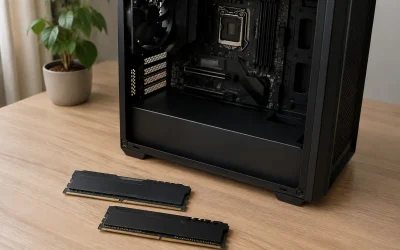
- Install RAM Correctly: For dual-channel performance, install RAM sticks in the correct slots as per your motherboard manual.
- Test Stability: After enabling XMP/EXPO, consider running memory diagnostic tools like MemTest86 or stress-testing software to ensure your system is stable at the new speeds.
Frequently Asked Questions
What if I don’t see an XMP or EXPO option?
This could be due to several reasons: your RAM might not have XMP/EXPO profiles, your motherboard might not support them, or the option might be located in a less obvious sub-menu within the BIOS. Consult your motherboard’s manual or the manufacturer’s support page.
Can I manually overclock my RAM instead?
Yes, advanced users can manually set timings and voltages. However, XMP/EXPO profiles are pre-tested and validated by the RAM manufacturer, making them a much safer and easier option for most users.
Will enabling XMP/EXPO void my warranty?
Generally, enabling XMP/EXPO is considered normal use and should not void your RAM or motherboard warranty. However, extreme manual overclocking outside of these profiles might. Always check the specific warranty terms.
My PC won’t boot after enabling XMP/EXPO. What should I do?
This indicates instability. You’ll need to reset your BIOS to default settings. This is usually done via a jumper on the motherboard or by removing the CMOS battery for a few minutes. Consult your motherboard manual for the exact procedure.
Conclusion
Enabling XMP or EXPO is a straightforward yet incredibly effective way to squeeze more performance out of your gaming PC. By ensuring your RAM is running at its advertised speeds, you’ll experience smoother gameplay, faster load times, and a more responsive system. It’s a small tweak with a big impact that every gamer should consider.