Key takeaways
- Check Device Manager for a missing or errored display adapter.
- Confirm the BIOS lists the discrete GPU on the PCIe bus.
- Set primary display output to PCIe if you have integrated graphics.
What's inside
When Windows or your BIOS suddenly stops seeing your graphics card, it can feel catastrophic, but a GPU that is “not detected” is usually a seating, power, or driver problem rather than a dead card. Because a discrete GPU depends on a clean PCIe connection, adequate power, and a working driver stack, the fix is often mechanical and free. The key is to test each link in that chain in order.
This guide takes you from the quickest software checks to hands-on hardware steps like reseating the card and verifying its power cables. Along the way, a few inexpensive diagnostic tools can confirm whether a slot or the card itself is at fault. Work through the sections methodically and you will usually restore detection without buying a replacement.
As an Amazon Associate we earn from qualifying purchases at no extra cost to you.


⚡ Save on Your Next PC — Amazon Prime
Prime members get fast free shipping on the systems above, plus early access to Prime Day & Black Friday PC deals. New members get a 30-day free trial.
Watch: Why Is My GPU Not Being Detected? (2026 Fixes) — Video Review
Confirm the Basics in BIOS and Windows
Start by checking whether the card is missing everywhere or just in Windows. Enter the BIOS and look for the GPU under PCIe or advanced settings; if the BIOS sees it but Windows does not, the problem is driver-side. In Windows, open Device Manager and look for the card under Display Adapters or as an unknown device.
- Check Device Manager for a missing or errored display adapter.
- Confirm the BIOS lists the discrete GPU on the PCIe bus.
- Set primary display output to PCIe if you have integrated graphics.
Reseat the Card and Verify Power
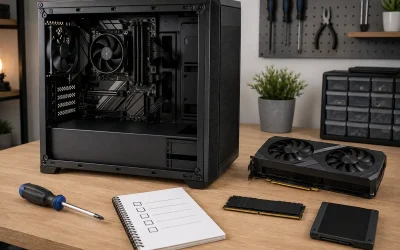
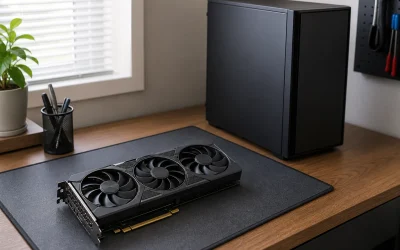
Seating and power are the most common physical causes. Power down, unplug, and firmly remove and reinstall the GPU in its top PCIe x16 slot until the retention clip clicks. Then confirm every PCIe power cable (6-pin, 8-pin, or 12VHPWR) is fully inserted at both the card and the PSU, because a partially seated power connector can leave the card unpowered and invisible.
- Reseat the GPU until the slot latch clicks.
- Reconnect all PCIe power connectors firmly at both ends.
- Support a heavy card with an anti-sag bracket to prevent slot strain.
Try a Different Slot or Riser
If the top slot is faulty, the card may work elsewhere. Move the GPU to a secondary PCIe x16 slot to test, and if you use a PCIe riser or adapter cable, bypass it and connect directly to the board, since risers are a frequent point of failure. A cracked or dirty slot can also block detection, so inspect for debris.
Update or Reinstall Drivers Cleanly
When the hardware is seen but Windows still misbehaves, do a clean driver install. Use Display Driver Uninstaller in safe mode to remove old drivers completely, then install the latest package for your card. Corrupted drivers after a Windows update are a common reason a previously working GPU vanishes from the list.
Use Diagnostic Tools to Isolate the Fault
If detection still fails, inexpensive diagnostics help you decide between slot, card, and board. A PCIe/POST diagnostic tester card or a dedicated graphics-card tester can confirm whether the slot delivers signal and power, while a display emulator or dummy plug helps when a headless system refuses to initialize the GPU. These tools quickly tell you whether to RMA the card or the motherboard.
Tips
- Test one change at a time so you can identify the exact fix.
- Support heavy GPUs with an adjustable anti-sag bracket to protect the slot long term.
- Keep DDU handy for clean driver reinstalls after Windows updates.
- Inspect the 12VHPWR connector for full insertion on modern high-power cards.
Frequently Asked Questions
Why did my GPU disappear after a Windows update?
Updates sometimes install or corrupt a driver. Use Display Driver Uninstaller in safe mode, then reinstall the latest driver package to restore detection.
Can a bad PCIe slot cause this?
Yes. Move the card to another x16 slot to test. A PCIe or POST diagnostic tester can confirm whether a slot is delivering signal and power.
Do PCIe risers cause detection problems?
Frequently. Risers and adapter cables are common failure points, so connect the GPU directly to the motherboard to rule them out.
How do I know if the card itself is dead?
Test it in another system or with a graphics-card tester. If it fails to initialize in a known-good slot with proper power, the card likely needs replacement.
Conclusion
A GPU that is not detected is usually a reseat, a power cable, or a clean driver install away from working again. Confirm whether the BIOS sees the card, address seating and power first, then rule out slots, risers, and drivers before suspecting hardware failure. With a methodical approach and a couple of cheap diagnostic tools, you can pinpoint the culprit and get back to gaming.