Key takeaways
- Do not spray WD-40, glass cleaner, water, or contact cleaner into the wheel opening.
- Do not use a vacuum directly on exposed electronics; static discharge can damage components.
- Do not blow into the mouse with your mouth, because moisture can enter the encoder.
- Do not force the wheel off its shaft or pry against the circuit board.
- Do not assume a new driver will fix a physically worn encoder.
- Do not update firmware while the cable is loose or the wireless battery is nearly empty.
- Do not discard the original screws or mouse feet until testing is complete.
A Razer mouse scroll wheel that jumps, reverses direction, or skips lines can make browsing, gaming, and editing frustrating. The problem usually comes from dust, debris, a worn scroll encoder, an unstable USB connection, or a driver and firmware conflict. The good news is that you can often diagnose the cause before buying replacement parts.
Work slowly and avoid forcing the wheel or spraying liquid directly into the mouse. A rushed cleaning can push debris deeper into the encoder, damage the wheel sensor, strip small screws, or leave moisture on the circuit board. The following process is designed to start with safe, reversible fixes and move toward repair only when the evidence points to hardware failure.
Our top picks
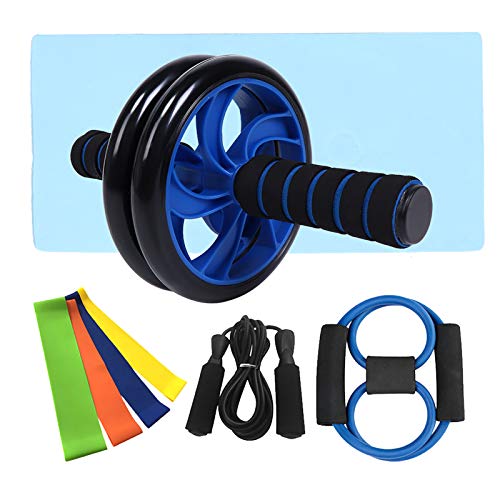 Abdominal Training Roller Wheel with Skipping Rope
- Dual-Wheel Stability: The abdominal training roller features a…
- -Free Skipping Experience: The 255cm sports rope uses…
- Versatile Full-Body Training: This fitness equipment set includes…
 Mobile Vertical Jump Tester 1.7-3.6m
- 【EASY TO ASSEMBLE & MOVE】: Everything you need…
- 【Exercise】: The Jump Measurement Tester can improve the…
- High performance material: vertical jump tester made of…
As an Amazon Associate we earn from qualifying purchases at no extra cost to you.
What You Need
| Item | Why | Optional? |
|---|---|---|
| Razer mouse and computer | Needed to reproduce the jumping and test each fix | No |
| Second USB port or another computer | Helps separate a mouse problem from a port, driver, or operating-system issue | Yes |
| Compressed air | Loosens dust around the wheel without adding moisture | Yes |
| Microfiber cloth and 70% isopropyl alcohol | Cleans the wheel surface and surrounding plastic | Yes |
| Small Phillips or Torx screwdriver | May be needed if the exact model permits safe access to the wheel assembly | Yes |
| Replacement scroll encoder | Potential repair for a worn internal sensor; it must match the model and shaft height | Yes |
Unplug the mouse before cleaning or opening it. Keep screws in a small container, and check the model’s service information before removing feet or shell panels. A typical mouse repair may require a soldering iron rated around 25 to 60 watts, but soldering should be attempted only if you already have experience with small circuit boards.
Step-by-Step
1. Confirm what “jumping” means (3–5 minutes)
Open a long webpage, document, or text box and scroll one notch at a time. Note whether the pointer moves in the opposite direction, skips several lines, stops responding, or continues scrolling after you stop touching the wheel. Test both slow and fast scrolling.
Also check whether the issue appears in every application. If it happens only in one game or program, the mouse may be working correctly and the application’s scroll setting, key binding, or input profile may be the real cause.
2. Restart the connection (2–5 minutes)
Save your work, shut down the computer, unplug the mouse, and wait about 30 seconds. Reconnect it directly to a USB port on the computer rather than through a hub, monitor, dock, or extension cable. If the mouse is wireless, turn it off, remove and reinstall the battery if applicable, and reconnect its receiver.
Try a different USB port, preferably one on the opposite side of a laptop or directly on the rear of a desktop. A loose connection can cause intermittent input, although a consistently reversed scroll direction is more often related to the wheel or its encoder.
3. Test the mouse on another computer (5–10 minutes)
Connect the mouse to a second computer and scroll through several pages. If the wheel jumps on both computers, the fault is probably in the mouse. If it works normally elsewhere, focus on Razer software, operating-system settings, USB drivers, or the original computer’s port.
For a wireless model, place the receiver within roughly 30 centimeters, or 12 inches, of the mouse during our research. Temporarily move other 2.4 GHz devices away from the receiver and use a fresh battery if the model requires one.
4. Check settings and software (5–15 minutes)
Open Razer Synapse if it is installed and confirm that the mouse is recognized. Install available device firmware only through the official Razer application or support process, and do not disconnect the mouse during an update. Then check the operating system’s mouse settings, including scroll lines per notch, natural or reverse scrolling, and any accessibility options that affect wheel input.
Close Synapse completely and test again. You can also test with the application temporarily uninstalled or with a clean user profile. If the jumping disappears when the software is closed, remove conflicting profiles, macros, or third-party remapping utilities and reinstall the current version.
5. Clean around the wheel without opening the shell (5–10 minutes)
Unplug the mouse. Hold it at an angle and use short bursts of compressed air around both sides of the wheel. Keep the can upright, and leave about 5 to 8 inches between the nozzle and the mouse. Do not hold the trigger continuously; propellant can become cold and may leave condensation.
Lightly dampen a microfiber cloth with 70% isopropyl alcohol and rotate the wheel against the cloth. The cloth should be damp, not wet. Never pour alcohol into the wheel opening or spray cleaner directly onto the mouse. Wait at least 10 minutes for the surface to dry, reconnect the mouse, and test it again.
6. Inspect the wheel’s physical behavior (3–5 minutes)
With the mouse unplugged, rotate the wheel slowly. Look for a loose wheel, side-to-side movement, grinding, a cracked rubber tread, or a wheel that drags against the shell. Press the wheel button several times and make sure it does not remain stuck.
If the wheel feels mechanically normal but the computer still registers extra or reversed steps, the scroll encoder may be worn. Encoders commonly fail after extended use because their internal contacts become contaminated or lose reliable contact. Cleaning may provide temporary improvement, but it cannot restore severely worn contacts.
7. Decide whether to open or replace the assembly (15–45 minutes)
Opening the mouse can void coverage and may require removing adhesive feet. If the mouse is still under warranty, stop here and contact Razer before disassembly. For an out-of-warranty model, identify the exact model number and compare the replacement encoder’s mounting style, pin layout, shaft length, and shaft height.
Take photos before removing anything. Disconnect the shell carefully, keep the cable attached if possible, and avoid pulling on ribbon cables. If the encoder is soldered to the board, replacement requires desoldering equipment and a steady hand. A repair shop is usually safer than practicing on a working mouse, particularly when the board uses small surface-mounted components.
Mistakes to Avoid
- Do not spray WD-40, glass cleaner, water, or contact cleaner into the wheel opening.
- Do not use a vacuum directly on exposed electronics; static discharge can damage components.
- Do not blow into the mouse with your mouth, because moisture can enter the encoder.
- Do not force the wheel off its shaft or pry against the circuit board.
- Do not assume a new driver will fix a physically worn encoder.
- Do not update firmware while the cable is loose or the wireless battery is nearly empty.
- Do not discard the original screws or mouse feet until testing is complete.
How Often
For most users, inspect and lightly clean the wheel every four to eight weeks. Heavy users, households with pets, and people who eat at their desk may need a quick external cleaning every two to four weeks. Keep the mouse on a clean, dry surface and wash and dry your hands before long gaming or work sessions.
Do not repeatedly flood the wheel with alcohol when a single cleaning does not solve the problem. If the symptom returns within days, record when it happens and whether it affects one direction or both. That pattern helps distinguish debris from encoder wear.
When to Call a Pro or Replace
Contact Razer or a qualified repair technician when the mouse is under warranty, the shell will not separate safely, liquid has entered the device, or the scroll encoder is soldered and you lack board-repair experience. Stop using it if you smell burning, see corrosion, or notice unusual heat.
Replacement is sensible when the mouse is several years old, has multiple failing buttons, has a damaged cable or battery, or needs a repair that approaches the cost of a comparable new mouse. If only the encoder has failed and the rest of the mouse is in good condition, a correctly matched encoder can be an economical repair. Common replacement components may cost roughly $3 to $15, while professional labor can bring the total into the $30 to $100 range, depending on the model and shop.
FAQ
Why does my Razer scroll wheel scroll up when I scroll down?
This usually indicates inconsistent encoder signals caused by dust, contamination, or worn internal contacts. Test another computer first, then clean the wheel carefully. If the direction remains unreliable everywhere, the encoder likely needs repair or replacement.
Can Razer Synapse cause scroll wheel jumping?
It can contribute to unusual behavior through corrupted profiles, macros, or software conflicts. Close Synapse and test the mouse with default operating-system settings. If the issue disappears, reinstall Synapse and recreate the profile instead of importing an old configuration immediately.
Will compressed air permanently fix the problem?
Compressed air can remove debris that interferes with the wheel, but it cannot repair worn contacts, a cracked wheel, or a damaged encoder. If the improvement lasts only briefly, plan for a warranty claim, encoder replacement, or a new mouse.
Is it worth replacing the scroll encoder?
It can be worthwhile when the mouse is expensive, comfortable, and otherwise fully functional. Confirm the exact component dimensions and soldering requirements first. For an inexpensive mouse or one with several additional faults, replacement is usually faster and more reliable.