Our Top Picks
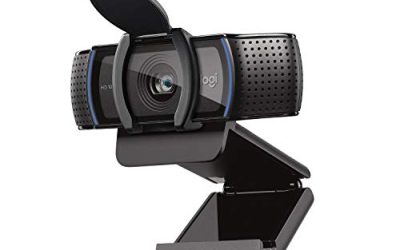
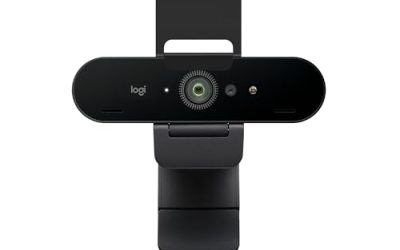
 Logitech StreamCam Premium Webcam for Streaming and ContentFull HD 1080p 60 fps1.89 x 2.28 x 3.35 inches0.6 poundsCheck on Amazon
Choosing the best adult live webcams comes down to three things that matter on every single stream: a clean, sharp image, dependable privacy controls, and hardware that keeps up when you move, change lighting, or stream for hours. A webcam built for live creators is a different tool from a basic video-call camera. It needs a larger sensor for dim rooms, fast autofocus that never hunts, a microphone that captures your voice without room echo, and a physical way to block the lens the moment a stream ends. This guide walks through what to look for, then compares five webcams that fit live streaming work, from a flagship 4K model with a large sensor to a compact AI-tracking camera that follows you around the room. Every pick below is a real webcam sold on Amazon, linked so you can confirm the exact model before you buy.


How to Choose
Resolution and Frame Rate
Resolution decides how much detail your audience sees, and frame rate decides how smooth movement looks. A 1080p camera at 60 frames per second gives fluid motion for talking, gesturing, and shifting position, while a 4K camera adds finer detail and lets you crop into the frame without losing clarity. For live streaming, 1080p60 is a solid baseline, and 4K is worth it when your platform and connection support it. Check that the camera can hold its stated frame rate in real lighting rather than only in bright studio conditions, because dim rooms often force a camera to drop frames. Also confirm the connection type: USB-C models generally handle high-resolution video more reliably than older USB-A designs.
Low-Light Performance
Most live streams happen in a home room, not a studio, so low-light performance matters more than headline resolution. A larger image sensor gathers more light, which means cleaner video with less grain when the room is dim or lit by a single lamp. Look for a sensor size in the specifications, a wide aperture lens, and automatic light correction that brightens shadows without washing out your face. A camera with a 1/1.2-inch or 1/1.5-inch sensor will handle evening sessions far better than a camera with a small sensor. If you stream with colored room lighting, check that the camera keeps skin tones natural instead of tinting everything blue or magenta.
Autofocus and Tracking
Live creators move. You lean in, stand up, step back to show something, or shift in your chair, and the camera has to keep you sharp through all of it. Fast, quiet autofocus is essential, and some newer cameras add AI tracking that pans and tilts the lens to follow you. Tracking is especially useful when you present standing up or move around a desk area. If you mostly sit still, a fixed-focus camera with a deep focus range can be simpler and more reliable, since there is no focus motor to hunt or misfire. Decide which style matches how you actually stream before choosing between autofocus, tracking, or fixed focus.
Privacy Controls
Privacy is non-negotiable for adult live creators. A physical privacy shutter that slides over the lens is the strongest control, because it blocks the camera mechanically rather than through software. A camera that tilts down or enters a sleep mode when idle adds a second layer. An indicator light that clearly shows when the camera is active helps you confirm at a glance that the lens is live or off. Also consider where the camera points when it powers down: a tracking camera that parks facing downward gives you a visible, physical sign that it is not recording. Treat software-only privacy settings as a backup, not a primary control.
Microphone Quality
A webcam microphone will never match a dedicated studio microphone, but a good built-in mic keeps your voice clear when you want a simple setup. Dual microphones with noise reduction cut fan hum and keyboard clicks, and some cameras add voice focus modes that favor speech over background sound. If your room is quiet and you sit close to the camera, a built-in mic is often enough. If your room has echo, a loud PC, or background noise, plan on pairing the webcam with a separate microphone and treat the built-in mic as a backup. Check whether the camera lets you mute the mic from the camera itself or through its software.
Software and Platform Compatibility
The companion software decides how much control you have over the image. Good software lets you adjust exposure, white balance, zoom, field of view, and focus without touching the camera, and lets you save those settings so every stream starts the same way. Confirm the camera works with the platforms and streaming tools you use, including OBS, Zoom, Teams, and browser-based streaming pages. A camera that works as a standard plug-and-play USB video device will work almost everywhere, while one that needs a specific driver may limit your options. Check that the software runs on your operating system before buying.
Mounting and Field of View
A wide field of view shows more of your room, which suits presenters who move or show their setup, while a narrower view keeps the frame tight on you and hides background clutter. Adjustable field of view is the most flexible option, since you can widen it for a full-room shot and narrow it for a close-up. Mounting matters too: a sturdy clip that grips a monitor, a standard tripod thread for a desk tripod, and a long enough cable all make setup easier. If you stream from a laptop, a light camera with a strong clip is more practical than a heavy model that needs a separate mount.
Top Picks
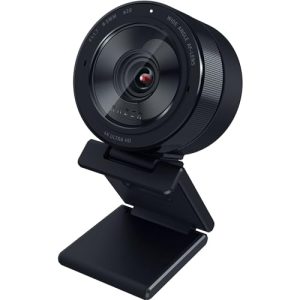
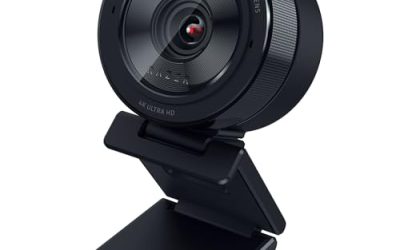
Razer Kiyo Pro Ultra 4K Webcam
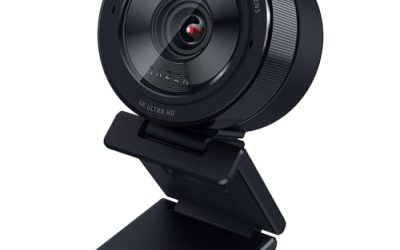
The Razer Kiyo Pro Ultra is the flagship pick for creators who want the cleanest image in dim rooms. It uses a large 1/1.2-inch Sony sensor, the largest sensor in a webcam in its class, paired with a fast f/1.7 lens, so it gathers far more light than a typical webcam. That combination keeps video clean and detailed in evening lighting and gives the background a soft, natural blur that makes you stand out from the room behind you. It records uncompressed 4K video, includes a built-in privacy shutter, and has a built-in microphone for simple setups. Razer Synapse software gives you manual control over ISO, focus, and white balance.
Specs
- 4K resolution, 1/1.2-inch Sony STARVIS 2 sensor, f/1.7 aperture lens, built-in privacy shutter, built-in microphone, USB-C connection, works with OBS, XSplit, Zoom, and Teams.
Who it is for: Creators who stream in dim or mixed lighting and want the sharpest image available from a webcam, with a physical shutter for privacy between sessions.
Caveats: It is a large, heavy camera that needs a sturdy monitor or tripod mount, and its full 4K output needs a strong USB connection and a capable PC. The companion software is Windows-focused, so Mac users get fewer manual controls.
OBSBOT Tiny 2 4K PTZ Webcam
The OBSBOT Tiny 2 is the pick for creators who move during a stream. It sits on a two-axis gimbal that pans and tilts to follow you, with AI tracking modes for full-body, upper-body, and close-up framing, plus gesture control that lets you zoom with a hand signal and voice control that responds to spoken commands. Its 1/1.5-inch sensor records 4K video at 30 frames per second or 1080p at 60, and its autofocus is noticeably quick. When the camera is idle it can tilt down into a sleep position, which gives you a clear physical sign that the lens is not active.
Specs
- 4K resolution at 30 frames per second, 1080p at 60 frames per second, 1/1.5-inch CMOS sensor, two-axis PTZ gimbal with AI tracking, gesture and voice control, dual omnidirectional microphones, USB-C connection.
Who it is for: Presenters who stand, move around a room, or demonstrate things on camera, and who want the camera to keep them framed without manual adjustment.
Caveats: The tracking and gesture features need the OBSBOT Center software to set up, and the camera performs best with a clear view of the room. It has no physical lens shutter, so privacy depends on its sleep position and your streaming software.
Insta360 Link 2 4K PTZ Webcam

The Insta360 Link 2 pairs a 4K camera with a two-axis gimbal and strong AI framing, making it a flexible choice for live creators who switch between talking, presenting, and showing desk work. Its 1/2-inch sensor handles HDR video, its AI tracking keeps you centered as you move, and its noise-canceling microphone reduces background sound. Specialized modes cover whiteboard presenting and overhead desk shots, which suit creators who teach, demonstrate, or show products on camera. The Link Controller software lets you tune brightness, contrast, and framing from your computer.
Specs
- 4K resolution, 1/2-inch sensor, two-axis gimbal with AI tracking and auto framing, HDR, AI noise-canceling microphone, gesture control, whiteboard and desk modes, USB-C connection.
Who it is for: Creators who want one camera that handles talking-head streams, whiteboard sessions, and overhead desk shots, with AI framing that adapts as they move.
Caveats: The gimbal adds moving parts and setup steps compared with a fixed webcam, and some of its specialized modes need the companion software running. It has no physical privacy shutter, so cover the lens or unplug it between sessions if that matters to you.
Logitech StreamCam Graphite
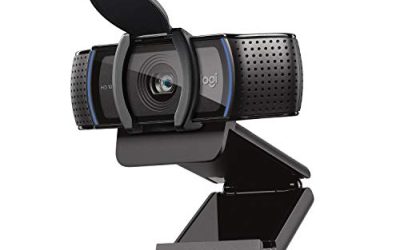
The Logitech StreamCam is the straightforward, dependable pick for creators who want a clean 1080p60 image without a complicated setup. It uses a premium glass lens with smart autofocus and facial tracking that keeps you sharp as you shift position, and it supports vertical video for platforms that favor a portrait frame. Its USB-C connection carries the video signal directly, and it works with Logitech Capture software for framing, exposure, and stabilization. Dual front-facing microphones capture clear voice audio for simple single-device streams.
Specs
- Full HD 1080p at 60 frames per second, premium glass lens with smart autofocus, facial tracking, vertical video support, dual omnidirectional microphones, USB-C connection, graphite finish.
Who it is for: Creators who want a simple, reliable 1080p60 webcam for daily live streams, with autofocus and facial tracking that just works.
Caveats: It tops out at 1080p, so it cannot match the detail of the 4K picks in this guide. Its low-light performance is solid for its class but cannot match a camera with a larger sensor. It has no physical privacy shutter.
Elgato Facecam 4K

The Elgato Facecam 4K is a newer studio-style webcam built for creators who want DSLR-like control over their image. It records true 4K video at 60 frames per second through a Sony STARVIS 2 sensor, with a 49mm filter thread on the lens that accepts professional filters for softer light or cinematic looks. The Elgato Camera Hub software gives you detailed control over noise reduction, exposure, and color, including custom color grading. Its fixed-focus design keeps a wide focus range sharp without any focus hunting, which suits seated streams.
Specs
- 4K resolution at 60 frames per second, Sony STARVIS 2 CMOS sensor, 49mm lens filter thread, HDR, uncompressed video output, Camera Hub software with color grading, USB-C connection.
Who it is for: Creators who want a fixed, studio-style 4K camera with deep manual controls and the option to add lens filters for a polished look.
Caveats: Fixed focus means you need to sit within its focus range, so it suits seated streams more than moving presentations. It has no built-in microphone listed as a headline feature, so plan on a separate mic for the clearest voice audio. It also has no physical privacy shutter.
Comparison Table
| Webcam | Resolution | Sensor | Tracking | Privacy Control | Microphone |
|---|---|---|---|---|---|
| Razer Kiyo Pro Ultra | 4K | 1/1.2-inch Sony | Autofocus | Physical shutter | Built-in mic |
| OBSBOT Tiny 2 | 4K30 / 1080p60 | 1/1.5-inch CMOS | AI PTZ tracking, gestures, voice | Sleep tilt-down position | Dual omni mics |
| Insta360 Link 2 | 4K | 1/2-inch | AI PTZ tracking, auto framing | No shutter, unplug to block | AI noise-canceling mic |
| Logitech StreamCam | 1080p60 | Standard webcam sensor | Smart autofocus, facial tracking | No shutter, unplug to block | Dual front mics |
| Elgato Facecam 4K | 4K60 | Sony STARVIS 2 | Fixed focus | No shutter, unplug to block | Separate mic recommended |
Which One Is Right for You?
If image quality in dim rooms is your top concern, the Razer Kiyo Pro Ultra is the strongest choice, with the largest sensor in this guide and a physical shutter for privacy. If you move around while you stream, the OBSBOT Tiny 2 or the Insta360 Link 2 will keep you framed: the Tiny 2 is the better pick for gesture and voice control, while the Link 2 is the better pick for whiteboard and overhead desk work. If you want a simple, reliable daily driver and 1080p is enough for your platform, the Logitech StreamCam is the easiest camera here to set up and use every day. If you stream seated from a fixed setup and want deep manual image controls with a polished, filtered look, the Elgato Facecam 4K fits that workflow. Whatever you choose, confirm the exact model and ASIN on the listing before buying, and live-check availability, since listings change.
Frequently Asked Questions
Do I need a 4K webcam for live streaming?
Not always. Most live platforms compress video heavily, so a clean 1080p60 image often looks just as good to your audience as a 4K feed. A 4K camera is worth it when you want extra detail, the option to crop into the frame, or the best possible low-light performance from a larger sensor. If your connection or computer struggles with 4K, a strong 1080p camera will give you a smoother stream.
How do I keep my stream private when I am not live?
Use the physical controls first. Close the privacy shutter if your camera has one, point a tracking camera into its sleep position, or unplug the camera when you finish streaming. Check the indicator light before you start a session so you know exactly when the lens is active. Keep your streaming software closed when you are not broadcasting, and avoid leaving the camera mounted and powered in a shared room.
Do AI tracking webcams work with streaming software?
Yes, in most cases. Tracking cameras appear to your computer as a standard USB video device, so OBS, Zoom, Teams, and browser-based streaming pages can use them like any other webcam. The tracking itself is usually controlled by the camera’s companion software, which runs alongside your streaming tool. Install the companion software before your first stream so you can set tracking modes and framing in advance.
Do I need a separate microphone with a webcam?
It depends on your room. In a quiet room with the camera close to you, a good built-in mic with noise reduction is often enough for clear voice audio. In a room with echo, a loud computer, or background noise, a separate microphone will sound noticeably clearer and give you more control over your voice. Many creators start with the built-in mic and add a dedicated microphone later as their setup grows.
Disclosure: As an Amazon Associate, we may earn from qualifying purchases.
FAQ
Which One Is Right for You?
Do I need a 4K webcam for live streaming?
How do I keep my stream private when I am not live?
Do AI tracking webcams work with streaming software?
Do I need a separate microphone with a webcam?
More from Amazon
Programs that pair well with the guide above. Offers and eligibility are set by Amazon and may change.
Free shipping on eligible items, Prime Video and more. Eligible new members can start with a free trial.
Start a Prime free trialAd-free music streaming. Eligible new subscribers can start with a free trial.
Try Music Unlimited freeA Prime membership for ages 18-24 with a trial period. Eligibility is set by Amazon.
See Prime for Young AdultsAudiobooks and podcasts to listen to on the go. Eligible new members can start with a free trial.
Try Audible freeAs an Amazon Associate we earn from qualifying purchases.