Our Top Picks

The best public webcams are built for moments when other people can see and hear you. That covers a lot of ground: a streamer broadcasting to a live audience, a presenter running a session from a shared office, a host taking video calls from a lobby or a co-working floor, and a creator filming in a busy room where the background never sits still. In exactly those situations a laptop camera struggles: the image turns soft in uneven light, the frame cuts off anyone standing beside you, and every nearby conversation leaks into the microphone.


A dedicated webcam fixes those weak points. The models in this guide bring sharper sensors, wider fields of view, automatic light correction, and microphones that focus on your voice instead of the room around you. Several also include a physical privacy shutter or cover, which matters more than any software setting when a camera sits in a space other people walk through.
This guide compares five webcams that suit public-facing use, from a 4K flagship with a wide lens to a compact 1080p model with a privacy cover. Each one connects over USB with no extra capture hardware. Read the buying criteria first, then match the picks to the kind of public setting you work in.
How to Choose
Resolution and Frame Rate
Resolution decides how much detail your audience sees, and frame rate decides how smooth your movement looks. A 1080p camera at 30 frames per second is enough for most video calls and casual streams. A 4K camera keeps facial detail and whiteboard text readable on a large screen, and 60 frames per second makes gestures look natural during a live broadcast.
Field of View
Field of view decides how much of the room the camera captures. A narrow lens around 65 to 78 degrees frames one person sitting close to the screen. A wide lens of 90 degrees or more fits two presenters side by side, a whiteboard, or a small group around a table. For public use, a wider view is usually the safer choice, and an adjustable field of view is better still, because you can widen the shot for a group session and narrow it for a solo call without moving the camera.
Low-Light Correction
Public spaces rarely have studio lighting. A lobby has bright windows on one side and shadow on the other, and an evening event may rely on warm lamps alone. A webcam with automatic low-light correction and white balance adjustment keeps your face visible instead of letting it fall into shadow or blow out against a bright window. Look for a large sensor and a wide aperture, both of which gather more light than the tiny sensor inside a laptop lid.
Privacy Shutter or Cover
A physical privacy shutter is a small sliding cover over the lens, and it is one of the most useful features a public webcam can have. When the camera sits in a shared room, anyone passing by can see at a glance whether the lens is open or closed, and you never have to wonder whether an app is still using the camera after a call ends. Some models use a built-in sliding shutter, while others include a clip-on cover.
Microphone Quality
A webcam microphone has to separate your voice from the room. Dual microphones with noise reduction do a far better job than a single laptop microphone, especially in spaces with air conditioning hum, keyboard clicks, or people talking nearby. For a public stream, clear voice pickup matters as much as the image, because an audience will forgive a soft picture sooner than muffled speech. If your room is very noisy, plan on using a separate microphone as well.
Autofocus and Auto-Framing
Autofocus keeps you sharp when you lean toward the camera to point at something and lean back again, which happens constantly during live presentations. Auto-framing goes a step further: the camera follows you as you move across the room, keeping you centered without a camera operator. That feature is especially valuable for public demonstrations, lessons, and product walkthroughs, where the presenter moves around instead of sitting still.
Mounting and Compatibility
A public webcam needs to sit where you need it, which is not always on top of a monitor. A clip mount works for laptops and desktop screens, while a standard tripod thread lets you place the camera on a tripod, a shelf, or a desk stand at the far end of a table. Check that the camera connects over USB and works with the apps you use, including meeting software, streaming software, and browser-based calls.
Top Picks
Logitech Brio 4K
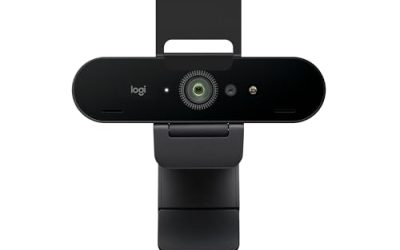
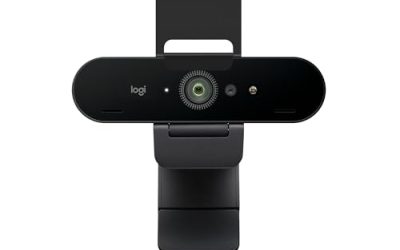
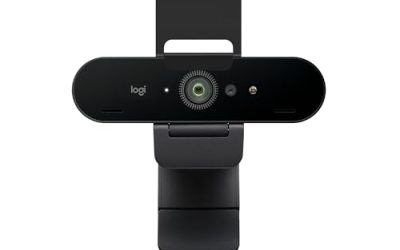
The Logitech Brio 4K is the strongest all-around pick for public use, because it combines the sharpest image in this guide with a wide lens and automatic light correction. It records in 4K Ultra HD, so facial detail and small text stay readable even when the stream is shown on a large display in a hall or a classroom. The 90-degree field of view fits a presenter plus a whiteboard, or two people sitting side by side, without pushing the camera far back. RightLight technology adjusts exposure and white balance on the fly, which helps in rooms where one side is lit by windows and the other sits in shadow.
The Brio also handles the practical side of public use well. It includes a privacy shutter that slides over the lens between sessions, dual microphones with noise reduction, and a mount that clips to a monitor or attaches to a tripod. Autofocus keeps you sharp as you lean in and out.
Who it is for: presenters, streamers, and hosts who need the sharpest image for a public audience, especially in rooms with uneven light or a wide shot to cover.
Caveats: 4K video needs a computer and a connection that can handle the extra data, so the full benefit only shows when your setup supports it. The wide lens can also capture more background than you want in a cluttered room, so framing takes a little care. The original Logitech Brio is a different model with a different listing, so confirm the 4K version when ordering.
OBSBOT Tiny 2
The OBSBOT Tiny 2 is the pick for presenters who move. It is a 4K PTZ webcam, which means the lens pans, tilts, and zooms to follow you as you walk across a room, keeping you centered in the frame without anyone operating the camera. That makes it a natural fit for lessons, demonstrations, product walkthroughs, and live sessions in front of a small audience, where sitting still is not an option.
Image quality is strong as well. The camera uses a large sensor with dual native ISO, which helps it hold detail in dim rooms and bright windows alike, and it records in 4K with a sharp, clean picture. Dual microphones with noise reduction pick up your voice while softening background sound, and the compact body sits on a monitor clip or a tripod thread.
Who it is for: teachers, demonstrators, and streamers who present on their feet and need the camera to follow them around a public space.
Caveats: the tracking features need the companion software to set up, and the camera works best when it has a clear view of the presenter without people crossing in front of it. Bundle listings that add a remote or a tripod are separate listings with different codes, so confirm you are looking at the standalone camera. The moving lens also draws the eye, which some audiences find distracting during a quiet seated call.
Anker PowerConf C200
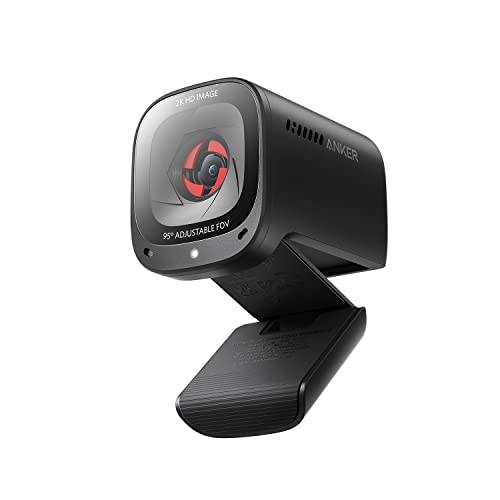
The Anker PowerConf C200 is the most practical pick for shared and public rooms, because it was designed around the problems those rooms create. It records in 2K, which is a clear step up from a laptop camera without demanding as much from your computer as a 4K stream. The field of view adjusts between three settings, so you can frame a single speaker at 65 degrees, a small group at 78 degrees, or a wider room shot at 95 degrees, all from the same camera. Low-light correction brightens your face in dim corners, and automatic white balance keeps skin tones natural under mixed lighting.
Audio is where the C200 earns its place in this guide. Dual AI microphones focus on your voice and reduce background noise, which matters in co-working spaces, lobbies, and open offices where other conversations never fully stop. A built-in privacy cover slides over the lens when the call ends, giving everyone in the room a visible sign that the camera is off.
Who it is for: people who take video calls from shared offices, co-working spaces, and public rooms, and who need flexible framing plus a visible privacy cover.
Caveats: 2K resolution is not as detailed as the 4K picks here, so it is less suited to large-screen projection where fine text matters. The adjustable field of view is set through software, so check that your setup supports the adjustment you want. A bundle that pairs the camera with a speakerphone is a separate listing, so confirm the standalone webcam when ordering.
Logitech C920S Pro HD

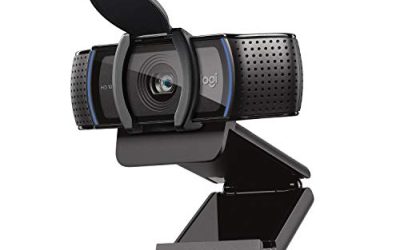
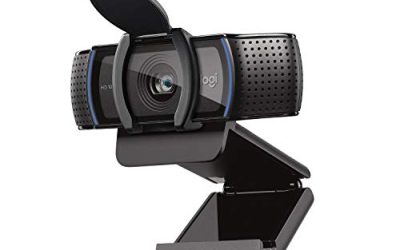
The Logitech C920S Pro HD is the dependable pick in this guide, and it has earned that role through years of steady use in calls, classes, and streams. It records in 1080p at 30 frames per second with autofocus and a glass lens, producing a clean, natural image that flatters the speaker without over-sharpening the picture. The 78-degree field of view frames one person well at a normal desk distance, and the dual microphones capture clear voice audio for one-to-one calls and small meetings.
What makes it a good public webcam is the privacy shutter. A small sliding cover sits over the lens, so you can close it between sessions and anyone in the room can see that the camera is off. It clips to a monitor or mounts on a tripod, and it works with common meeting and streaming apps.
Who it is for: anyone who wants a proven, easy-to-use webcam for public calls and streams, especially when the camera moves between rooms or shared computers.
Caveats: 1080p resolution is the lowest in this guide, so fine detail softens on a large display. The 78-degree field of view is too narrow for a group shot, so it suits solo presenters rather than panels. Renewed listings and other C920 variants are separate listings, so confirm the C920S Pro HD model when ordering.
NexiGo N60

The NexiGo N60 is the wide-angle pick for group sessions in public spaces. It records in 1080p with a 110-degree field of view, the widest in this guide, so it can fit several people around a table or capture a whole whiteboard from a short distance. That makes it useful for group calls, panel discussions, and small classes where the camera sits close to the participants and still needs to see everyone. Software control lets you adjust the field of view and zoom, so you can tighten the frame for a solo call and widen it again for a group.
The camera includes a privacy cover that slides over the lens, dual microphones with noise reduction, and a mount that clips to a monitor or attaches to a tripod. The image stays bright in indoor light, and the wide lens keeps everyone in the frame without pushing the camera to the far end of the room.
Who it is for: groups, panels, and small classes that need everyone in the frame from a camera placed close to the table.
Caveats: a 110-degree lens bends straight lines near the edges of the frame, so people sitting at the far edges can look stretched. The wide view also captures more of the room behind you, so a tidy background helps. The N60 Pro is a different model with a different listing, so confirm the standard N60 when ordering.
Comparison Table
| Webcam | Resolution | Field of View | Privacy Cover | Microphones | Tracking | Mounting |
|---|---|---|---|---|---|---|
| Logitech Brio 4K | 4K Ultra HD | 90 degrees | Sliding shutter | Dual with noise reduction | Autofocus | Clip and tripod thread |
| OBSBOT Tiny 2 | 4K | Wide with PTZ | Software and lens cover | Dual with noise reduction | AI auto-tracking, pan and tilt | Clip and tripod thread |
| Anker PowerConf C200 | 2K | 65, 78, or 95 degrees | Built-in sliding cover | Dual AI noise-canceling | Autofocus | Clip and desk stand |
| Logitech C920S Pro HD | 1080p, 30 fps | 78 degrees | Sliding shutter | Dual stereo | Autofocus | Clip and tripod thread |
| NexiGo N60 | 1080p, 30 fps | 110 degrees | Sliding cover | Dual with noise reduction | Fixed with software zoom | Clip and tripod thread |
Which One Is Right for You?
Start with where the camera will sit and who needs to be in the frame. If you present to a public audience on a large screen, the Logitech Brio 4K gives you the sharpest image and the widest useful view for a single presenter, and its light correction handles the uneven lighting that public rooms almost always have. If you move around while you present, the OBSBOT Tiny 2 is the clear choice, because no fixed camera can follow a presenter across a room the way its tracking lens does.
If your calls happen in a shared office or a co-working space, the Anker PowerConf C200 fits best. Its adjustable field of view adapts to solo calls and small groups, its microphones focus on your voice over the room, and its built-in privacy cover gives everyone nearby a visible sign that the camera is off. If you want a proven camera that just works on any computer, the Logitech C920S Pro HD is the safe pick, with a privacy shutter and a clean 1080p image that suits one-to-one calls and casual streams.
For group sessions, the NexiGo N60 is the one to choose. Its 110-degree lens fits several people around a table from a short distance, which no other camera here can do. Whatever you choose, close the privacy cover between sessions, check the framing before you go live, and run a short sound check in the actual room, because public spaces sound different from a quiet home office.
Frequently Asked Questions
What makes a webcam good for public use?
A good public webcam handles the three problems public spaces create: uneven light, background noise, and people moving in and out of the frame. Look for automatic low-light correction, dual microphones with noise reduction, a wide or adjustable field of view, and a physical privacy shutter. Autofocus helps when you lean in and out, and auto-tracking helps when you walk around. A tripod thread adds flexibility, because the camera may need to sit on a stand rather than on a monitor.
Do I need a 4K webcam for streaming to a public audience?
Not always. A 1080p camera is enough for most video calls and casual streams, where the audience watches in a small window. A 4K camera earns its place when the stream is shown on a large screen, when you need to crop into the image without losing detail, or when fine text such as whiteboard writing must stay readable. A 2K camera sits between the two, giving a visible step up from 1080p without demanding as much from your computer as 4K.
How does a privacy shutter help in a shared space?
A privacy shutter is a physical cover over the lens, and it gives everyone in the room a visible sign that the camera is off. That matters in shared spaces, where other people cannot see your screen and cannot tell whether an app is still using the camera. Closing the shutter between sessions also protects you if an app keeps the camera open after a call ends. Software settings can turn a camera off, but only a physical cover shows the room that it is off.
Can one webcam cover a whole group in a public room?
Yes, if the field of view is wide enough. A camera with a 90-degree or wider lens can fit several people around a table, and a 110-degree lens can cover a small group from a short distance. Place the camera at eye level, roughly centered on the group, and check the edges of the frame, because wide lenses can stretch people sitting at the far sides. For larger groups, a PTZ camera that pans across the room, or a camera mounted farther back on a tripod, works better than a fixed wide lens.
Disclosure: As an Amazon Associate, we may earn from qualifying purchases.
FAQ
Which One Is Right for You?
What makes a webcam good for public use?
Do I need a 4K webcam for streaming to a public audience?
How does a privacy shutter help in a shared space?
Can one webcam cover a whole group in a public room?
More from Amazon
Programs that pair well with the guide above. Offers and eligibility are set by Amazon and may change.
Free shipping on eligible items, Prime Video and more. Eligible new members can start with a free trial.
Start a Prime free trialAd-free music streaming. Eligible new subscribers can start with a free trial.
Try Music Unlimited freeA Prime membership for ages 18-24 with a trial period. Eligibility is set by Amazon.
See Prime for Young AdultsAudiobooks and podcasts to listen to on the go. Eligible new members can start with a free trial.
Try Audible freeAs an Amazon Associate we earn from qualifying purchases.