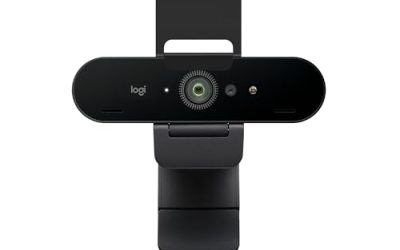
Our Top Picks
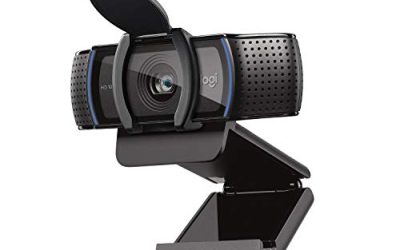
 Logitech C920x HD Pro PC Webcam with Microphone1 Pack2.8 x 1.7 x 3.7 inches0.4 poundsCheck on Amazon

A telehealth visit lives or dies on the picture your clinician sees. When the image is soft, dark, or unsteady, a clinician may miss a rash, a wound, or the way you move, and the visit turns into a frustrating round of repeating yourself. A laptop camera often sits too low, struggles in a dim room, and picks up every sound in the house. Choosing a dedicated webcam means deciding how much clarity matters for your appointments, how your room is lit, and how simple the setup needs to be when the appointment link arrives.

This guide is for patients joining video visits from home, for clinicians who run appointments from an office, and for family members who sit beside a relative during a call. The three webcams below were picked from Amazon listings for clear video, steady focus, usable built-in audio, and privacy controls, with one simple plug-and-play pick, one proven all-rounder, and one sharper 2K option for dim rooms.
Quick Picks
As an Amazon Associate we earn from qualifying purchases
| Product | Best for | Key spec from title |
|---|---|---|
| Logitech C920x HD Pro | Everyday video visits with reliable autofocus | Full HD 1080p/30fps video with HD light correction |
| Logitech Brio 101 | Simple plug-and-play setup with a privacy shutter | Full HD 1080p webcam with built-in mic and shutter |
| Anker PowerConf C200 | Sharper 2K video in dim rooms | 2K webcam with low-light correction and AI-noise canceling mics |
How to Choose
Resolution and Frame Rate
Resolution decides how much detail your clinician can see, and for most video visits Full HD 1080p is enough. A clinician needs to see your face clearly, read your expressions, and spot visible symptoms, and 1080p handles that well on the video platforms clinics use. A 2K camera adds extra sharpness when a clinician asks you to hold something close to the lens, such as a skin patch, a pill bottle, or a wound dressing. Frame rate matters less than people expect, since 30 frames per second keeps motion smooth and natural on a call. Chasing higher numbers only helps if your connection and the clinic platform can carry them.
Low-Light Performance
Most video visits happen in a living room or bedroom, not a studio, so low-light performance is often the difference between a usable picture and a murky one. Look for automatic light correction, which brightens a dim face without washing it out, and a lens that gathers enough light in an evening appointment. A camera with a larger sensor generally holds up better when the only light comes from a lamp or a window behind you. Before you buy, check where you will sit during calls and whether you can add a small lamp in front of you, since even a good sensor cannot fix a face lit only from behind.
Autofocus and Field of View
Autofocus keeps you sharp when you lean toward the camera to show a clinician something up close, then settle back into your chair. Without it, the picture can drift soft at exactly the moment detail matters most. Field of view decides how much of the room appears on screen, and a moderate angle suits most visits, framing your head and shoulders without pulling in the whole room. A wider angle helps when a caregiver or family member sits beside you during the appointment, so both of you stay in frame. If the camera lets you adjust the angle, you can tighten it for a one-to-one visit and widen it when someone joins you.
Microphone, Privacy, and Compatibility
Clear audio matters as much as clear video, because a clinician who cannot hear you will ask you to repeat yourself through the whole visit. Dual microphones with noise reduction help your voice carry over household sounds, though a quiet room still helps more than any microphone. A built-in privacy shutter or cover is worth having for health calls, since it gives you a physical way to block the lens between appointments. Finally, confirm the camera works with the platform your clinic uses, such as Zoom, Microsoft Teams, or Google Meet, and check whether it connects over USB-A or USB-C so it fits your computer without an adapter.
The 3 Best Options
Logitech C920x HD Pro
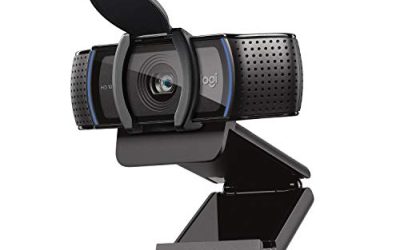
The C920x is the safe all-rounder for telehealth, and it earns that place with dependable Full HD video and autofocus that holds up through a whole appointment. The picture stays sharp when you lean in to show a clinician a symptom and stays steady when you sit back, while automatic light correction lifts a dim room without making your face look washed out. Dual microphones capture your voice clearly at a normal speaking distance, and the camera works with the video platforms clinics commonly use. Setup is simple, with a clip that mounts on a monitor or laptop and a cable long enough to reach a desktop computer.
Specs
- Full HD 1080p video at 30fps
- Autofocus with a five-element glass lens
- HD automatic light correction
- Dual microphones for stereo audio
- Works with Microsoft Teams, Google Meet, and Zoom
- 1.5 m cable
- Includes a three-month XSplit VCam license
Best for: Patients and clinicians who want a proven camera for regular video visits without extra setup.
Watch out for: It has no built-in privacy shutter, so you will need a separate cover if you want to block the lens between calls.
Logitech Brio 101
The Brio 101 is the simplest pick in this guide, and that simplicity is exactly what makes it a good fit for telehealth. It plugs in over USB-A, works with the video platforms clinics use, and needs no software to get going, which matters when an appointment link arrives and there is no time to fiddle with settings. Full HD video keeps your face clear, auto-light balance brightens a dim room, and the built-in microphone handles a normal conversation. The integrated privacy shutter is the feature that sets it apart here, since a quick slide blocks the lens the moment your visit ends.
Specs
- Full HD 1080p video
- Auto-light balance
- Built-in microphone
- Integrated privacy shutter
- USB-A connection
- Works with Zoom, Microsoft Teams, and Google Meet
- Item model number 960-001589
Best for: Anyone who wants the easiest setup for video visits, including older relatives joining appointments from home.
Watch out for: It has no autofocus, so it suits a fixed seating position better than a visit where you move around a lot.
Anker PowerConf C200
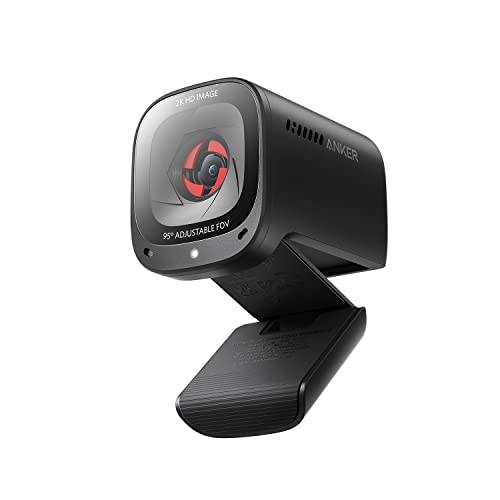
The PowerConf C200 is the pick for visits in rooms where the light is never quite good enough. Its 2K resolution gives a clinician a sharper picture than a standard Full HD camera, and low-light correction keeps your face visible during evening appointments or in rooms with a single lamp. The adjustable field of view lets you frame just yourself or widen the shot when a caregiver joins the call, and the dual microphones use AI noise canceling to keep your voice clear over household sounds. A built-in privacy cover slides shut between visits, which is a welcome touch for a camera that lives on a home desk.
Specs
- 2K resolution video
- Low-light correction
- AI-noise canceling microphones
- Dual stereo microphones
- Adjustable field of view up to 95 degrees
- Built-in privacy cover
- Works with PC, laptop, and Mac
Best for: Video visits from dim rooms, and appointments where a caregiver needs to sit in frame beside the patient.
Watch out for: The 2K picture only helps if your connection is strong enough to carry it, so a weak connection may still show a softer image.
Which One Fits Your Situation
You Join Visits From a Dim Living Room or Bedroom
Pick the Anker PowerConf C200. Its 2K resolution and low-light correction are built for rooms where the only light comes from a lamp or a window, and they keep your face visible during evening appointments. The adjustable field of view also lets you frame the shot the way you want, while the privacy cover closes the lens when the call ends.
You Want the Simplest Setup for a Parent or Older Relative
Pick the Logitech Brio 101. It connects over USB-A, needs no software, and works with the video platforms clinics use, so there is nothing to configure before the appointment. The built-in privacy shutter is easy to slide shut, and the auto-light balance handles rooms that are not brightly lit, even on a cloudy day.
You Have Regular Appointments and Want a Proven All-Rounder
Pick the Logitech C920x HD Pro. Autofocus keeps you sharp when you lean in to show something, automatic light correction handles uneven lighting, and dual microphones keep your voice clear. It suits patients with recurring visits and clinicians who run video appointments through the week, and it stays reliable across months of regular use.
A Caregiver Sits Beside You During the Visit
Pick the Anker PowerConf C200. Its adjustable field of view widens far enough to keep two people in frame without pushing the camera back across the room, and the noise-canceling microphones pick up both voices. The sharper 2K picture also helps the clinician read expressions and visible symptoms on either person.
Common Mistakes
- Buying a webcam with no privacy shutter or cover, then leaving the lens open between health calls.
- Sitting with a bright window behind you, which turns your face into a dark silhouette on the clinician’s screen.
- Placing the camera far from where you sit and relying on the built-in microphone to pick up a quiet voice.
- Skipping a trial call before the appointment, then discovering a connection or audio problem when the clinician is already waiting.
- Ignoring the connector type and ending up with a USB-A camera for a laptop that only has USB-C ports.
Frequently Asked Questions
Is 1080p enough for a telehealth visit?
Yes, Full HD 1080p is enough for most telehealth visits. It shows your face clearly, lets a clinician read expressions, and captures visible symptoms such as rashes and swelling. A 2K camera adds extra sharpness when a clinician asks you to hold something close to the lens, but it is not required for a good visit. Lighting, focus, and a steady connection matter more than resolution alone.
Do I need a separate microphone for telehealth?
No, a separate microphone is not required for most video visits. The dual microphones built into the webcams in this guide capture a normal speaking voice clearly when you sit at a normal distance from the camera. A separate microphone can help in a noisy household or a large room, but a quiet room and a camera placed close to you usually give the clinician clear audio.
Can I use a webcam with my clinic’s video platform?
Yes, the webcams in this guide work with the video platforms clinics commonly use, including Zoom, Microsoft Teams, and Google Meet. They connect as standard USB cameras, so the platform recognizes them without special drivers. Before your visit, open the platform’s settings and select the webcam and its microphone, then run a trial call to confirm both picture and sound work.
How do I keep video visits private after the call ends?
Close the video platform when the visit ends, and block the lens with the camera’s built-in shutter or cover if it has one. Keep the camera unplugged or covered when it is not in use, and hold visits in a private room with the door closed. If you share a computer, sign out of the clinic portal after the appointment so no one else can open your visit link.
FAQ
Is 1080p enough for a telehealth visit?
Do I need a separate microphone for telehealth?
Can I use a webcam with my clinic’s video platform?
How do I keep video visits private after the call ends?
More from Amazon
Programs that pair well with the guide above. Offers and eligibility are set by Amazon and may change.
Free shipping on eligible items, Prime Video and more. Eligible new members can start with a free trial.
Start a Prime free trialAd-free music streaming. Eligible new subscribers can start with a free trial.
Try Music Unlimited freeA Prime membership for ages 18-24 with a trial period. Eligibility is set by Amazon.
See Prime for Young AdultsAudiobooks and podcasts to listen to on the go. Eligible new members can start with a free trial.
Try Audible freeAs an Amazon Associate we earn from qualifying purchases.