Key takeaways
- Connect both monitors to the graphics card outputs, not the motherboard, for full performance.
- Use DisplayPort for your primary gaming monitor to unlock high refresh rates and adaptive sync.
- Drag the display icons in Windows to match your physical layout and set the correct primary screen.
- Double-check each monitor is running at its full refresh rate, since Windows often defaults to 60Hz.
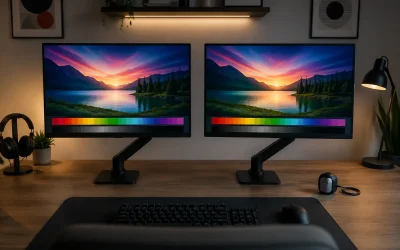
A dual-monitor setup is one of the best productivity and gaming upgrades you can make, letting you game on one screen while keeping Discord, a guide, or a stream chat on the other. Once you have worked across two displays, going back to one feels cramped.
Setting it up is straightforward, but a few details around cables, arrangement, and Windows settings make the difference between a seamless workspace and a frustrating one. This guide covers connecting both displays, arranging them correctly, and configuring resolution, refresh rate, and taskbar behavior for a clean experience.
Our top picks


As an Amazon Associate we earn from qualifying purchases at no extra cost to you. Ratings are shown as listed on Amazon.
⚡ Save on Your Next PC — Amazon Prime
Prime members get fast free shipping on the systems above, plus early access to Prime Day & Black Friday PC deals. New members get a 30-day free trial.
Watch: How to Set Up Dual Monitors for Gaming — Video Review
Check your ports and cables
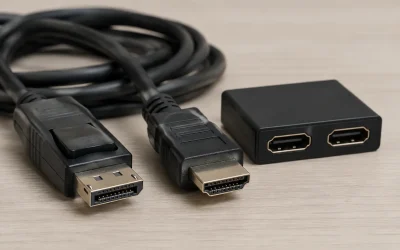
First confirm your GPU has enough outputs and the right types, typically a mix of DisplayPort and HDMI. For gaming, DisplayPort is preferred because it supports higher refresh rates and adaptive sync more readily. Match each monitor to a cable that carries its full resolution and refresh rate; a cheap or old cable can silently cap a 144Hz panel at 60Hz. Matching monitors, like a Kado 2-pack of identical 27-inch panels, simplifies this considerably.
Connect and detect the displays
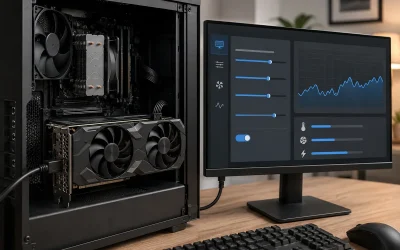
Plug both monitors into the graphics card, not the motherboard’s video output, unless you are deliberately using integrated graphics. Power everything on and Windows should detect both screens. If the second one does not appear, right-click the desktop, open Display settings, and click Detect. Update your GPU drivers if a monitor stays missing.
Arrange the displays in Windows
In Display settings, drag the monitor icons so their arrangement matches their physical placement on your desk, including height alignment. Set your primary display, the one that shows the taskbar and where games launch by default. Getting the arrangement right means your mouse crosses between screens at the correct edge instead of jumping to the wrong side.
Set resolution and refresh rate per monitor
Select each display individually and set its native resolution and highest supported refresh rate under Advanced display settings. Mismatched refresh rates are fine in Windows, though some games behave best when both match. Confirm your fast gaming monitor is actually running at 144Hz or higher rather than defaulting to 60Hz, which is a common oversight.
Optimize the experience
Decide whether you want the taskbar on both screens or just the primary, configure where new windows open, and consider disabling the second monitor’s contribution to input lag by running games in exclusive fullscreen. Tools like Windows Snap and virtual desktops help you organize windows across the extra space efficiently.
Tips
- Connect both monitors to the graphics card outputs, not the motherboard, for full performance.
- Use DisplayPort for your primary gaming monitor to unlock high refresh rates and adaptive sync.
- Drag the display icons in Windows to match your physical layout and set the correct primary screen.
- Double-check each monitor is running at its full refresh rate, since Windows often defaults to 60Hz.
Frequently Asked Questions
Do both monitors need to be the same model?
No, but matching monitors simplify alignment, color, and refresh-rate consistency. Mixed setups work fine; you just configure each display’s resolution and refresh rate separately in Windows.
Will a second monitor lower my gaming FPS?
The impact is usually small. Running video or another game on the second screen uses some GPU resources, but a static Discord or browser window has a negligible effect on frame rate.
Why is my second monitor stuck at 60Hz?
Often the cable or port is the limit; a slower HDMI cable or the wrong output caps refresh rate. Use DisplayPort or a high-spec HDMI cable and select the higher refresh rate manually in Advanced display settings.
Should I use HDMI or DisplayPort for dual monitors?
DisplayPort is the better choice for gaming monitors because it handles high refresh rates and adaptive sync well. HDMI is fine for a secondary productivity display running at standard refresh rates.
Conclusion
A dual-monitor setup transforms both work and play by giving you room to spread out. Confirm your ports and cables, connect both screens to the GPU, arrange them to match your desk, and set each to its full resolution and refresh rate. Spend five minutes on the Windows settings and you will have a smooth, seamless two-screen workspace.