Key takeaways
- Panel type: IPS is the default choice at this budget in 2026 — you get accurate colour and wide viewing angles without the smearing older budget TN panels suffered from. Only consider VA if you specifically want deeper blacks for slower, atmospheric games.
- Refresh rate, native vs. overclocked: 144Hz is the sweet spot under $300. Check whether that figure is native or achieved via overclock (O/C); overclocked panels usually hit the number fine, but stability can vary by unit and cable.
- Adaptive sync support: Look for both FreeSync and G-Sync Compatible certification. This eliminates tearing without the input lag of V-Sync, and dual support means the monitor won’t become a problem if you switch GPU brands later.
- Resolution vs. size: 1080p looks sharp up to 24 inches. At 27 inches it’s noticeably softer, which is a fair trade if you want a larger screen and higher frame rates from a mid-range GPU — but go in knowing it.
- Ergonomics and ports: Height adjustment matters more than people expect over long sessions, and many budget models offer tilt only. Confirm DisplayPort is present too, since some cheaper panels cap their refresh rate over HDMI.
What's inside
Shopping for a gaming monitor under $300 in 2026 should be simple, but the sub-$300 shelf is where marketing language works hardest. Spec sheets promise 144Hz, HDR, and “1ms” response times across panels that behave very differently in practice, and the gap between a genuinely good budget display and a merely cheap one often comes down to details buyers can’t see in a listing photo — panel type, real motion clarity, stand adjustability, and whether the advertised refresh rate is native or an overclock.
This guide cuts through that. We’ve focused on monitors that stay comfortably inside a $300 budget while delivering the things that actually matter for gaming: fast, stable refresh rates, adaptive sync that works with both NVIDIA and AMD cards, and IPS panels where the price allows. Below you’ll find a short buying framework, honest reviews of the strongest picks at 22, 24, and 27 inches, and answers to the questions budget buyers ask most.
As an Amazon Associate we earn from qualifying purchases at no extra cost to you. Product prices and availability are accurate as of the date shown and are subject to change.






⚡ Save on Your Next PC — Amazon Prime
Prime members get fast free shipping on the systems above, plus early access to Prime Day & Black Friday PC deals. New members get a 30-day free trial.
Watch: Best Gaming Monitor Under $300 — Video Review
How to Choose Gaming Monitor Under $300
- Panel type: IPS is the default choice at this budget in 2026 — you get accurate colour and wide viewing angles without the smearing older budget TN panels suffered from. Only consider VA if you specifically want deeper blacks for slower, atmospheric games.
- Refresh rate, native vs. overclocked: 144Hz is the sweet spot under $300. Check whether that figure is native or achieved via overclock (O/C); overclocked panels usually hit the number fine, but stability can vary by unit and cable.
- Adaptive sync support: Look for both FreeSync and G-Sync Compatible certification. This eliminates tearing without the input lag of V-Sync, and dual support means the monitor won’t become a problem if you switch GPU brands later.
- Resolution vs. size: 1080p looks sharp up to 24 inches. At 27 inches it’s noticeably softer, which is a fair trade if you want a larger screen and higher frame rates from a mid-range GPU — but go in knowing it.
- Ergonomics and ports: Height adjustment matters more than people expect over long sessions, and many budget models offer tilt only. Confirm DisplayPort is present too, since some cheaper panels cap their refresh rate over HDMI.
The Best Picks Reviewed
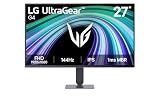
LG 27G414B-B UltraGear 27-Inch
The most complete package here: a 144Hz IPS panel with 1ms response, G-Sync Compatible and FreeSync support, built-in speakers, and — crucially — a tilt and height-adjustable stand that most rivals at this price omit. The 1080p resolution is stretched slightly across 27 inches, but for fast-paced shooters where frame rate beats pixel density, it’s an easy recommendation.
ASUS TUF Gaming VG249QE5A 24-Inch
ASUS’s budget TUF line remains the safest all-round pick at 24 inches, pairing a 144Hz IPS panel (overclockable to 146Hz) with Extreme Low Motion Blur Sync and Variable Overdrive for genuinely clean motion handling. The three-year warranty and DisplayWidget Center software add reassurance that cheaper alternatives simply don’t offer.
LG 24G411A-B UltraGear 24-Inch
Essentially the 27-inch model’s more focused sibling: the same 144Hz IPS foundation and dual adaptive-sync support, but with 1080p at a size where it looks properly sharp. The slim stand is tilt-only, so budget for a VESA arm if ergonomics matter, but the panel itself punches well above its price.
MSI PRO MP243L E14 24-Inch
The pick for anyone splitting time between gaming and work — a 144Hz IPS panel with a four-side slim bezel that makes it an excellent candidate for a dual-monitor setup. Note the VGA port alongside HDMI signals a cost-conscious design, and there’s no DisplayPort, so verify your GPU can drive 144Hz over HDMI.
Sceptre E225W-FW144 22-Inch
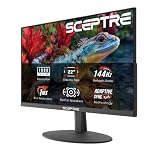
The genuine value play: up to 144Hz with both HDMI and DisplayPort inputs plus built-in speakers, at a price that leaves plenty of the $300 budget for a better GPU or peripherals. It’s the smallest screen here and the panel won’t match the LG or ASUS options for colour, but for competitive play on a tight budget it delivers where it counts.
Frequently Asked Questions
Is 144Hz still worth it in 2026, or should I stretch for 180Hz+?
144Hz remains the practical sweet spot under $300. The jump from 60Hz to 144Hz is transformative; the jump from 144Hz to 180Hz is a refinement most players won’t notice unless they’re competitive FPS regulars with a GPU capable of sustaining those frame rates.
Should I buy a 27-inch 1080p monitor or a 24-inch one?
If you sit close to your desk or play competitively, 24 inches keeps the whole screen in your field of view and looks sharper. Choose 27 inches if you sit further back or want a more immersive picture and can accept slightly softer text.
Do I need G-Sync Compatible certification with an NVIDIA card?
Not strictly — most FreeSync monitors work with NVIDIA GPUs via adaptive sync. Certification simply means NVIDIA has validated the monitor, so it’s a useful signal that variable refresh will work reliably without flicker or manual tinkering.
Is HDR worth paying attention to at this price?
Treat “HDR10” or “HDR Ready” on a sub-$300 monitor as a compatibility badge rather than a feature. These panels lack the brightness and local dimming for real HDR impact, so buy for refresh rate, panel type, and motion clarity instead.
Final Thoughts
For most gamers, the ASUS TUF Gaming VG249QE5A is the best-balanced buy under $300 — strong motion handling, a reliable IPS panel, and a three-year warranty. Choose the LG 27G414B-B UltraGear if you want a bigger screen with a properly adjustable stand, or the Sceptre E225W-FW144 if you’re building on the tightest possible budget and would rather put the savings toward your GPU.