Key takeaways
- Audio inputs and outputs
- Sound, video and game controllers
- Universal Serial Bus controllers
When Razer Synapse does not detect a headset, it can be tempting to reinstall everything or assume the headset has failed. That can create more work than necessary—and, in some cases, remove working audio settings without fixing the real issue. The most common causes are a loose USB connection, an unsupported analog headset, a Windows driver conflict, outdated Synapse software, or a headset/receiver pairing problem. Work through the checks below in order to isolate the cause before replacing hardware.
What You Need
| Item | Why | Optional? |
|---|---|---|
| Razer headset and its original USB cable, USB receiver, or adapter | Lets you test the headset with the connection method Synapse can recognize. | No |
| Windows PC with administrator access | Needed to update drivers, repair software, and check Device Manager. | No |
| Another USB port | Rules out a damaged, underpowered, or incompatible port. | No |
| USB-A to USB-C adapter or USB-C to USB-A adapter | Useful if the headset cable and computer use different port types. | Yes |
| Paper clip or SIM-eject tool | May be useful for resetting certain wireless headset receivers with a recessed reset button. | Yes |
| Second computer | Helps determine whether the problem is the headset or your primary PC. | Yes |
Step-by-Step
1. Confirm that your headset can appear in Synapse (2 minutes)
Start with the connection type. Razer Synapse detects supported USB and wireless Razer devices; it generally cannot identify a standard 3.5 mm analog headset because that headset communicates only through the computer’s audio jack.
Our top picks
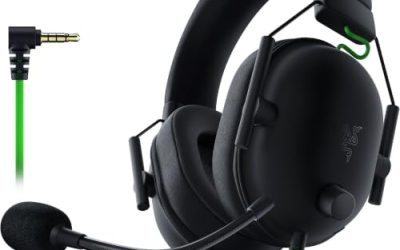
 Razer BlackShark V2 X Gaming Headset: 7.1
- sturdy closed earcups fully cover ears to prevent…
- 7.1 SURROUND SOUND FOR POSITIONAL AUDIO
- With titanium-coated diaphragms for added clarity, our new,…
 Razer Kraken V4 X Wired USB-C &
- Razer patented 3-part driver design pushes out exceptional…
- The improved pickup pattern in the microphone ensures…
- 7.1 SURROUND SOUND
As an Amazon Associate we earn from qualifying purchases at no extra cost to you.
For example, the Razer BlackShark V2 X uses a 3.5 mm audio jack. It can work for sound and microphone input on compatible PCs and consoles, but Synapse may not display it as a configurable device. That is normal, not necessarily a defect. You can still select it as an output device in Windows and adjust basic sound settings there.
A USB model, such as the Razer Kraken V4 X with USB-C and Type-A connectivity, is more likely to be recognized by Synapse when it is on the supported-device list. Before troubleshooting software, confirm your exact headset model and whether it is designed for Synapse control.
2. Check the physical connection and power (3 minutes)
Disconnect the headset, then reconnect it firmly. For wired USB headsets, plug the cable directly into a port on the computer rather than a keyboard port, monitor hub, docking station, or unpowered USB hub. A direct rear USB port on a desktop is often the best first test.
Try at least two different ports. If your headset has USB-C, test both a native USB-C port and a USB-A port with the included adapter, if supplied. Inspect the cable for bent pins, loose connectors, deep cuts, or crushed sections. Do not force a connector that does not seat easily.
For wireless models, fully charge the headset before testing, switch it on, and plug the wireless receiver directly into the PC. Keep the receiver within about 3 feet of the headset during setup, away from large metal objects and other wireless dongles if possible.
3. Restart the headset, Synapse, and Windows (5 minutes)
Close Razer Synapse completely. Right-click the Synapse icon in the notification area near the clock and choose the option to exit, if available. Then open Task Manager by pressing Ctrl + Shift + Esc. End any remaining Razer Synapse, Razer Central, or Razer-related processes that are clearly still running.
Unplug the headset or receiver. Restart Windows, wait until the desktop has fully loaded, and then reconnect the headset. Launch Synapse after the headset has been connected for 30 to 60 seconds.
This simple reset clears temporary USB detection issues and background-process conflicts. In 2026, Synapse updates and Windows updates remain a frequent reason a previously working device needs a clean restart before it reappears.
4. Verify that Windows sees the headset (5 minutes)
Right-click the Start button and open Device Manager. Expand these categories:
- Audio inputs and outputs
- Sound, video and game controllers
- Universal Serial Bus controllers
Look for a Razer-labeled device, USB audio device, or an entry with a yellow warning triangle. If the headset is listed with a warning icon, right-click it and select Uninstall device. Disconnect the headset, restart the PC, and reconnect it so Windows can install the driver again.
Next, open Settings > System > Sound. Under Output, select the Razer headset if it appears. Under Input, select its microphone. Windows audio recognition does not guarantee Synapse recognition, but if the headset is absent from both Windows and Synapse, the issue is more likely to be the USB port, cable, receiver, or hardware.
5. Update Windows and Razer Synapse (10 to 20 minutes)
Install pending Windows updates first, then restart. Outdated USB, chipset, and audio components can interfere with headset detection.
Open Razer Synapse and check for available software updates. Install the latest update, let the application finish, and restart your computer afterward. If Synapse shows a headset firmware update once the device is visible, keep the headset connected during the entire process. Do not unplug it, turn it off, or let a laptop run out of battery during firmware installation.
If you use an older Synapse version, check whether your headset requires a newer Razer software version. Some devices have different support requirements, so installing multiple Synapse versions at once is not a reliable fix unless Razer specifically supports that arrangement for your hardware.
6. Repair or reinstall Synapse cleanly (15 to 30 minutes)
If Windows detects the headset but Synapse does not, repair or reinstall the software. Open Settings > Apps > Installed apps, find Razer Synapse, and choose Modify, Repair, or Uninstall, depending on what Windows offers.
After uninstalling, restart the PC before reinstalling Synapse. Also remove or update older Razer components only if the installer directs you to do so. Once installation is complete, connect the headset directly to the computer and sign in only after the device has had a moment to initialize.
A clean reinstall is especially useful when Synapse opens normally but shows no devices, freezes while scanning, or detects your mouse and keyboard but not the headset.
7. Test on another computer and reset wireless pairing if applicable (10 minutes)
Connect the headset or receiver to another Windows computer with Synapse installed. If it is detected there, the headset is probably functional and the first computer has a software, driver, or USB-controller issue.
If a wireless headset still does not appear, follow the model-specific pairing or receiver-reset instructions included with the headset. Do not use a random reset procedure from a different Razer model; button combinations and receiver behavior vary. If the receiver is lost or damaged, the headset may need an exact compatible replacement receiver rather than a generic USB dongle.
Mistakes to Avoid
- Expecting a 3.5 mm headset to show in Synapse. Analog models may provide audio without software detection.
- Using a low-power hub for testing. Connect directly to the computer first.
- Updating firmware through an unstable connection. A loose cable or low battery can interrupt the process.
- Deleting every audio driver at once. Remove only the affected headset device first, then restart.
- Assuming sound output equals full Synapse support. Windows can play audio through devices that Synapse cannot configure.
- Testing with a damaged third-party cable. Some USB-C cables charge devices but do not reliably carry data.
How Often
You should not need to repeat this full process regularly. Check Synapse and Windows updates about once every 1 to 2 months, especially if the headset begins disconnecting after an update. Clean dust from USB ports gently every 3 to 6 months and avoid sharply bending headset cables near the connector. For wireless models, recharge before the battery is completely depleted whenever practical.
When to Call a Pro or Replace
Contact Razer support or a qualified computer repair technician if the headset repeatedly disconnects from multiple computers, the USB connector becomes hot, the cable is visibly damaged, or Device Manager reports persistent hardware errors after reinstalling drivers.
Replacement is usually more practical than repair for a budget wired headset with a failed cable or cracked connector. As a price reference, the BlackShark V2 X is commonly listed around $39.99, while the USB-connected Kraken V4 X is around $62.99. If you need Synapse-based controls, confirm that the replacement model uses USB or wireless connectivity and is supported by your version of Synapse before buying.
FAQ
Why does my Razer headset work for sound but not show up in Synapse?
Your headset may use a 3.5 mm analog connection, which Windows can use for audio but Synapse cannot identify as a programmable USB device. It can also mean that the headset is connected through a hub, has a driver problem, or is not supported by the installed Synapse version.
Can I use Razer Synapse with the BlackShark V2 X?
The standard 3.5 mm BlackShark V2 X is primarily an analog headset. It may work through your computer’s audio jack, but it may not appear in Synapse for device-level controls. Check the packaging and product documentation for any included USB sound card or model-specific software features.
Should I uninstall my audio drivers if Synapse cannot detect the headset?
Not at first. Start by uninstalling only the affected Razer or USB audio device in Device Manager, then restart and reconnect it. Removing all audio drivers can create additional setup work and may disable speakers, microphones, or other audio devices temporarily.
Will a USB adapter make a 3.5 mm Razer headset appear in Synapse?
Usually no. A basic 3.5 mm-to-USB adapter changes the connection method but does not necessarily add Razer device communication or Synapse compatibility. Use the headset’s original supported USB sound card or choose a USB or wireless Razer headset designed for Synapse detection.