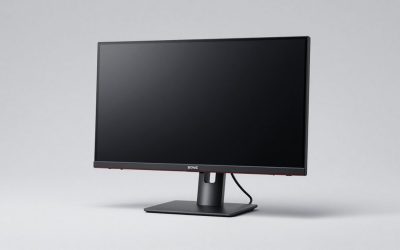
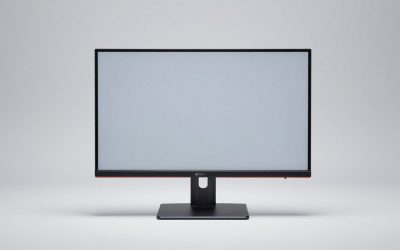
Shopping for a gaming monitor under $200 is genuinely harder than it looks. The sub-$200 tier is where marketing language works overtime: panels advertised as “144Hz” may only reach that refresh rate over DisplayPort, “HDR” often means a token brightness bump rather than real dynamic range, and colour claims like “105% sRGB” rarely come with the factory calibration to back them up. Meanwhile, the specs that actually determine whether a game feels responsive — panel type, real-world response time, and whether adaptive sync works reliably with your GPU — are usually buried at the bottom of the listing.
This guide cuts through that. We’ve focused on monitors that deliver a genuinely good gaming experience at this price, rather than chasing the biggest number on the box. Below you’ll find our shortlist, a practical buying checklist, honest reviews of each pick — including where each one compromises — and answers to the questions we see most often from budget builders. Whether you’re pairing a monitor with an entry-level GPU, building a second display for a dual-monitor setup, or upgrading from an old 60Hz office panel, there’s a sensible option here.
Our top picks
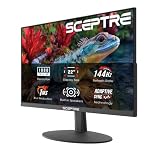
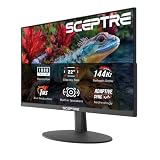
 Sceptre New 22-Inch Gaming Monitor
- 【INTEGRATED SPEAKERS】Whether you're at work or in the…
- 【EASY ON THE EYES】 Protect your eyes and…
- 【WIDEN YOUR PERSPECTIVE】Our sleek minimal bezel design ensures…
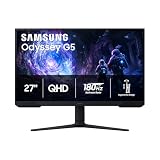
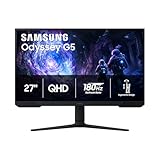
 Samsung 27" Odyssey G5
- QHD Resolution (2560 x 1440) has 1.7 times…
- HDR10 provides brighter highlights and nuanced shadow for…
- The 180Hz refresh rate minimizes lag for gameplay…
 ArcticPro 22 Inch Gaming Monitor 144Hz
- [Full HD Resolution] Enjoy the crystal-clear image quality…
- [Smooth Performance] The monitor features a maximum refresh…
- [178° Wide Perspective and Tilt Angles] With 178°…
| Product | Key specs | |
|---|---|---|
| Sceptre New 22-Inch Gaming Monitor | 【INTEGRATED SPEAKERS】Whether you're at work or in the… 【EASY ON THE EYES】 Protect your eyes and… 【WIDEN YOUR PERSPECTIVE】Our sleek minimal bezel design ensures… | Check price |
| Samsung 27" Odyssey G5 | QHD Resolution (2560 x 1440) has 1.7 times… HDR10 provides brighter highlights and nuanced shadow for… The 180Hz refresh rate minimizes lag for gameplay… | Check price |
| ArcticPro 22 Inch Gaming Monitor 144Hz | [Full HD Resolution] Enjoy the crystal-clear image quality… [Smooth Performance] The monitor features a maximum refresh… [178° Wide Perspective and Tilt Angles] With 178°… | Check price |
 Sceptre 27-inch Prime Gaming Monitor 100Hz 1ms Sceptre 27-inch Prime Gaming Monitor 100Hz 1ms | 100% sRGB Color Gamut: With 100% sRGB, our… DP & HDMI Ports: Two HDMI ports and… Blue Light Shift: Blue Light Shift reduces blue… | Check price |
 Philips 22 Inch Computer Monitor FHD 100Hz Philips 22 Inch Computer Monitor FHD 100Hz | This 22 inch class (21.5″ viewable) Philips V… 100Hz brings your favorite movies and video games… Adaptive-Sync technology ensures fluid action sequences and rapid… | Check price |
 Sceptre Curved 24-inch Gaming Monitor 1080p R1500 Sceptre Curved 24-inch Gaming Monitor 1080p R1500 | 1800R curve monitor the curved display delivers a… Hdmi, VGA & PC audio in ports High refresh rate 75Hz.Brightness (cd/m²):250 cd/m2 | Check price |
 Acer 27in FHD 1920x1080 IPS 120Hz Office Acer 27in FHD 1920x1080 IPS 120Hz Office | Incredible Images: The Acer KB272 G0bi 27" monitor… Adaptive-Sync Support: Get fast refresh rates thanks to… Responsive!!: Fast response time of 1ms enhances the… | Check price |
 New! Sceptre 24-inch Prime Gaming Monitor DisplayPort New! Sceptre 24-inch Prime Gaming Monitor DisplayPort | 【TRUE TO LIFE COLORS】Experience vibrant and true-to-life colors… 【SEAMLESS CONNECTIVITY & PERFORMANCE】 Seamlessly link your devices… 【EASY ON THE EYES】 Protect your eyes and… | Check price |
As an Amazon Associate we earn from qualifying purchases at no extra cost to you.
⚡ Save on Your Next PC — Amazon Prime
Prime members get fast free shipping on the systems above, plus early access to Prime Day & Black Friday PC deals. New members get a 30-day free trial.
Watch: Best Gaming Monitor Under $200 — Video Review
How to Choose Gaming Monitor Under $200
- Refresh rate over resolution: At this budget, a 1080p display at 144Hz will feel dramatically smoother than a 1440p display at 60Hz. Higher refresh rates reduce motion blur and shorten input lag, which matters far more in competitive shooters than pixel count. Only step up to 1440p if your GPU can realistically drive it.
- Check the panel type: IPS panels offer the best colour accuracy and viewing angles, VA panels deliver deeper contrast and better blacks (ideal for dark, atmospheric games), and TN panels are fastest but wash out off-axis. Most sub-$200 monitors use IPS or VA — decide which trade-off suits your games and room lighting.
- Confirm how you hit the advertised refresh rate: Many budget monitors reach their peak refresh rate only over DisplayPort, dropping to 60Hz or 100Hz over HDMI. Verify the port requirements before buying, and make sure the cable you need is either included or already in your drawer.
- Adaptive sync is essential, not optional: AMD FreeSync (and G-Sync Compatible support) eliminates screen tearing without the input lag penalty of V-Sync. It’s especially valuable on budget builds where frame rates fluctuate. Nearly every monitor here supports it — just confirm you enable it in your GPU control panel.
- Match size to viewing distance: A 22-inch 1080p panel looks sharp at a typical desk distance, while stretching 1080p across 27 inches reduces pixel density noticeably. If you sit close, smaller is often better; if you want a 27-inch display, consider stepping up to 1440p rather than accepting softer 1080p.
The Best Picks Reviewed
Sceptre 22″ E225W-FW144
This is the most straightforward high-refresh option on the list: a 22-inch 1080p panel that reaches up to 144Hz, with both HDMI and DisplayPort inputs and built-in speakers for anyone short on desk space. The screen size keeps pixel density high and makes the refresh rate easy for modest GPUs to sustain, though the integrated speakers are strictly functional rather than a headset replacement.
Samsung 27″ Odyssey G5 (G51F)
The Odyssey G5 is the resolution upgrade in this roundup — a 27-inch QHD 1440p panel that delivers meaningfully sharper text and game detail than any 1080p display here, with Samsung’s build quality and warranty support behind it. It typically sits at the very top of the $200 budget and demands a capable GPU to drive 1440p properly, so it’s best suited to buyers with a mid-range card who prioritise image quality.
ArcticPro 22″ 144Hz
ArcticPro’s 22-inch model pairs a 144Hz refresh rate with a claimed 105% sRGB coverage, making it an appealing pick if you want fast motion handling without entirely sacrificing colour for creative work. It’s a lesser-known brand, so expect a more basic stand and less polished on-screen menus than the established names — but for the money, the core panel performance is competitive.
Sceptre 27″ Prime E275W-FW100T
If you want the largest screen possible under $200, this 27-inch Prime model delivers 100Hz, a 1ms response time, 100% sRGB coverage, AMD FreeSync, and generous connectivity with dual HDMI plus DisplayPort. The trade-off is pixel density — 1080p spread across 27 inches looks noticeably softer up close — so it works best if you sit slightly further back or use it as a productivity-first display that also games well.
Sceptre Curved 24″ C248W-1920RN
The gentle R1500 curve on this 24-inch panel is more immersive than the spec sheet suggests, and 98% sRGB coverage plus VESA mounting support make it a flexible choice for both gaming and general use. Note that this model prioritises value and immersion over raw speed — it’s the right pick for single-player and story-driven games rather than competitive esports.
Frequently Asked Questions
Is 144Hz worth it over 60Hz on a budget build?
Yes — it’s arguably the single most noticeable upgrade you can make at this price. Even if your GPU can’t consistently hit 144fps, anything above 60fps benefits from the higher refresh rate, and the reduction in motion blur makes fast-paced games feel considerably more responsive.
Should I choose 1440p or a higher refresh rate at 1080p?
It depends on your graphics card and the games you play. Competitive players should almost always take the higher refresh rate at 1080p, while those playing single-player or visually rich titles on a mid-range GPU will appreciate the extra sharpness of 1440p.
Do I need FreeSync if I use an NVIDIA graphics card?
In most cases, yes — the majority of FreeSync monitors also work as G-Sync Compatible displays when connected over DisplayPort. You’ll usually need to enable it manually in the NVIDIA Control Panel, and results can vary by model, so it’s worth checking user reports for your specific pairing.
Are built-in speakers good enough for gaming?
They’re best treated as a convenience feature rather than a genuine audio solution. Built-in monitor speakers are fine for system sounds, video calls, and casual play, but even an inexpensive headset or pair of desktop speakers will offer far better positional audio and bass response.
Final Thoughts
For most buyers under $200, the Sceptre 22″ E225W-FW144 offers the best balance of speed and value — high refresh rate, sensible pixel density, and both HDMI and DisplayPort for around half the budget. If you have a capable GPU and want the sharpest image, the Samsung 27″ Odyssey G5 (G51F) is the standout upgrade thanks to its QHD resolution and Samsung’s reliability, while the Sceptre Curved 24″ C248W-1920RN is the pick for immersive single-player gaming if a gentle curve and larger screen matter more to you than raw refresh rate.