Key takeaways
- Enable the FreeSync or Adaptive-Sync option in your monitor’s on-screen menu first; it is often off by default.
- Use a DisplayPort cable for the most reliable adaptive sync across both brands.
- Cap your frame rate a few FPS below your monitor’s max refresh to stay within the sync range.
- Turn off in-game V-Sync when adaptive sync is active to avoid added input lag.
What's inside
Screen tearing, that ugly horizontal split when your frame rate and monitor refresh rate fall out of sync, is entirely fixable with adaptive sync. G-Sync (NVIDIA) and FreeSync (AMD) match your monitor’s refresh rate to your GPU’s frame output in real time, delivering tear-free, stutter-reduced gameplay without the input lag of old-school V-Sync.
Most gaming monitors sold today support one or both, but the feature is often not enabled out of the box. This guide explains the difference between the standards, how to turn adaptive sync on for both NVIDIA and AMD cards, and how to confirm it is actually working.
As an Amazon Associate we earn from qualifying purchases at no extra cost to you.


⚡ Save on Your Next PC — Amazon Prime
Prime members get fast free shipping on the systems above, plus early access to Prime Day & Black Friday PC deals. New members get a 30-day free trial.
Watch: How to Enable G-Sync or FreeSync — Video Review
Understand G-Sync and FreeSync
Both technologies do the same job: they make the monitor refresh in lockstep with the GPU’s frame rate within a supported range. FreeSync is AMD’s open standard built on VESA Adaptive-Sync and is common and license-free, while G-Sync is NVIDIA’s implementation. Importantly, most FreeSync monitors are also G-Sync Compatible, meaning NVIDIA cards can use them for adaptive sync. Check your monitor’s supported range, such as 48 to 165Hz.
Confirm your hardware supports it
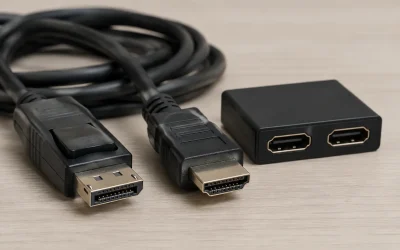
You need a monitor with adaptive sync and a compatible GPU connected over the right cable. DisplayPort supports adaptive sync universally; HDMI support depends on the monitor and version. Verify in your monitor’s on-screen menu that FreeSync or Adaptive-Sync is turned on, because it is frequently disabled by default and no amount of GPU configuration will work until it is.
Enable it on NVIDIA cards
Open the NVIDIA Control Panel, go to Display and then Set up G-Sync. Check the box to enable G-Sync, choose whether it applies in fullscreen only or also windowed mode, and select your monitor if you have more than one. If your display is not officially certified but is FreeSync-capable, G-Sync Compatible mode usually still works once you enable it here.
Enable it on AMD cards
Open AMD Software Adrenalin Edition, go to the Display tab, and toggle AMD FreeSync on for your monitor. Ensure the monitor’s own FreeSync setting is also enabled in its menu. Adrenalin will confirm the display is FreeSync-ready. That is all it takes for tear-free gaming within the supported refresh range.
Configure frame rate for best results
Adaptive sync works within a range, so cap your in-game frame rate a few frames below your monitor’s maximum refresh rate to stay inside the sync window and avoid tearing at the top end. Disable in-game V-Sync when using G-Sync or FreeSync, and use the driver-level low-latency or Reflex options to keep input feel sharp. Many players use a frame cap tool for precise control.
Tips
- Enable the FreeSync or Adaptive-Sync option in your monitor’s on-screen menu first; it is often off by default.
- Use a DisplayPort cable for the most reliable adaptive sync across both brands.
- Cap your frame rate a few FPS below your monitor’s max refresh to stay within the sync range.
- Turn off in-game V-Sync when adaptive sync is active to avoid added input lag.
Frequently Asked Questions
What is the difference between G-Sync and FreeSync?
They achieve the same tear-free result. FreeSync is AMD’s open, license-free standard, while G-Sync is NVIDIA’s. Most FreeSync monitors are also G-Sync Compatible, so NVIDIA users can enable adaptive sync on them too.
Can I use FreeSync with an NVIDIA card?
Usually yes. NVIDIA GPUs support G-Sync Compatible mode on many FreeSync monitors. Enable G-Sync in the NVIDIA Control Panel and turn on FreeSync in the monitor’s menu; it works even on displays not officially certified.
Does adaptive sync add input lag?
No, unlike traditional V-Sync it does not. G-Sync and FreeSync synchronize refresh to frame output without buffering extra frames, so you get tear-free gameplay with minimal added latency, especially when you cap frame rate below the max refresh.
Why isn’t my G-Sync or FreeSync working?
The most common reason is that the monitor’s own adaptive sync setting is disabled in its on-screen menu. Also confirm you are using a DisplayPort cable, have the feature enabled in the GPU control panel, and are within the monitor’s supported refresh range.
Conclusion
Enabling G-Sync or FreeSync is a quick, free way to eliminate screen tearing and smooth out your gameplay. Turn on adaptive sync in the monitor menu, enable it in your NVIDIA or AMD control panel, and cap your frame rate just below the max refresh. A couple of minutes of setup delivers the fluid, tear-free experience your gaming monitor was built for.